
In Mailrelay, an A/B test sends two or three versions of a campaign, with a different subject or sender, to part of your subscribers. Then the rest of the list receives the winning version: the one you choose or the one with the most clicks or impressions.
A/B tests are available on the free account. This way you test which subject or sender works best in your email marketing campaigns before you send your newsletter to everyone.
Before you start
- A campaign you have already created. It is the base campaign of the test.
- At least 10 active subscribers in the groups or the segment you send the test to. If there aren't enough, the panel shows a warning and doesn't let you continue.
- To test the sender, at least two senders in your account. You'll find the steps in Adding a sender and confirming it.
Create an A/B test
To set up the test, follow these steps:
- In the menu, click Campaigns > A/B tests and then Add.
- In Base campaign, choose the campaign you want to test and click Next.
- In To whom would you like to send this A/B test?, select Groups or Segment, choose the groups or the segment and click Next.
- In What would like to test?, click Sender or Subject. Then choose 2 or 3 combinations.
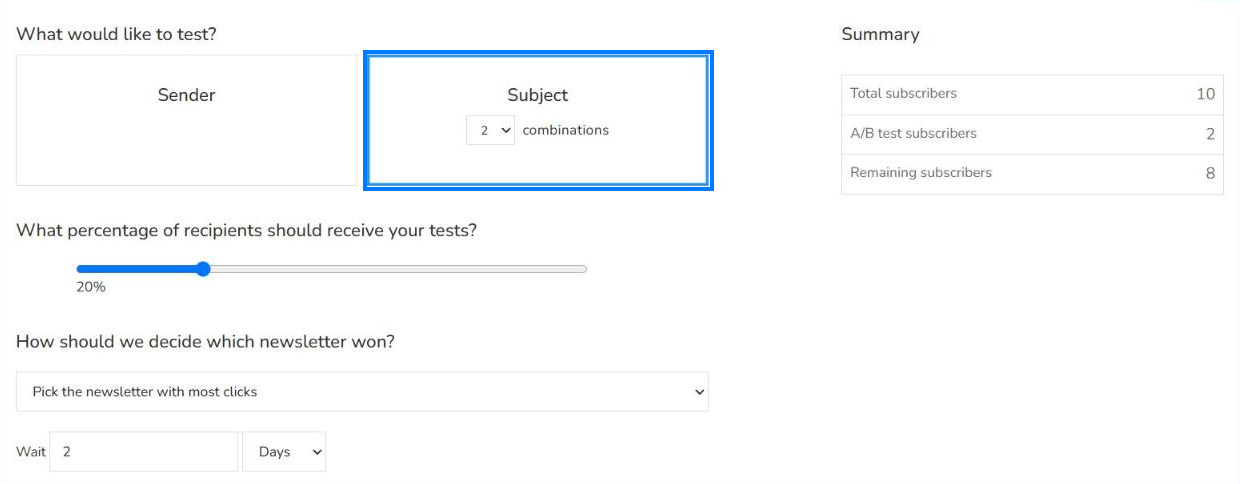
- In What percentage of recipients should receive your tests?, move the bar to choose how many subscribers receive the test. It's set to 20% and you can choose from 1% to 80%. In Summary you see how many subscribers receive the test and how many remain. If the test reaches fewer than 2 subscribers, you'll see the warning "Please, adjust the percentage until you've at least 2 subscribers.".
- In How should we decide which newsletter won?, choose an option and click Next:
- I will decide it manually: you choose the winner when you see the results.
- Pick the newsletter with most clicks or Pick the newsletter with most impressions: Mailrelay picks the winner. In Wait, enter how many Hours or Days pass before it's sent to the rest of the subscribers.
Wait at least 24 hours before deciding the winner. Mailrelay recommends it if you choose less time in Wait.
Write the combinations and send the test
In the Design step, prepare the versions you're going to compare:
- If you test the subject, write a different subject in Subject A, Subject B and, if you chose 3 combinations, Subject C. If you test the sender, choose a different sender in Sender A, Sender B and Sender C. Then click Next.
- Check the Summary: how many subscribers receive each version and what happens with the rest. Click Send it now.
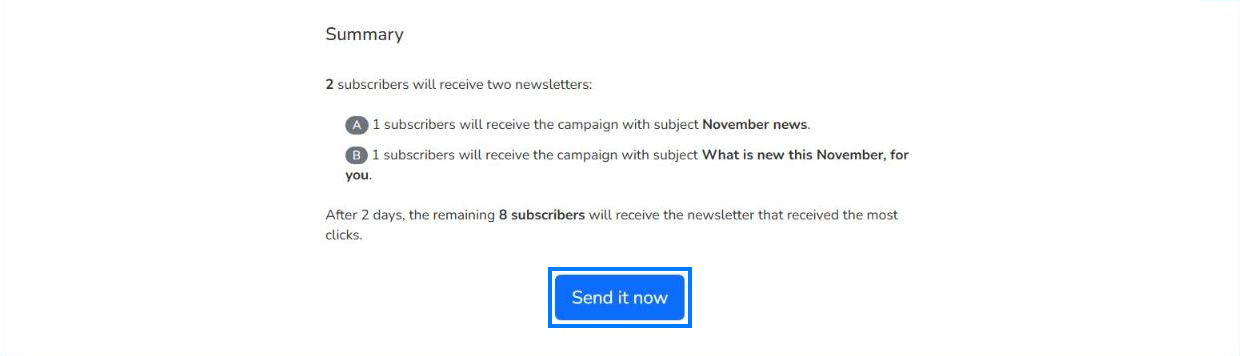
If two combinations are the same, the panel shows a warning and you can't continue. To send a test email of the campaign before the A/B test, see How to send a campaign.
If you chose to let Mailrelay pick the winner, the test is in Waiting status. Its page shows a message with the date and time when the winner will be sent to the remaining subscribers. At that time, Mailrelay sends the winner automatically and the test changes to Finished.
To choose it yourself, click Cancel automatic decision. I will decide manually. and confirm. The test changes to Waiting for decision.
Choose the winner manually
If you chose I will decide it manually, the test is in Waiting for decision status once the versions are sent. To send the winner to the rest of the subscribers:
- In Campaigns > A/B tests, click Show in the row of the test.
- In Sent campaigns, compare the Sent emails, Impressions and Clicks of each combination.
- In the row of the combination you want to send, click Use this combination.

- In the Are you sure? window, confirm. You'll see a message saying that the campaign has been selected and will be sent to the remaining subscribers.
The test changes to Processing remaining while the winner is sent and to Finished when it's done.
To not send the campaign to the rest, click Cancel on the test page and confirm. The pending deliveries of the test are cancelled and its status changes to Cancelled.
Check the A/B test results
In Campaigns > A/B tests you have the list of your tests with their Status. To see the results of one, click Show.
In Overall stats you see the total sent emails, impressions and clicks of the test. In Sent campaigns there is one row per combination and another one, Remaining, with the delivery to the rest of the subscribers.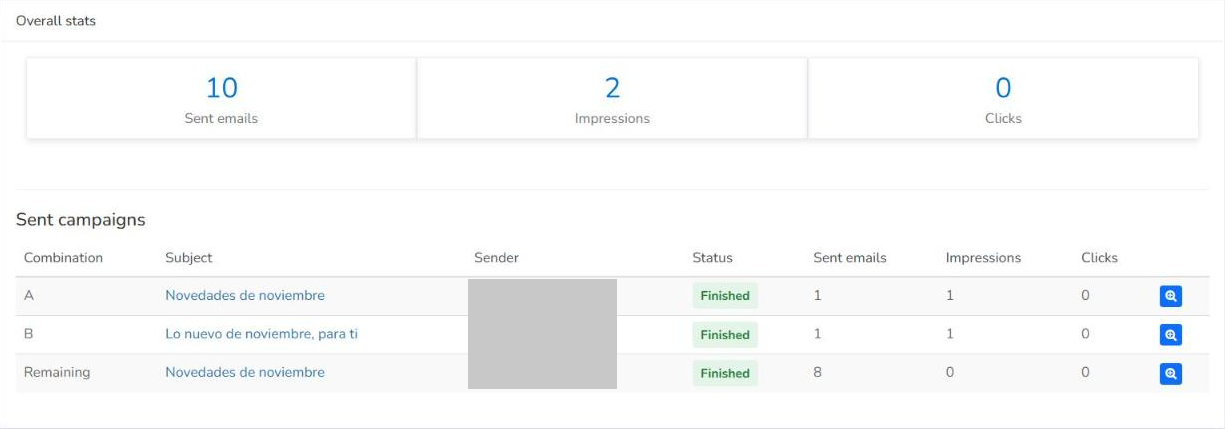
To see the full report of each delivery, click the magnifying glass in its row. You'll find more information in Sent campaigns.
Limits
- You can test the subject or the sender, not both in the same test.
- Each test has 2 or 3 combinations.
- The test is sent to 80% of the recipients at most.
- The groups or the segment need at least 10 active subscribers.
Frequently asked questions
These are the most common questions about A/B tests.
What can I test with an A/B test in Mailrelay?
The subject or the sender of your newsletter. You choose 2 or 3 versions and Mailrelay sends them to part of your subscribers.
Is it available on the free account?
Yes. You can create A/B tests with the free account of this email marketing platform.
How long should I wait to choose the winner?
Mailrelay recommends waiting at least 24 hours before deciding which combination won and sending the newsletter to the rest of your list.