
In Mailrelay you can send a lead magnet, for example, a free guide, as soon as someone subscribes through your form. An automation then goes on with a welcome sequence. If the subscriber opens the lead magnet email, they get the next email in the sequence. If they don't open it, they get a reminder.
Automations are available in the free account and in the paid accounts. With this automated email marketing every new subscriber gets what you promised them without you having to prepare an email marketing campaign every time. You can see everything automations include on Mailrelay's email marketing software page.
Before you start
- Have a signup form that saves subscribers to a group, for example, "Free guide". You have the steps in Creating signup forms and in How to create and use groups.
- Prepare the emails as campaigns: the lead magnet email, with the download link, the next email in the welcome sequence and a reminder. You then import them into the automation.
- If this is your first automation, also see Automations, how to create automations in Mailrelay.
How to send the lead magnet on signup
The When subscriber signs up using a signup form entry point starts when the subscriber confirms their subscription (double opt-in). To create the automation:
- Go to Automations and click Add. Type a Name, for example, "Welcome with lead magnet", and click Create Automation.
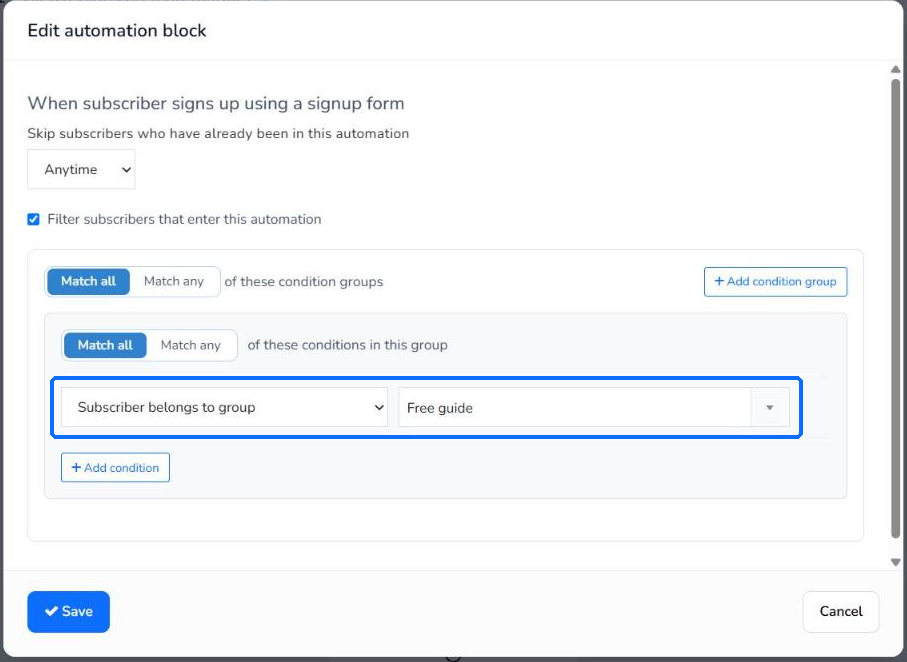
- Click New entry point. In Block type, choose When subscriber signs up using a signup form.
- Check Filter subscribers that enter this automation. Choose Subscriber belongs to group and the group of your form. This way only the subscribers from that form enter. Click Save.
- Click Add, below the entry point. In Block type, choose Send email. Click Import existing campaign and choose the lead magnet campaign. Check the Subject, choose the Sender and click Save.
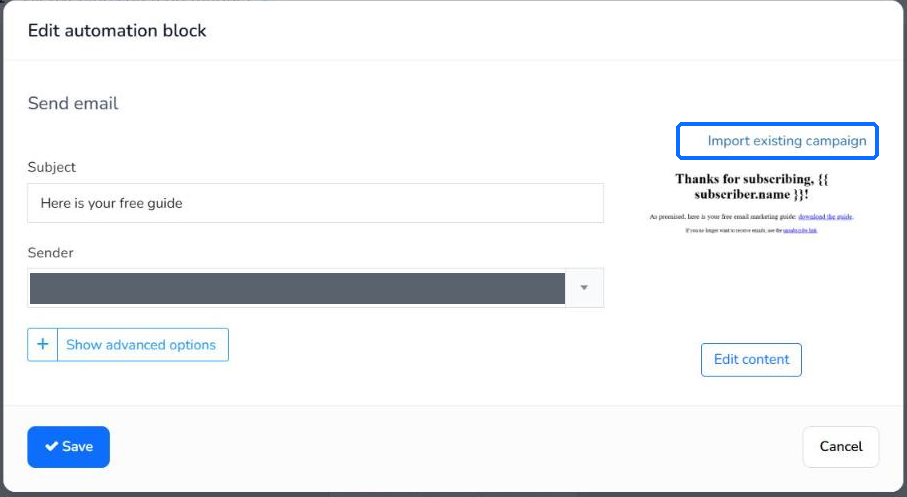
To add the subscriber's name to the subject, see How to personalize the subject and content with variables and conditional blocks.
How to set up the welcome sequence
After the lead magnet, the automation waits a few days and checks whether the subscriber has opened the email. Depending on the answer, it goes on through the Yes branch or the No branch:
- Click Add, below the email, and choose Delay. Leave An amount of time in Wait and enter the time in Delay offset and Delay unit, for example, 2 days. Click Save.
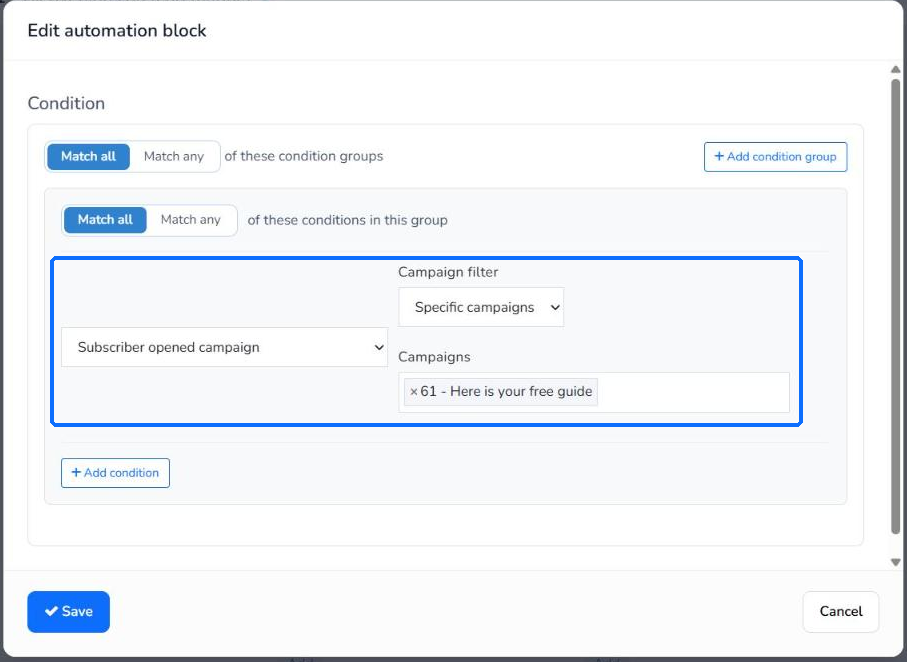
- Click Add, below the delay, and choose Condition. Choose Subscriber opened campaign. In Campaign filter, choose Specific campaigns and, in Campaigns, the lead magnet email you added to the automation. Click Save.
- Click Add, below Yes, and choose Send email. Import the next email in the sequence, for example, a first tip, and click Save.
- Click Add, below No, and choose Send email. Import the reminder with the download link and click Save.
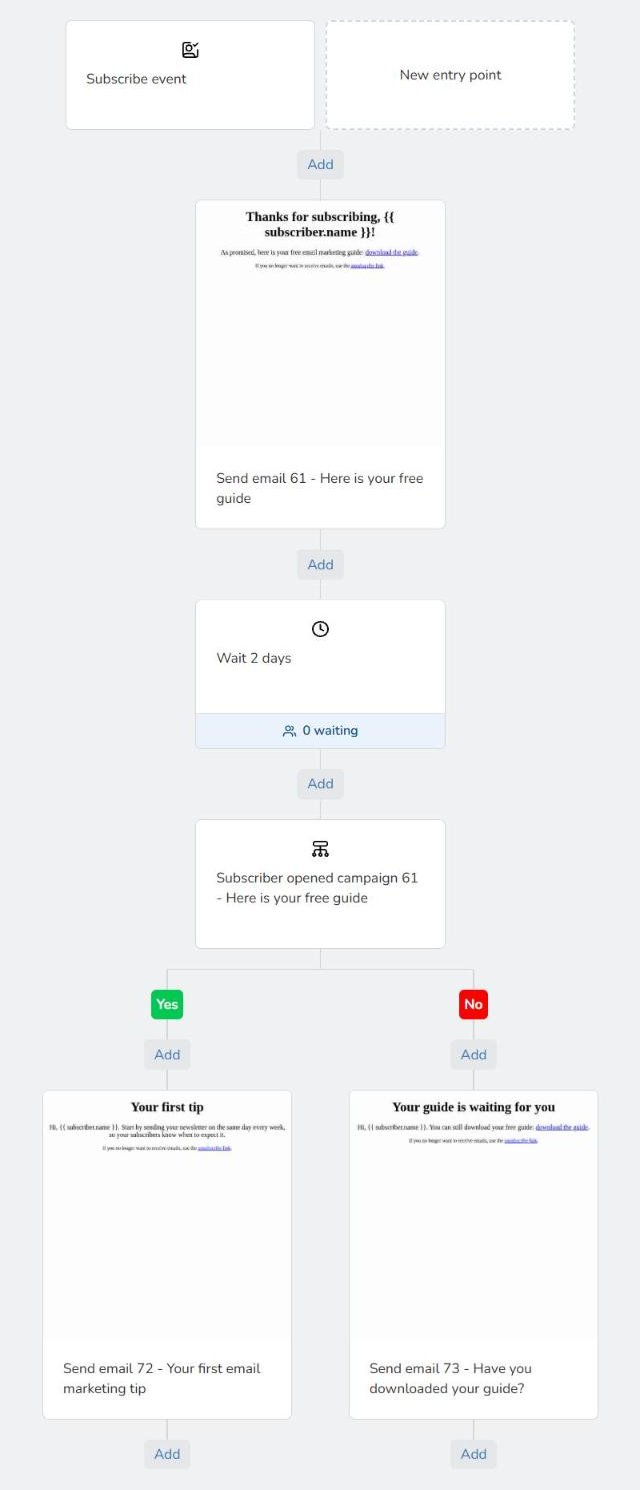
- Click Change status and then Enable.
You can add more emails and delays below each branch to make the welcome sequence longer. The delay block shows how many subscribers are waiting at that moment, for example, "0 waiting". To send a campaign again to those who didn't open it, also see How to automatically resend a newsletter to non-openers.
How to test the automation
Before you use it with your subscribers, set a short delay, for example, 3 minutes, and subscribe with your own address. In a test, the subscriber opened the lead magnet email before the delay was over. When the delay was over, they got the email from the Yes branch. Once it works, change the delay to the time you want.
Limits
- The entry point doesn't let you choose the form. To use a specific form, filter by the group where that form saves subscribers.
- The condition checks whether the subscriber has opened the email, not whether they have downloaded the lead magnet.
- The Skip subscribers who have already been in this automation option comes set to Anytime. Check it if the same subscriber can enter the sequence more than once.
Frequently asked questions
These are the most common questions about sending a lead magnet automatically and the welcome sequence.
How do I create lead magnet campaigns with automatic sending?
Create an automation with the When subscriber signs up using a signup form entry point. Then add a Send email block with the download link. The subscriber gets it when they confirm their subscription.
How do I build lead nurturing automations step by step?
After the lead magnet, add a Delay block and a Condition block. In the Yes branch you go on with the sequence and in the No branch you send a reminder.
Can I send the lead magnet only to the subscribers from one form?
Yes. Check Filter subscribers that enter this automation and choose Subscriber belongs to group with the group of that form.
Can I use a campaign I already have?
Yes. In the Send email block, click Import existing campaign and choose the campaign.
Can I do it with the free account?
Yes. Automations are available in the free account and in the paid accounts.