
In Mailrelay you can send an automatic birthday email with an automation that starts with When it's the subscriber's birthday. The email can arrive on the same day, a few days before or a few days after, and for renewals you use a group with a delay.
Automations are available in the free account and in the paid accounts. With this automated email marketing you greet each subscriber on their day without preparing an email marketing campaign every time. You can see everything automations include on Mailrelay's email marketing software page.
Before you start
- The automation uses the Birthday system field of each subscriber. To fill it in, go to Subscribers > Subscribers, edit the subscriber and enter the date in Birthday, under Optional info.
- Prepare the email you want to send. You can import a campaign you already have or create the content in the automation block itself.
- If this is your first automation, also see Automations, how to create automations in Mailrelay.
How to send an automatic birthday email
Create the automation with these steps:
- Go to Automations and click Add. Type a Name, for example, "Birthday greeting", and click Create Automation.
- Click New entry point. In Block type, choose When it's the subscriber's birthday.
- In Scheduled time, enter the time of day when the automation is triggered, for example, 11:00.
- In Time before birthday, enter a number and choose days or hours:
- 0: the email is sent on the birthday.
- A positive number, for example, 3: the email is sent 3 days before.
- A negative number, for example, -2: the email is sent 2 days after.
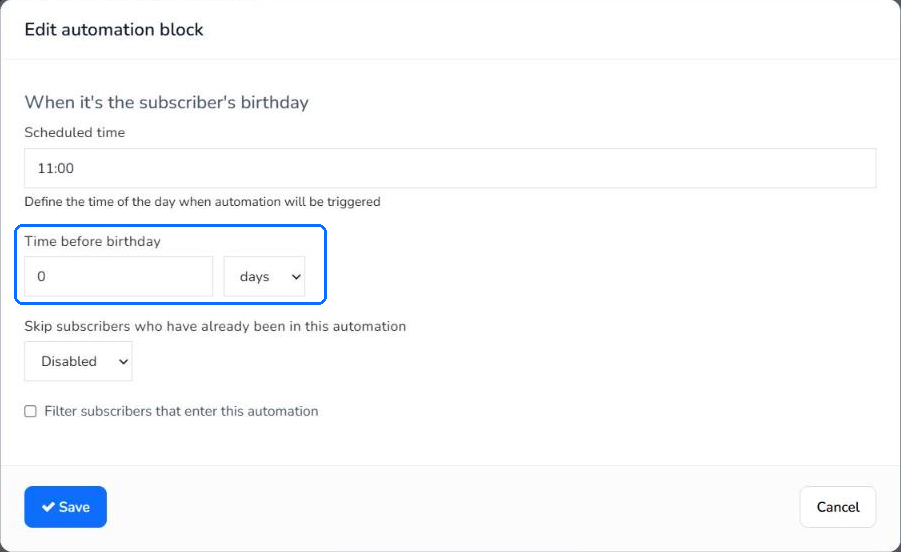
- In Skip subscribers who have already been in this automation, choose Disabled so that the option doesn't leave out subscribers who already got the greeting in another year. Click Save.
- Click Add, below the entry point. In Block type, choose Send email. Click Import existing campaign to copy a campaign, or Edit content to create it. Enter the Subject, choose the Sender and click Save.
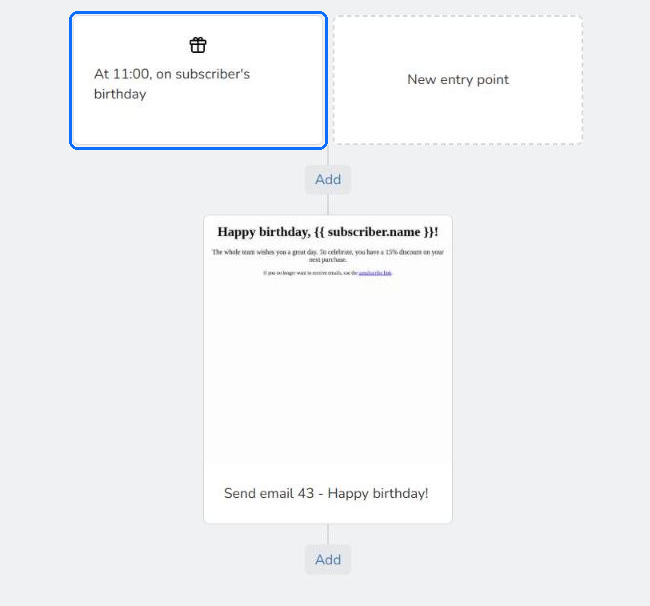
- Click Change status and then Enable.
The entry point block sums up when the email is sent, for example, "At 11:00, on subscriber's birthday".
To add the subscriber's name to the subject or the content, see How to personalize the subject and content with variables and conditional blocks.
How to send a renewal reminder
Mailrelay doesn't have an entry point for other date fields, such as a renewal date. For a renewal reminder, add the customer to a group when they sign up and use a delay:
- Create a group for your customers, for example, "Customers 2026". You have the steps in How to create and use groups.
- Create a new automation. In New entry point, choose When a subscriber is added to a group and, in Groups, the group. Click Save.
- Click Add, below the entry point, and choose Delay. Leave An amount of time and enter the time in Delay offset and Delay unit. For example, 335 days to send a reminder about 30 days before a year has passed. Click Save.
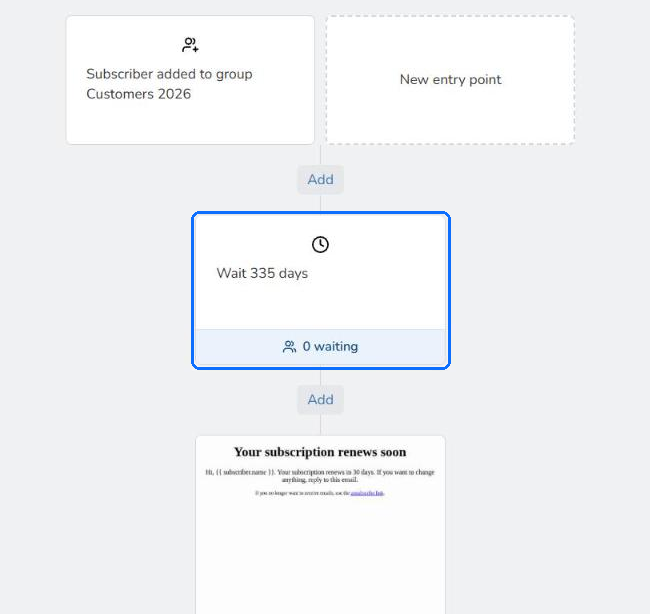
- Click Add, below the delay, and choose Send email. Prepare the reminder email and click Save.
- Click Change status and then Enable.
The delay starts counting when the subscriber enters the group. It is a simple form of email marketing automation for small businesses that sell yearly subscriptions or services.
Limits
- Only the Birthday system field triggers a date-based automation. Custom fields of type Date don't have their own entry point.
- In the birthday entry point, the time is chosen in days or hours.
- In the renewal reminder, the delay counts from when the subscriber enters the group, not from a date saved in the subscriber.
- The Scheduled time is applied in UTC, not in the subscriber's time zone. In a test, with the time set to 13:33, the email arrived at 14:33 Spanish mainland time.
Frequently asked questions
These are the most common questions about automatic birthday and renewal emails.
How do I set up date-based automations, such as birthdays or renewals?
For birthdays, use the When it's the subscriber's birthday entry point, which reads the Birthday field. For a renewal, use When a subscriber is added to a group and a Delay block.
Can I send the greeting a few days before the birthday?
Yes. In Time before birthday, enter a positive number of days or hours.
And a few days after?
Yes. Enter a negative number in Time before birthday, for example, -2 to send it 2 days after.
Can I use another date field for the automation?
No. Only the Birthday field has an entry point. For other dates, such as a renewal, use a group and a delay.
Can I do it with the free account?
Yes. Automations are available in the free account and in the paid accounts.