Email marketing automation in Mailrelay lets you run email sending actions on their own, so that once you have set up their behavior properly, they need practically no supervision from you. Automations are also available on the free account.
It is a very valuable feature for taking your email marketing campaigns to the next level, whether you run a business, an SME or an online store, saving you a great deal of time on customer loyalty, lead recovery, closing sales and more.
In this article we explain step by step how to create email marketing automations in Mailrelay, with four ready-to-use examples: a welcome email for new subscribers, a drip campaign, re-engaging inactive subscribers and sending different emails depending on whether they open your newsletter or not.
TABLE OF CONTENTS
- 1.- Where are automations?
- 2.- How to create an automation in Mailrelay
- 3.- Most common automated email marketing examples
- 4.- Frequently asked questions about automations
- What is automated email marketing?
- Can I use automations with the Mailrelay free account?
- What is the difference between the form and group entry points?
- Why does the first email of my automation show as ignored?
- Why isn't my automation sending emails?
- Can I pause an automation?
- How can I see the results of my automations?
1.- Where are automations?
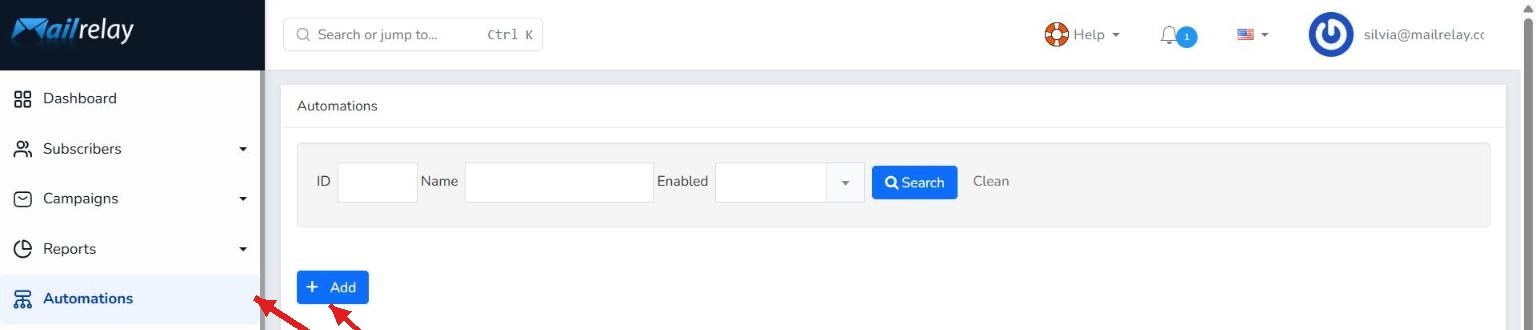
Let's see how you can get automations up and running in your Mailrelay account. To do this, go to the main menu of your account, on the left-hand side, and click Automations. There you can see all the automations you have created and create new ones.
If this is your first time, the list will be empty, but this tutorial will help you change that.
2.- How to create an automation in Mailrelay
The process for creating an email marketing automation is always the same:
- Go to Automations.
- Click the + Add button.
- Enter a name for the automation in Name and then click the Create Automation button.

This takes you to the visual automation editor, where you need to click the New entry point area to start the automation.

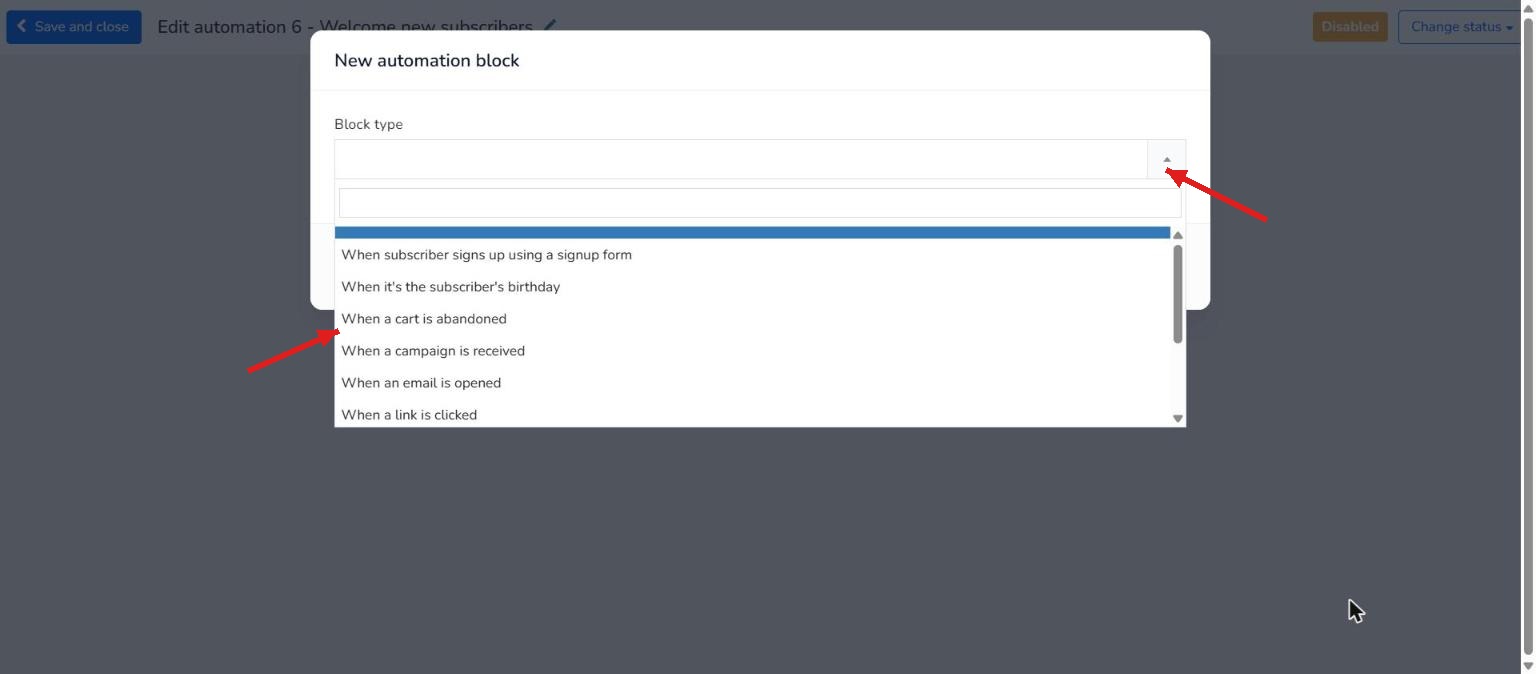
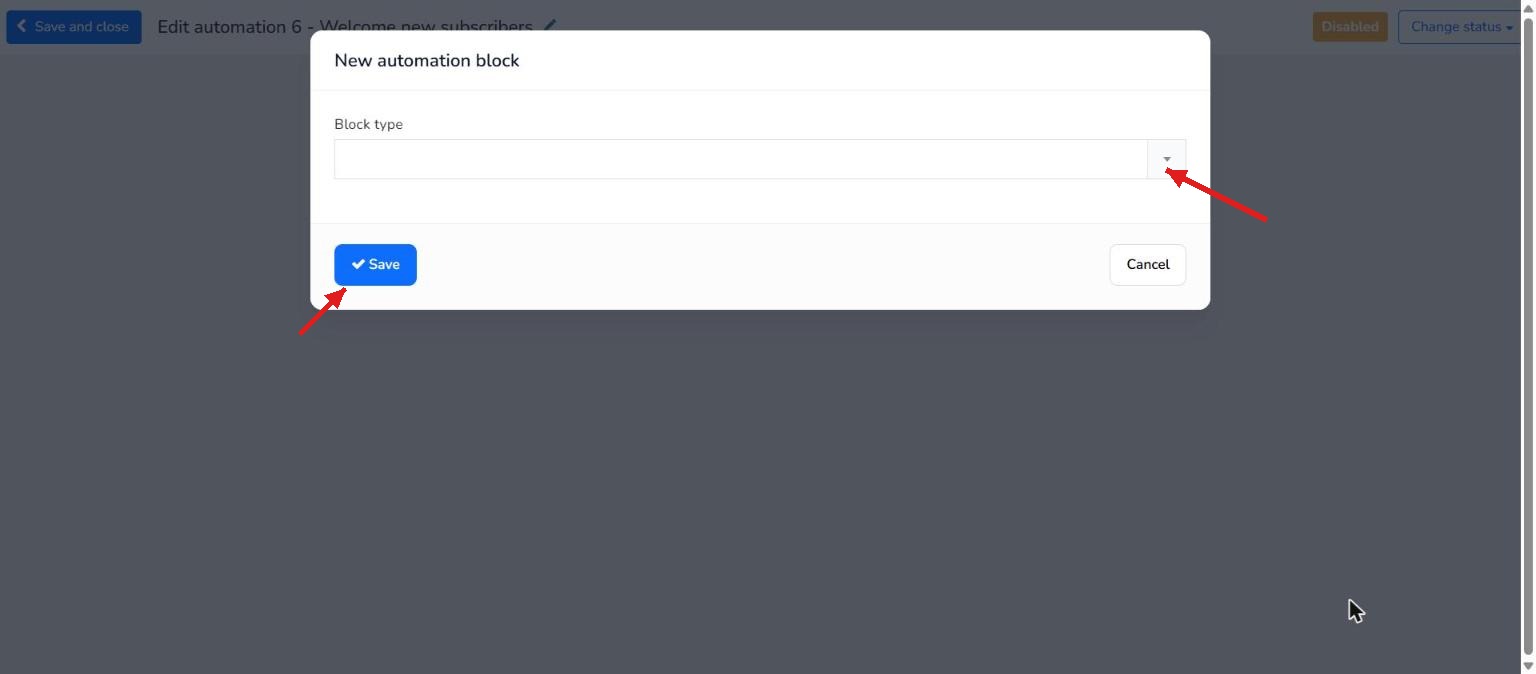
Now just click the Block type dropdown to start shaping the automation. Once you have set it up the way you need, click Save to save it.
Let's look at several examples, the most common ones for practically any business, so you can see it much more clearly with real cases.
3.- Most common automated email marketing examples
In your Mailrelay account you can use several types of automations which, in turn, can contain multiple conditions and, in many cases, be combined with each other. For this reason, it is not practical to describe every possible combination you can use.
For example, in addition to the entry points in this article, in the Block type dropdown you will find others such as When it's the subscriber's birthday, When a cart is abandoned (very useful in ecommerce email marketing), When an email is opened or When a link is clicked.
But don't worry: we are going to go over some of the most interesting ones our users rely on to get the most out of our email marketing platform.
Before you start, this summary will help you choose the entry point for each example:
| Entry point | When it is triggered | Example in this article |
|---|---|---|
| When subscriber signs up using a signup form | When the subscriber confirms their subscription from a form (double opt-in) | 3.1 and 3.2 |
| When a subscriber is added to a group | When the contact is added to a group by import or manually | 3.1 |
| When a campaign is received | When the subscriber receives the newsletter you choose | 3.3 and 3.4.1 |
3.1.- How to send an automatic welcome email to new subscribers
This is one of the most common automations in any email marketing tool. It automatically sends a welcome email every time someone subscribes to your list.
In Mailrelay, it is very easy to set up. In this email you can introduce yourself, link to important pages on your website, offer a discount or any other lead magnet you have used, and so on.
If your subscribers come from a signup form, the first step is to select When subscriber signs up using a signup form in the Block type dropdown. This entry point is triggered when the subscriber confirms their subscription (double opt-in).
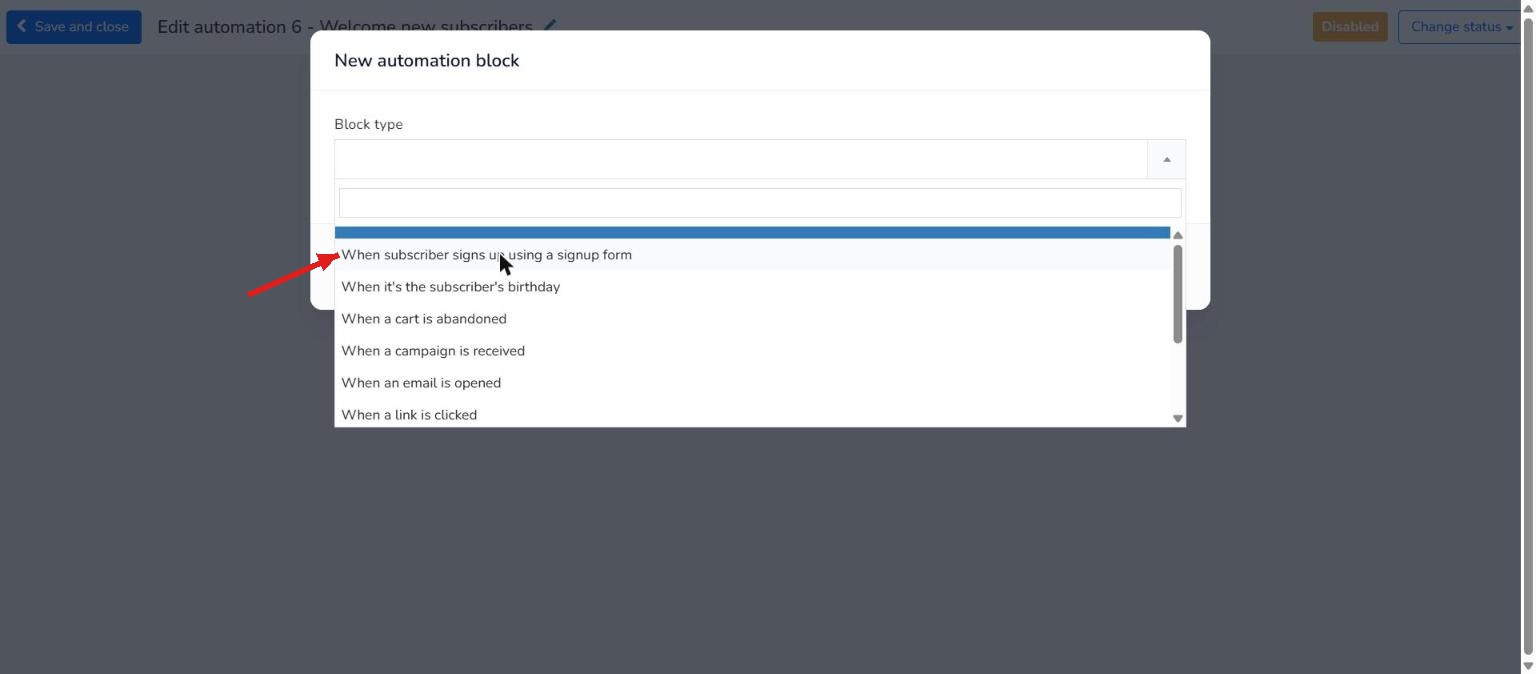
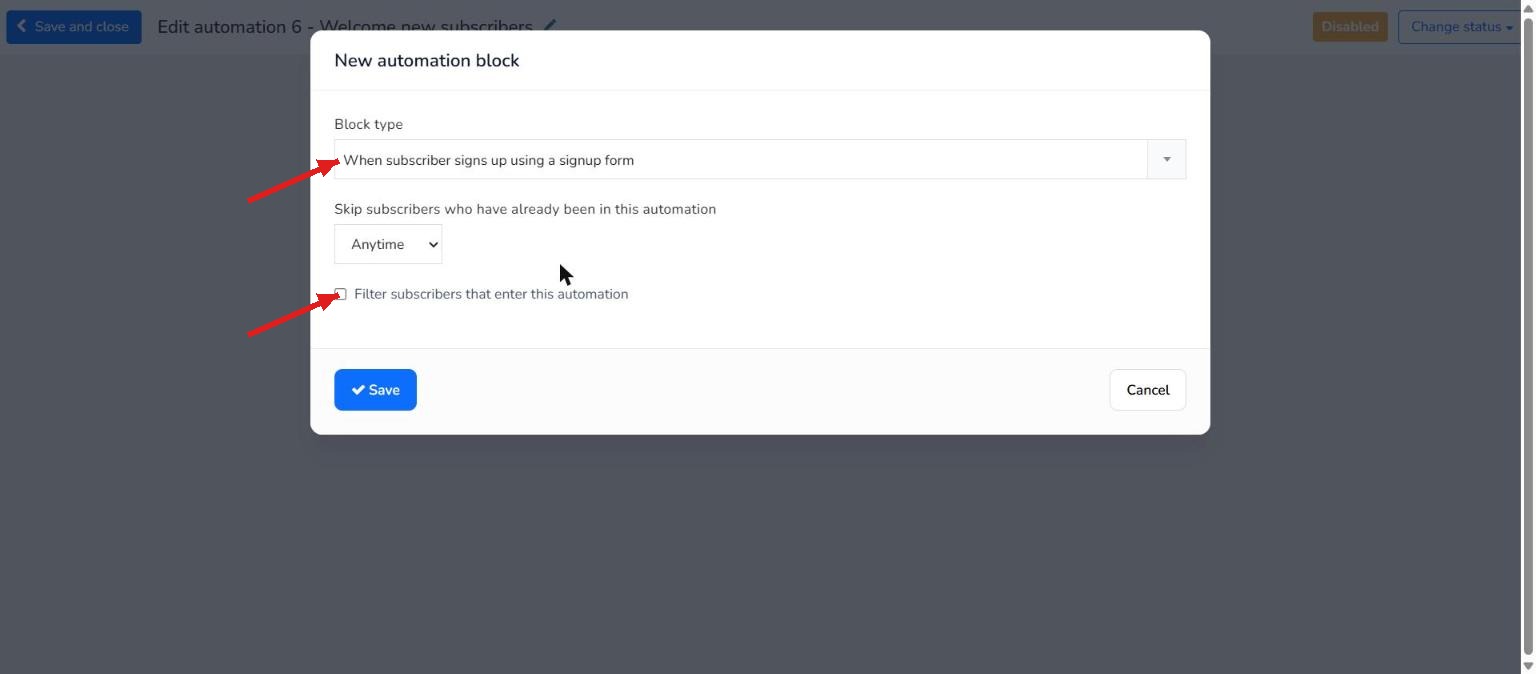
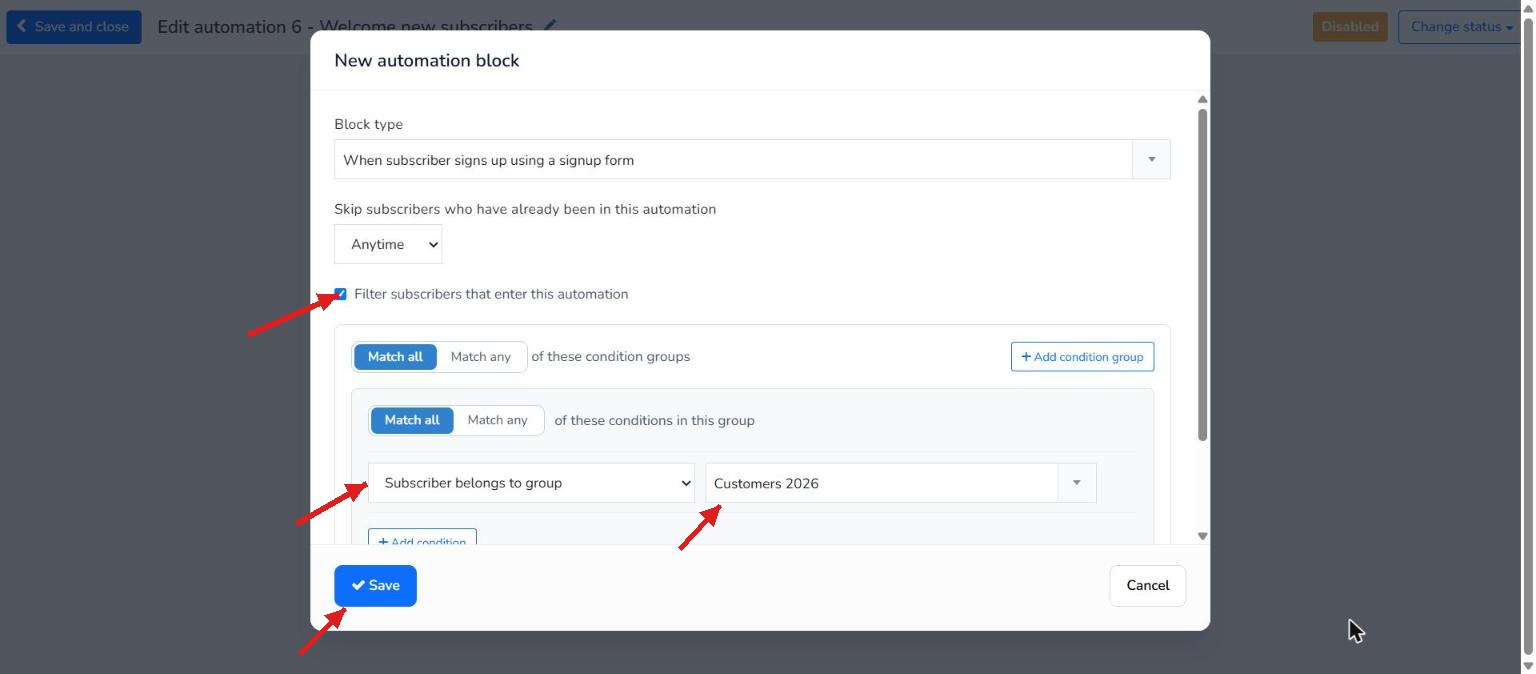
So that only the subscribers of a group enter, tick Filter subscribers that enter this automation and add the condition Subscriber belongs to group with the group you want. Then click Save.
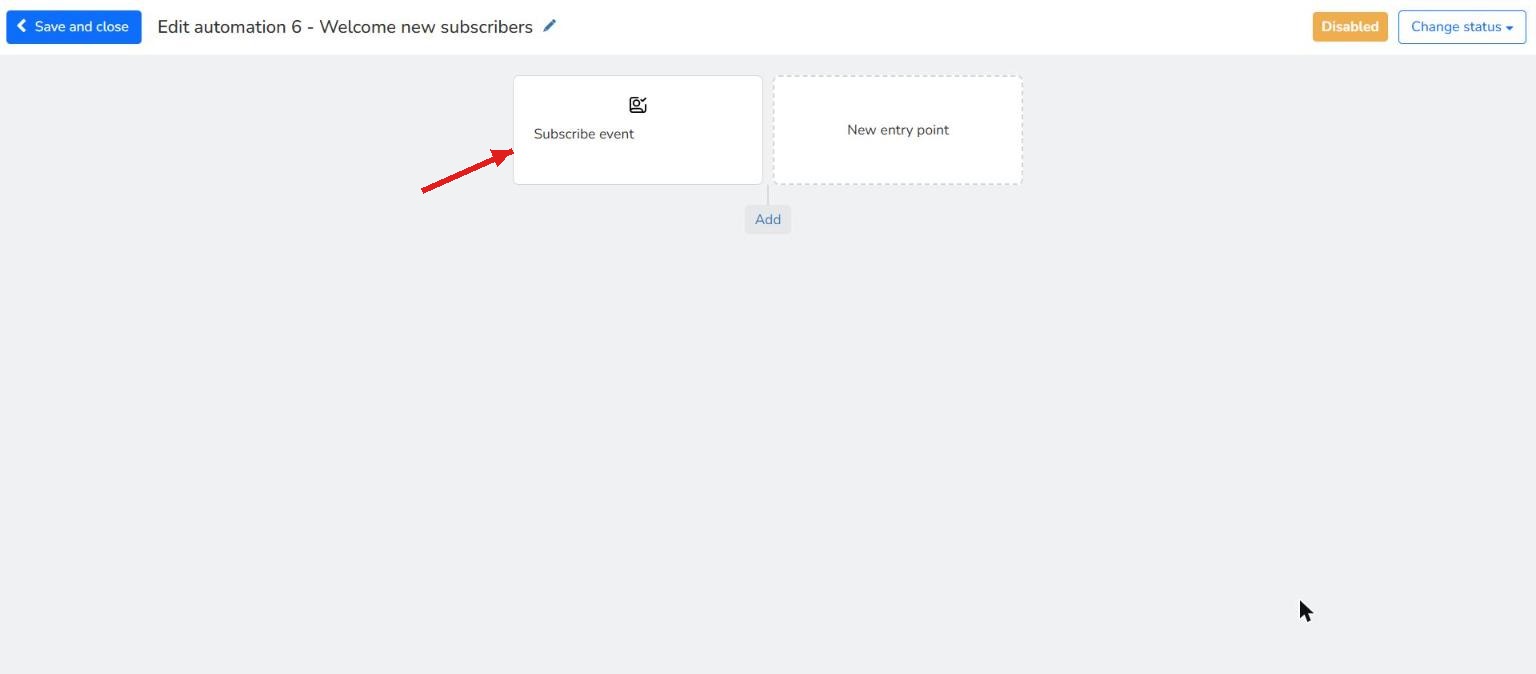
In the editor, this block will be shown as Subscribe event.
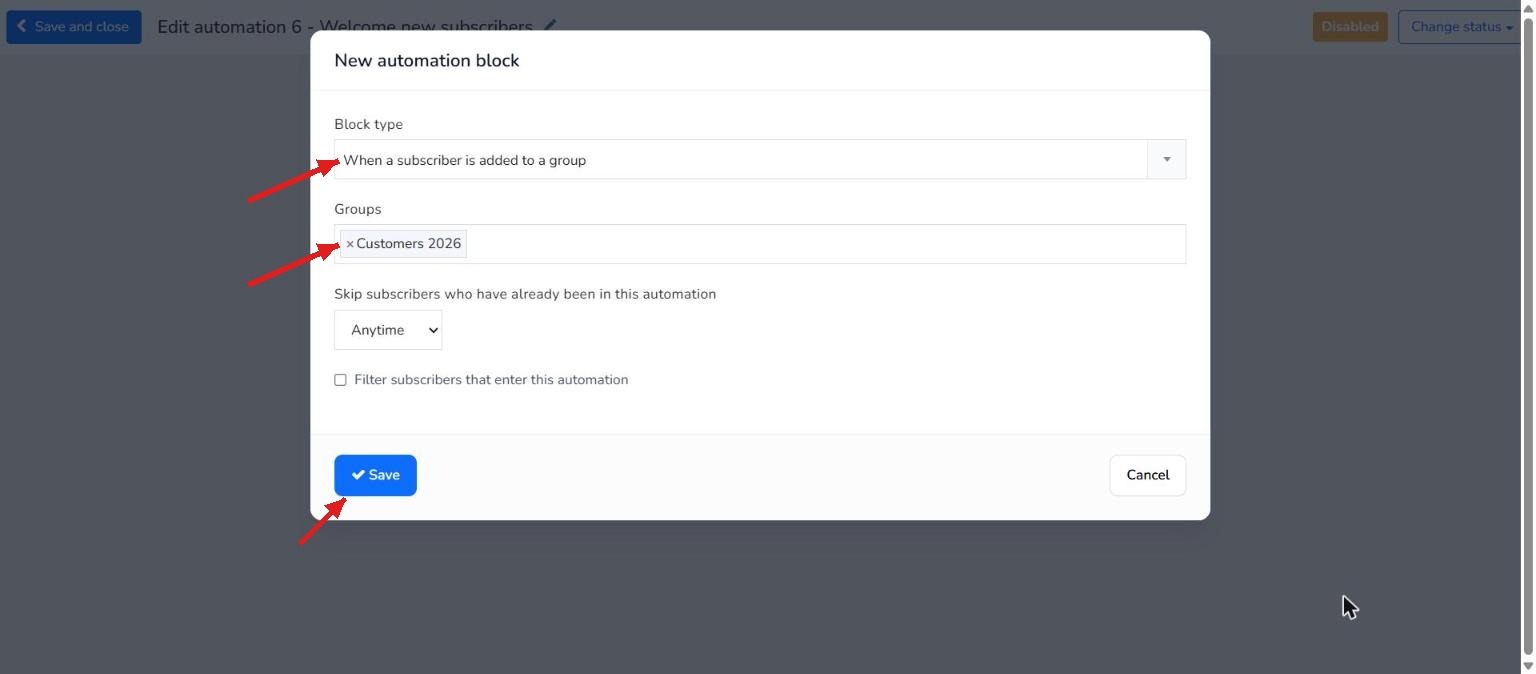
If you add contacts to the group in another way (by import or manually), you can use When a subscriber is added to a group. Do not use it with signup forms: it is triggered as soon as the subscriber is added to the group, before they confirm their subscription, and since they are still inactive at that moment, the first email is marked as ignored.
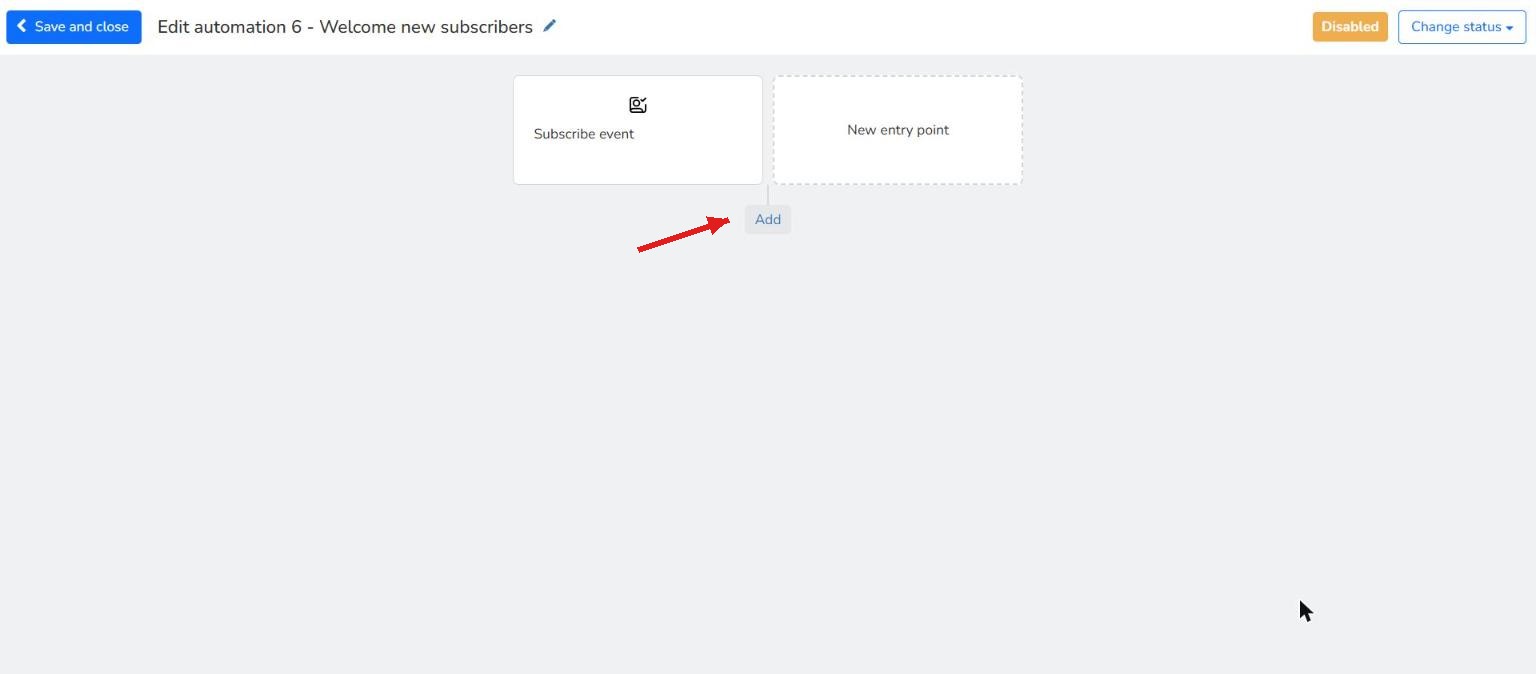
Now you need to select the newsletter you want to send when a subscriber enters the automation. To do this, click Add.
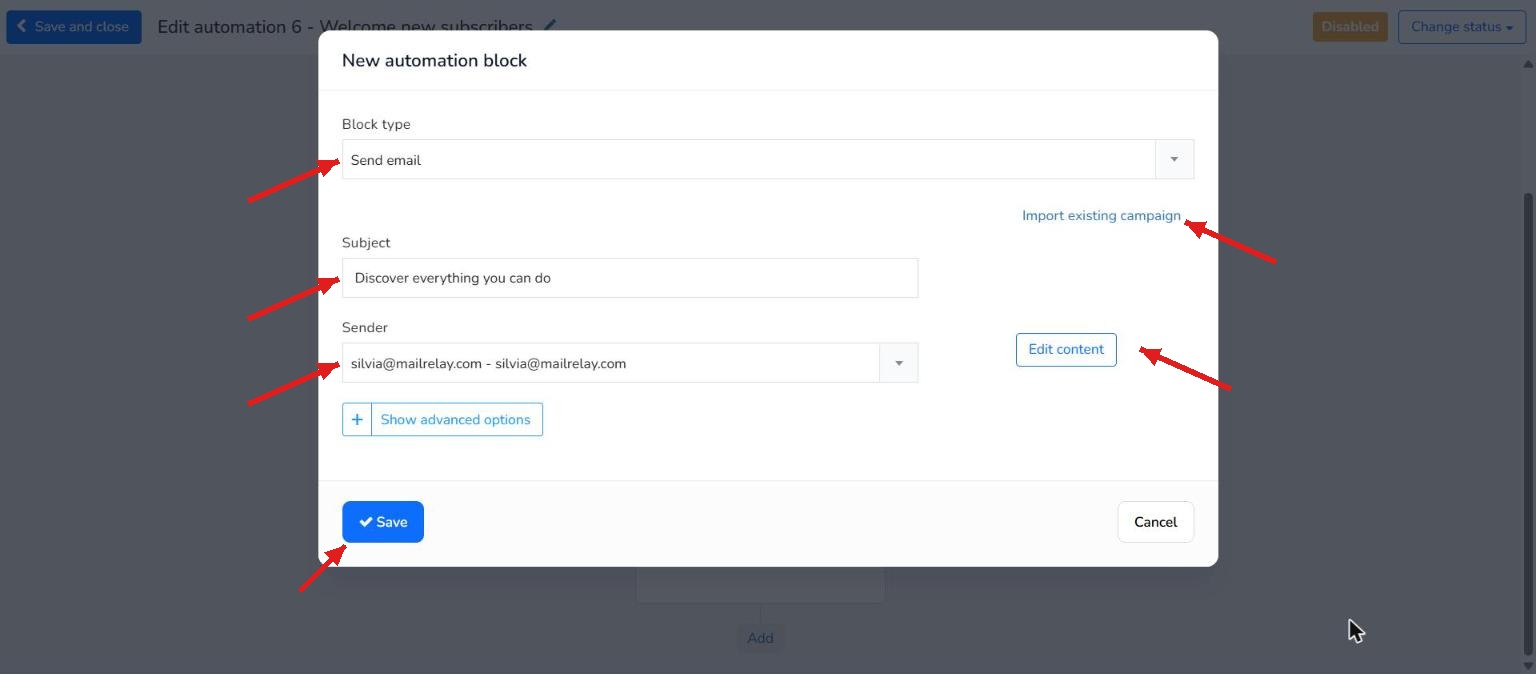
This time, select Send email in the Block type dropdown, then enter a subject for the email in Subject and select the sender the email will be sent from (Sender dropdown).
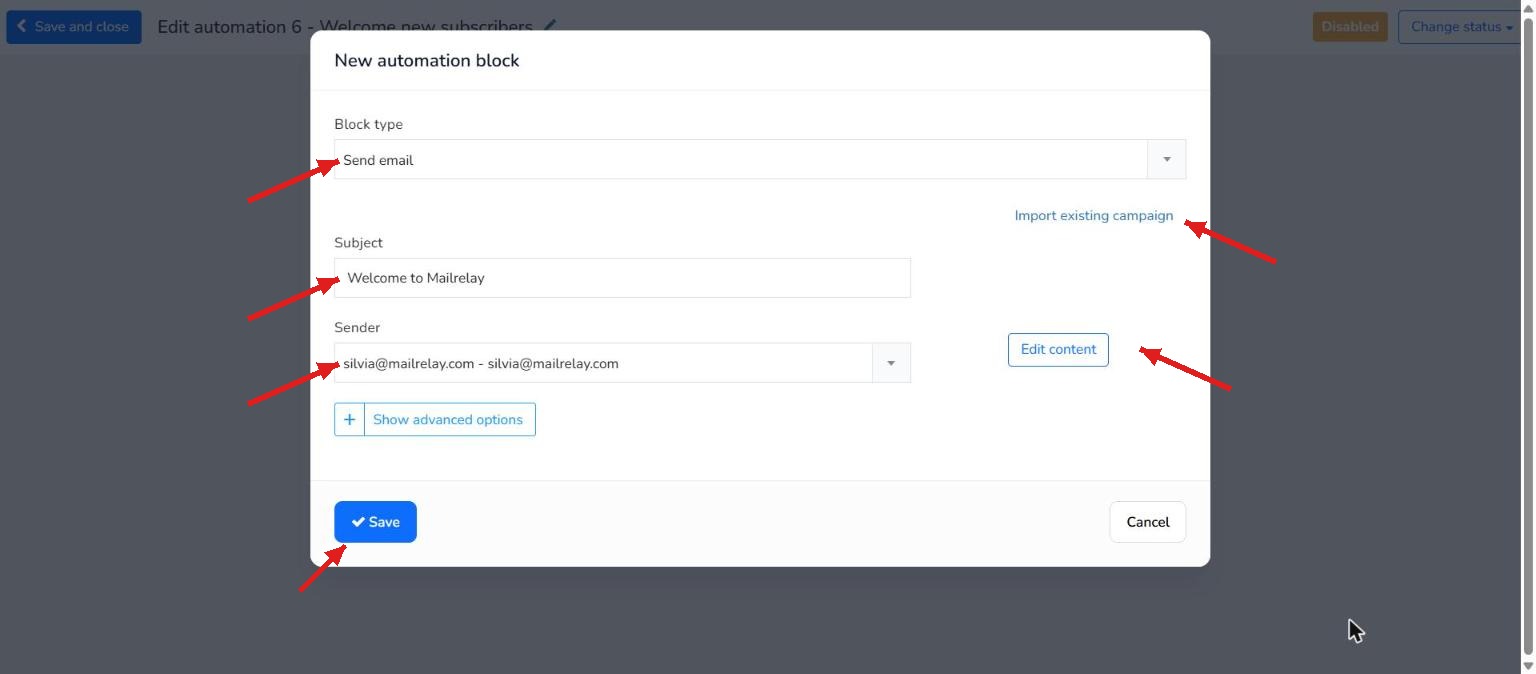
Now all that is left is to choose the design you want to send. You can click Import existing campaign to send a design you have created previously, or create it right then by clicking Edit content. With the design loaded or created, click Save and your automation will be created.
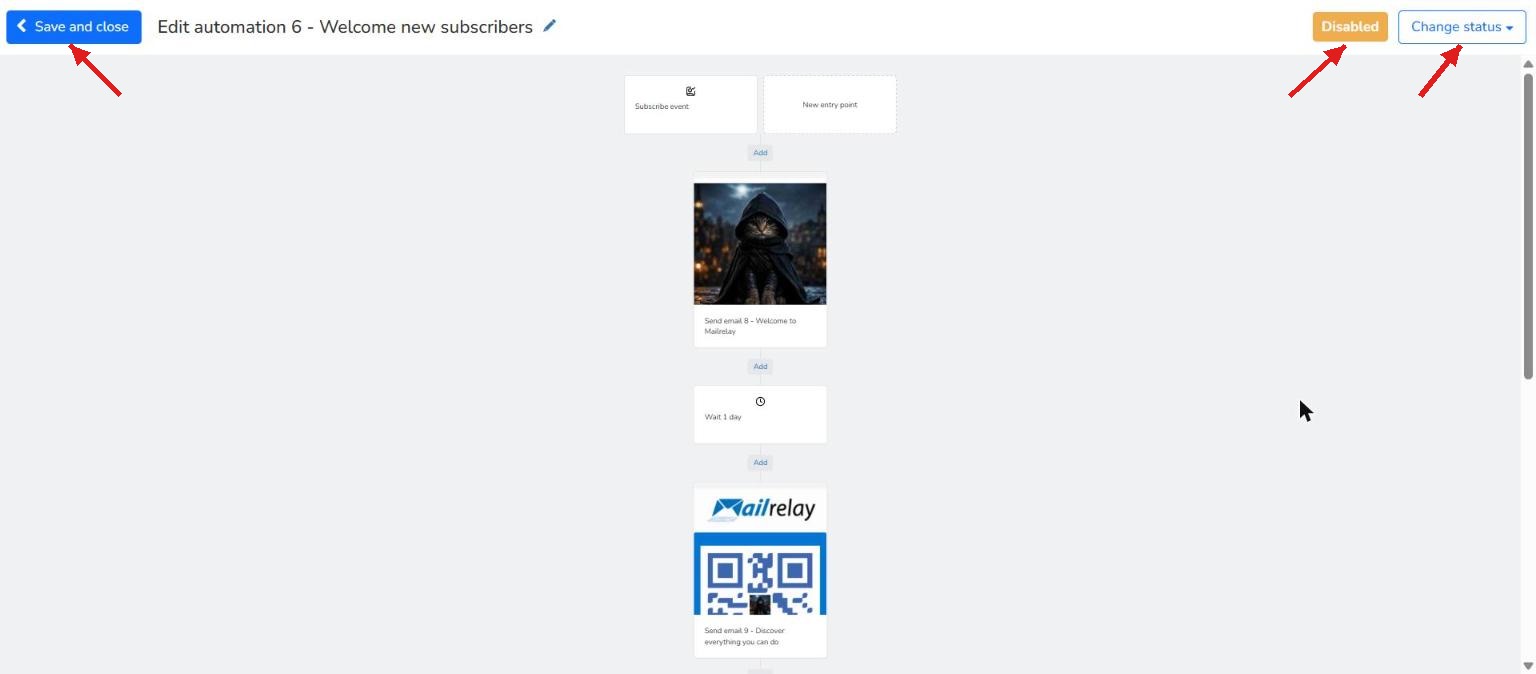
Now just click Save and close to save the changes.
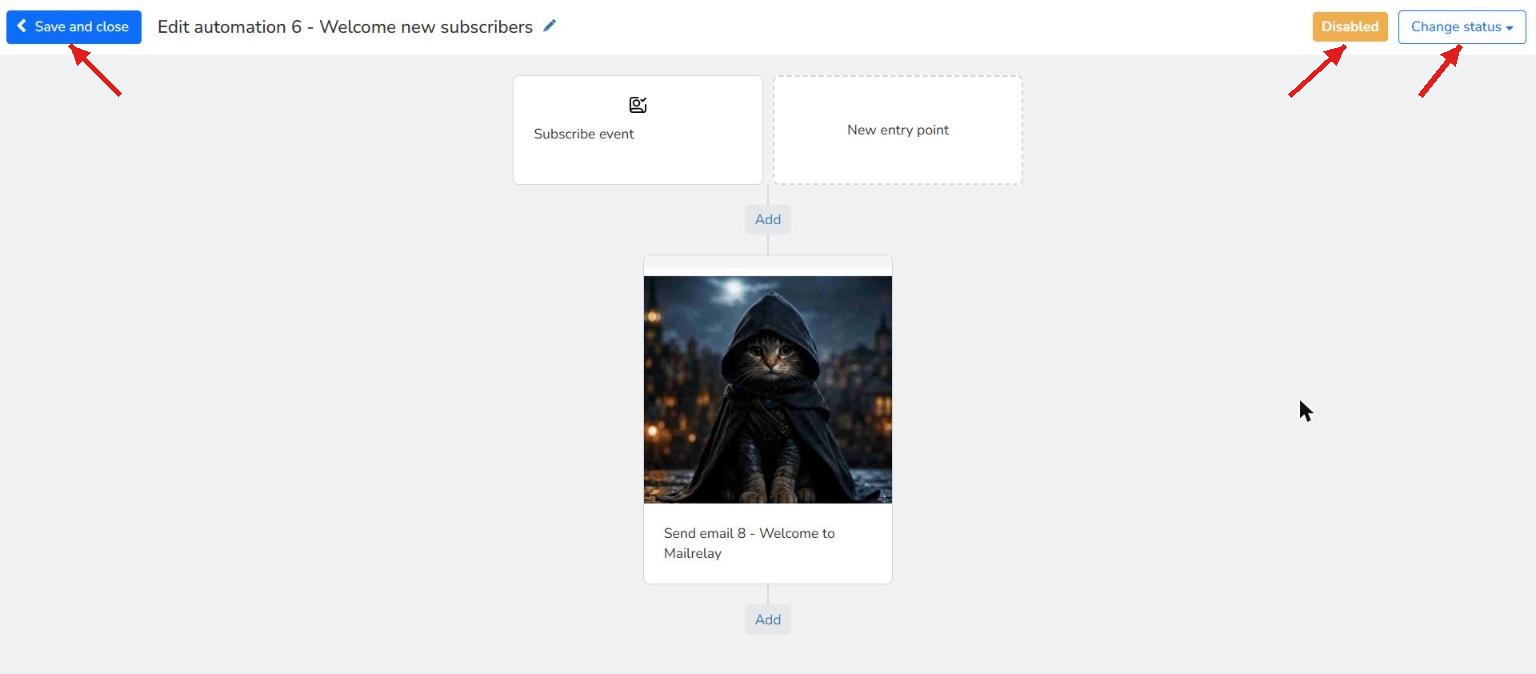
IMPORTANT: All automations are created disabled so that you decide when you want them to start working. That is why they initially have the Disabled status (in orange). To activate them, click the Change status dropdown button and select Enable (this will change the automation status to Active, in green).
3.2.- How to create a drip campaign
Drip campaigns are email marketing campaigns based on sending automated emails to your subscribers. These emails usually vary depending on the actions the customer takes. This sequence lets you guide them through your sales funnel to reach the goals you have set in your email marketing strategy.
For example, you can send a welcome email, set a one-day pause, send the next email, set another pause, and so on.
In this example, we take the previous scenario as a starting point and extend it. Although here we only extend it with two new steps, you could keep extending it with more days if you wish.
In fact, it is ideal for creating a small sales funnel with a series of consecutive emails that keep your contacts interested while you answer the most common questions and objections.
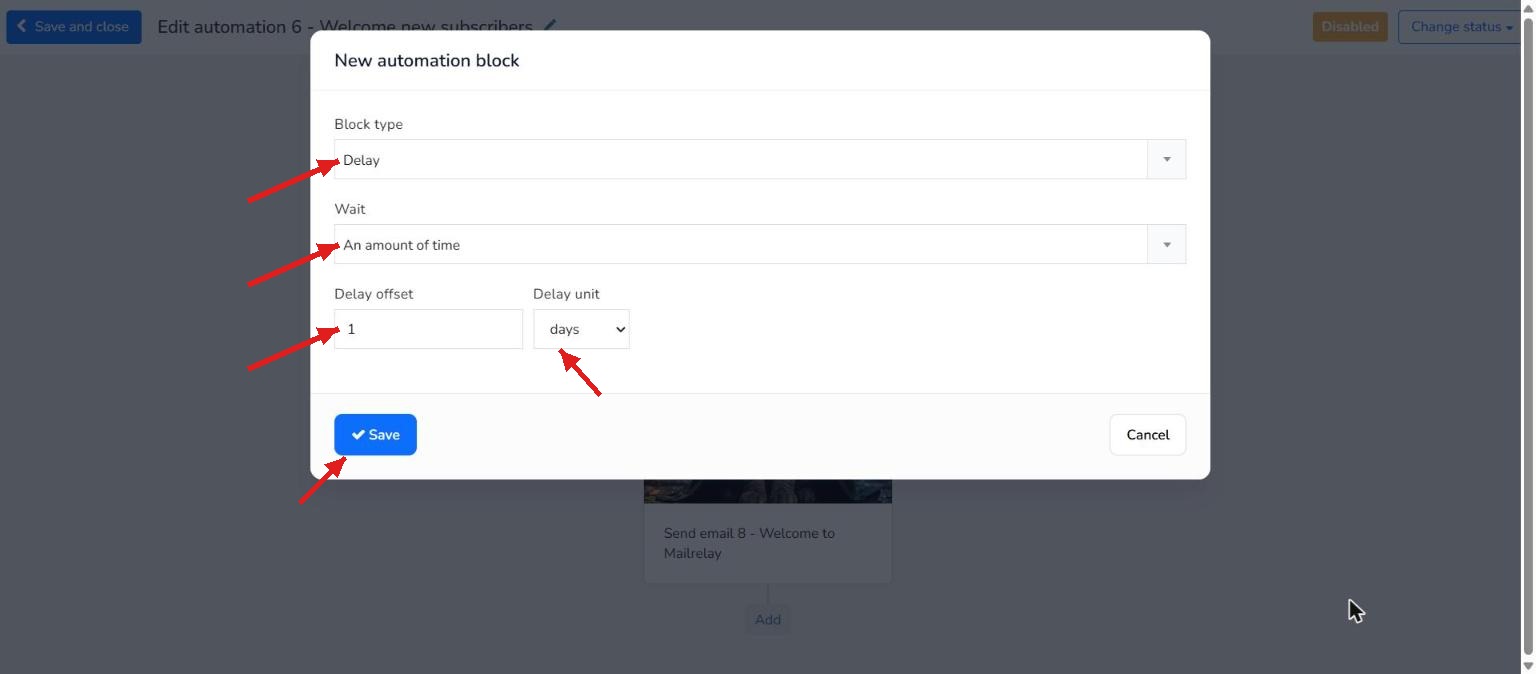
After sending the welcome email, we will wait one day and then send a second email. To do this, start by clicking Add and select the next action of the automation.
In this case, select Delay in Block type, An amount of time in Wait, and set the wait time to 1 day (to do this, type 1 in Delay offset and select days in Delay unit). When you are ready, click Save.
Now we will tell it to send a new email after the one-day pause defined in the automation process.
To do this, select Send email in the Block type dropdown, enter a subject for the email in Subject and select the sender the email will be sent from (Sender dropdown).
Next, select the design you want to send. You can click Import existing campaign to send a design you have already created, or create it now by clicking Edit content.
With the design ready (either selected from a previous one or created now), click Save and this step of the automation will be complete.
This is how it will look, completed with the two blocks you just added. Just click the Save and close button to finish:
3.3.- How to re-engage inactive subscribers
We know how much effort it takes to get a lead, so it is essential to try to win back those who do not show much interest in your products or services.
This automation is designed to re-engage users who have not shown much interest in your recent communications. This is possible because Mailrelay sets up a «reputation» or rating system for contacts based on their activity (that is, whether they interact with the emails you send them, whether they open them, whether they click the links, etc.).
Mailrelay gives high scores to contacts who regularly open and click your emails, and low scores to those who do not. Of course, this is not immediate: it is a process that takes time. So, if a contact has a low score, you know they have not interacted with your emails for a while, and we can create a new entry point to win back their interest.
To do this, the first step is to identify the contacts who interact least with your mailings. We need to segment the contacts whose reputation score is between 0 and 2 (the low score range).
First, create a segment by going to Subscribers >> Segmentation. If you need more details, see the article on segmentation.
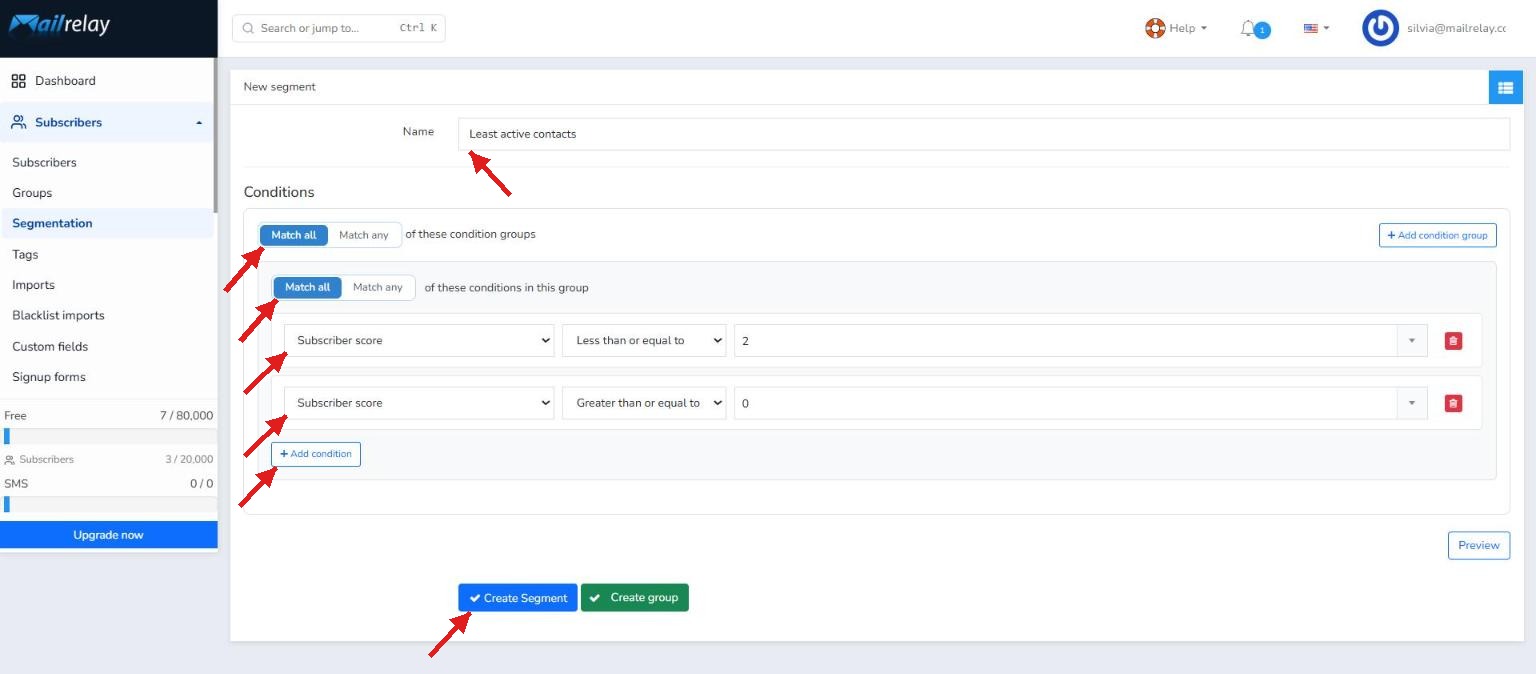
Now enter a name for the segment (in Name). Then, in Conditions, select Match all both in of these condition groups and
in of these conditions in this group. Set up the first condition and click + Add condition to create the second one, so that you end up with these two conditions:
- Subscriber score Less than or equal to 2.
- Subscriber score Greater than or equal to 0.
Finally, click Create Segment. You will now have segmented all subscribers with a reputation of between 0 and 2 stars.
Before continuing with the automation, create a newsletter and send it to the subscribers of the segment you have just created, since we will use the receipt of this newsletter as the trigger for the win-back automation.
Now we are going to create an automation to try to win them back and revive their interest in your business, which will start as soon as the subscribers receive the newsletter.
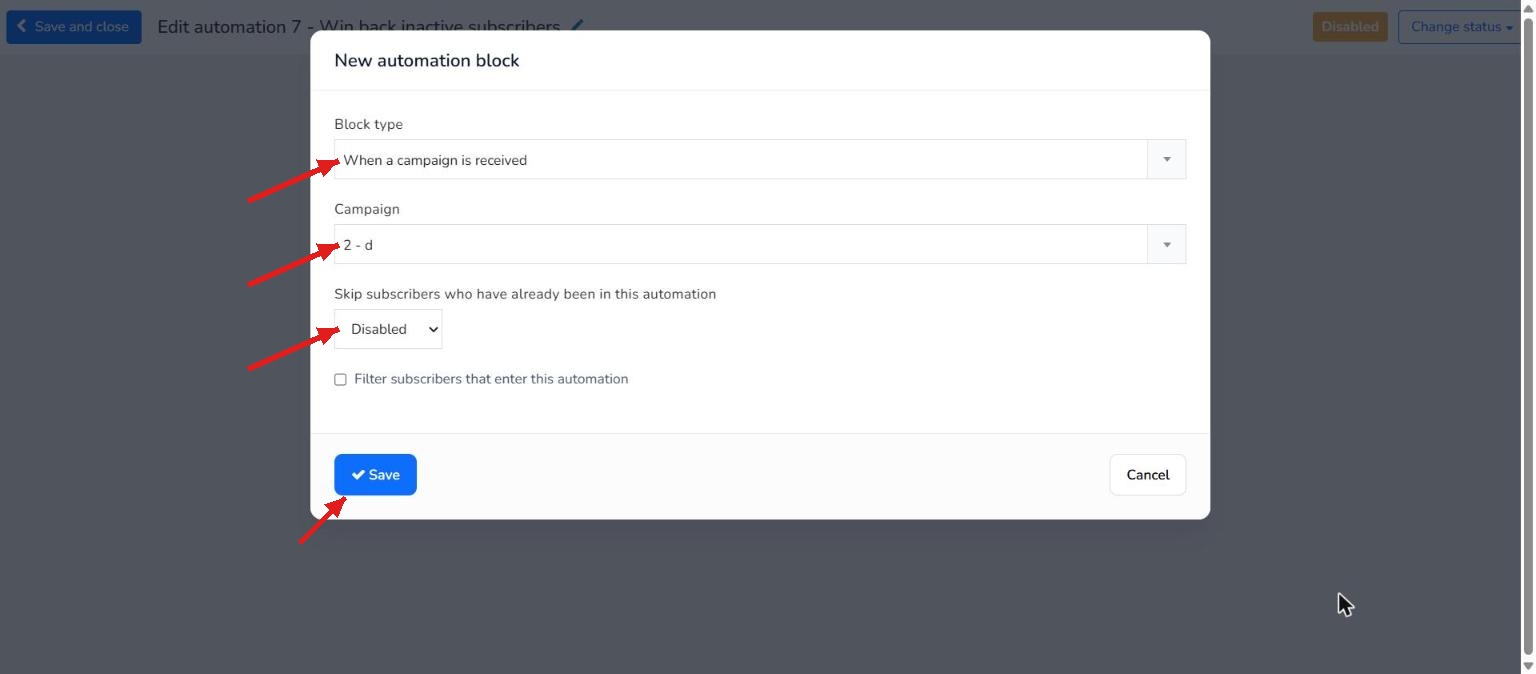
The first step is to select When a campaign is received in the Block type dropdown, then enter the name of the newsletter sent in Campaign, and set Skip subscribers who have already been in this automation to Disabled. Then click Save.
Next, we will set up a new email to be sent two days after receiving the We miss you! email. To do this, click Add and, in the new automation block, select: Delay in Block type, An amount of time in Wait, and set the wait time by typing 2 in Delay offset and days in Delay unit.
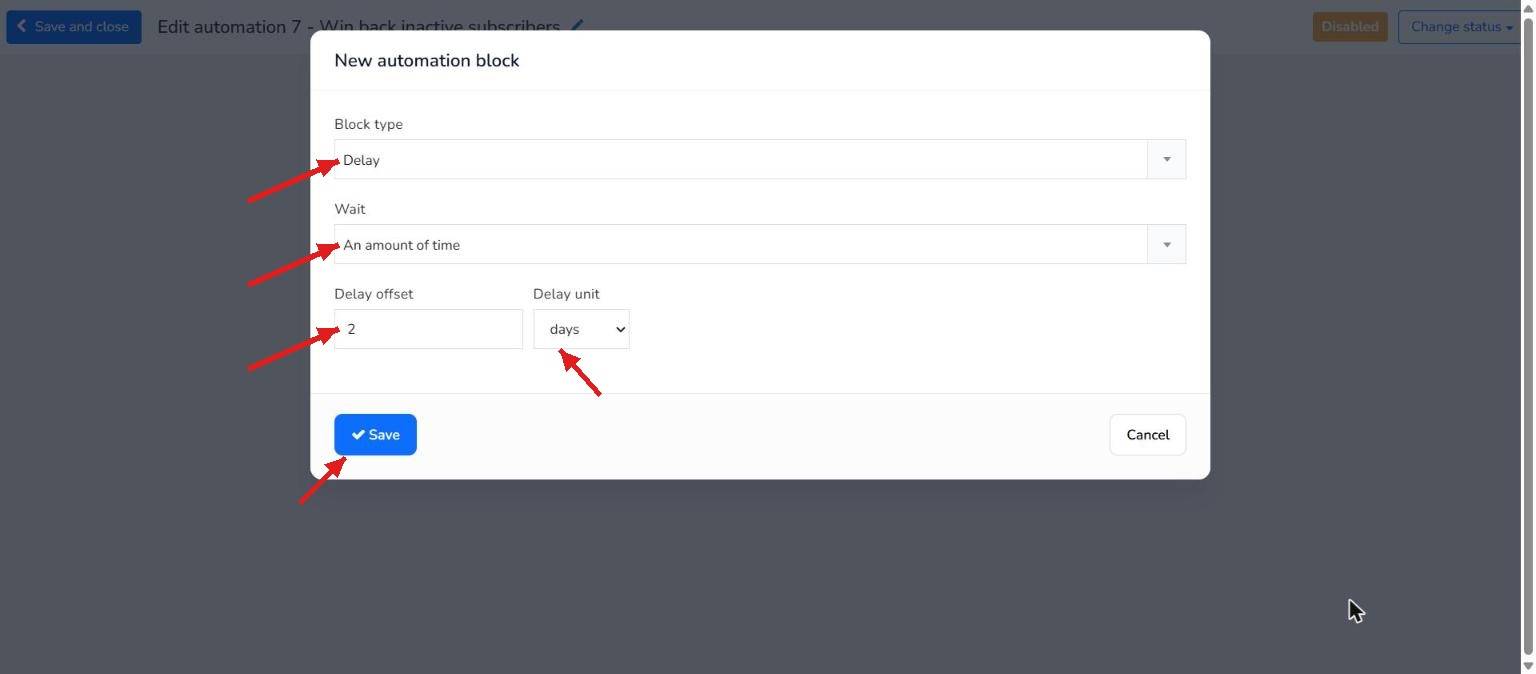
Once it is set up, click Save.
Now add the email you want to send automatically once those two days have passed. Click Add and select Send email in the Block type dropdown, enter the email subject in Subject and choose the sender in the Sender dropdown.
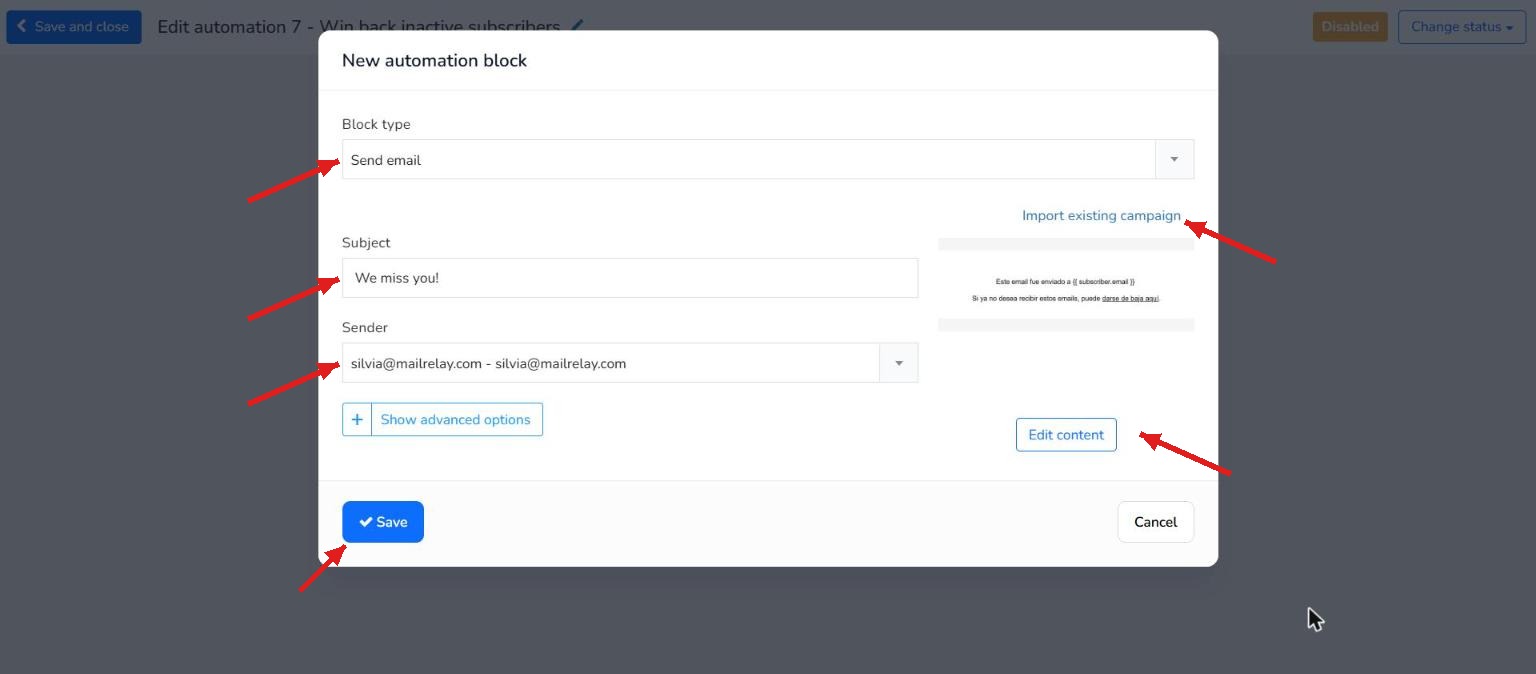
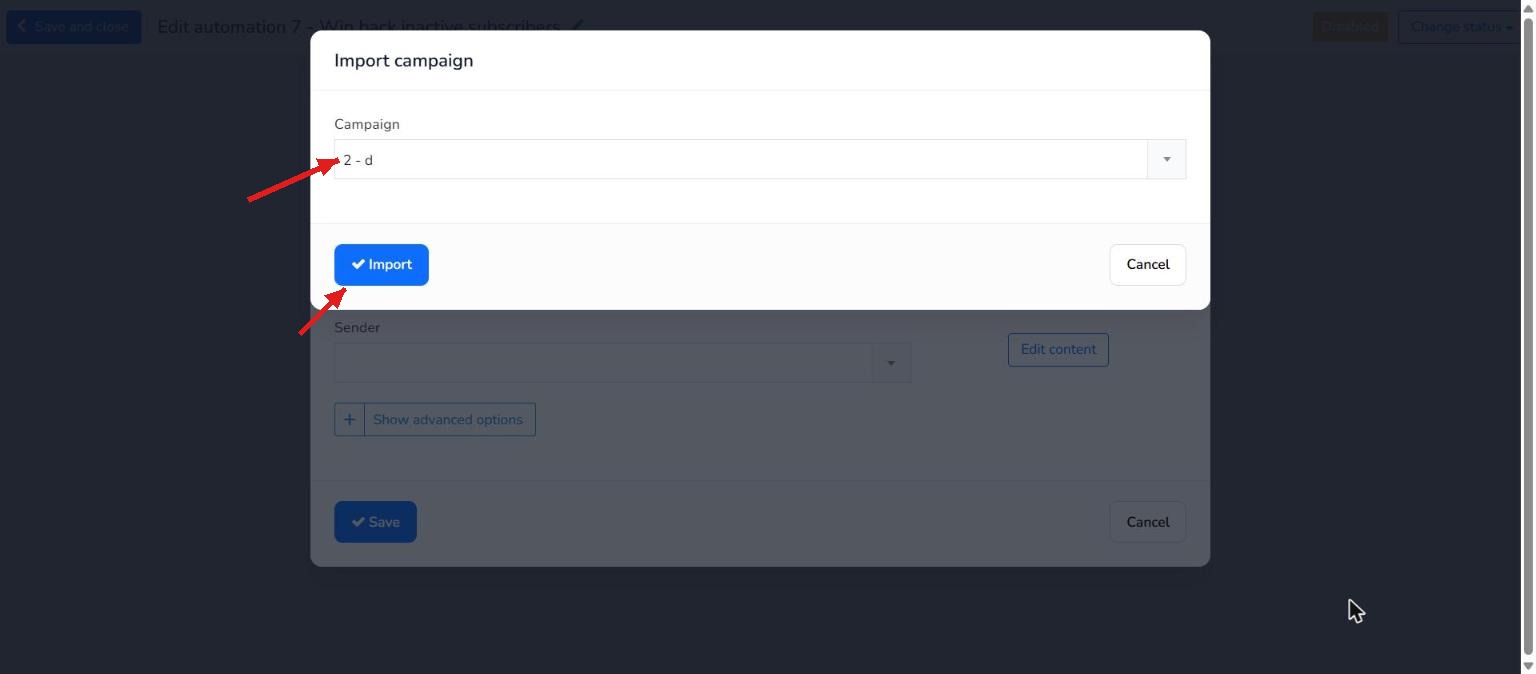
Next, select the design you want to send. In this case, we will use a newsletter that has already been created, so click Import existing campaign, select your existing design (in our case, we will use the We miss you! newsletter), and click Import.
This takes you back to the previous window. Click Save and your automation will be set up.
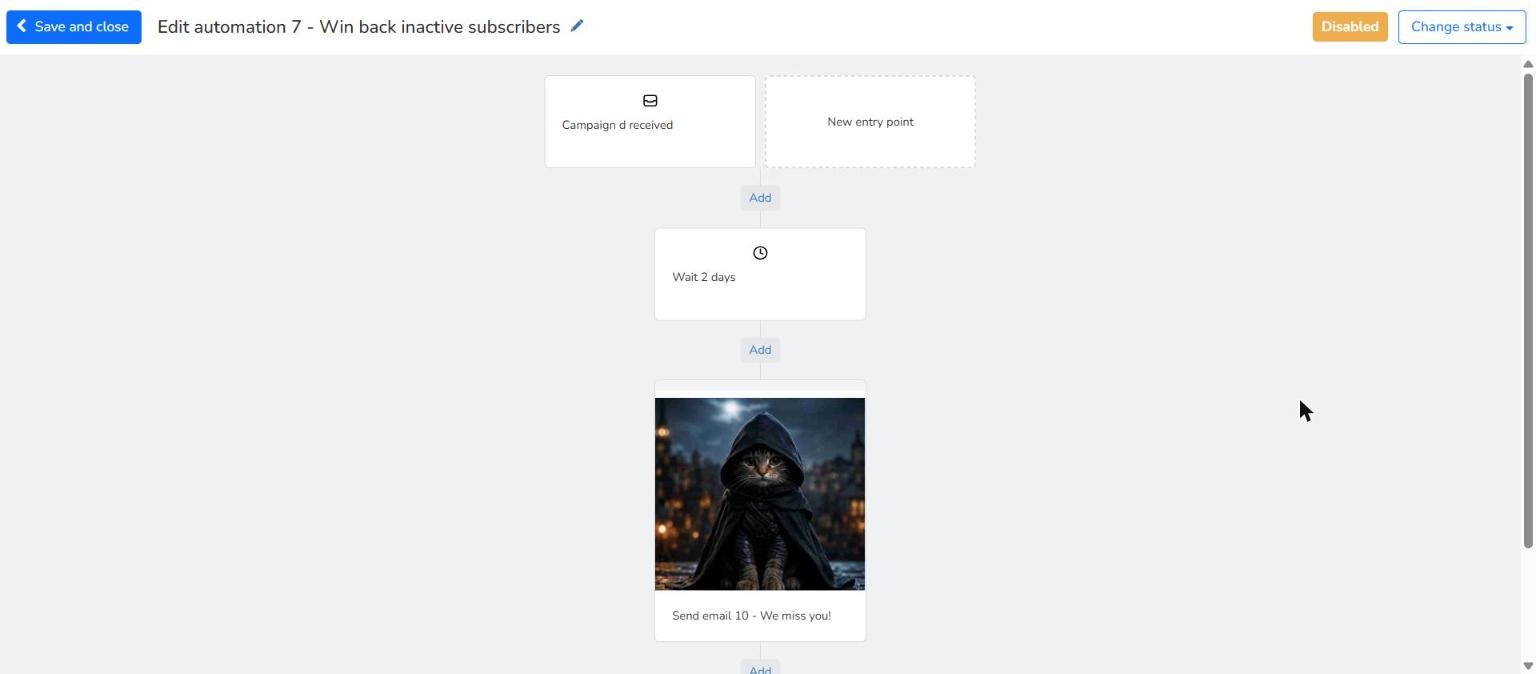
Could it start at a moment other than when the email is received?
Yes, absolutely. There are many possibilities, such as starting when the email is opened or when a link is clicked, among other triggers. Here we have used the receipt of the email to keep the explanation simple, but the next example shows how to create workflows based on specific subscriber actions.
3.4.- Automations based on subscriber behavior
As a next step, you can schedule an email to be sent based on subscriber behavior, since the way they interact with your mailings provides very valuable data to guide your automation flow.
3.4.1.- Send a different email depending on whether they open your newsletter
Using the sending of a newsletter as the entry point, we are going to create an automation that sends one newsletter to subscribers who opened the initial email and a different one to those who did not, adding a 4-day waiting period before sending either follow-up.
Important: You must insert a delay block at the beginning to give contacts enough time to take the action. Otherwise, the condition will always be evaluated as false, since contacts will not have had time to take the triggering action.
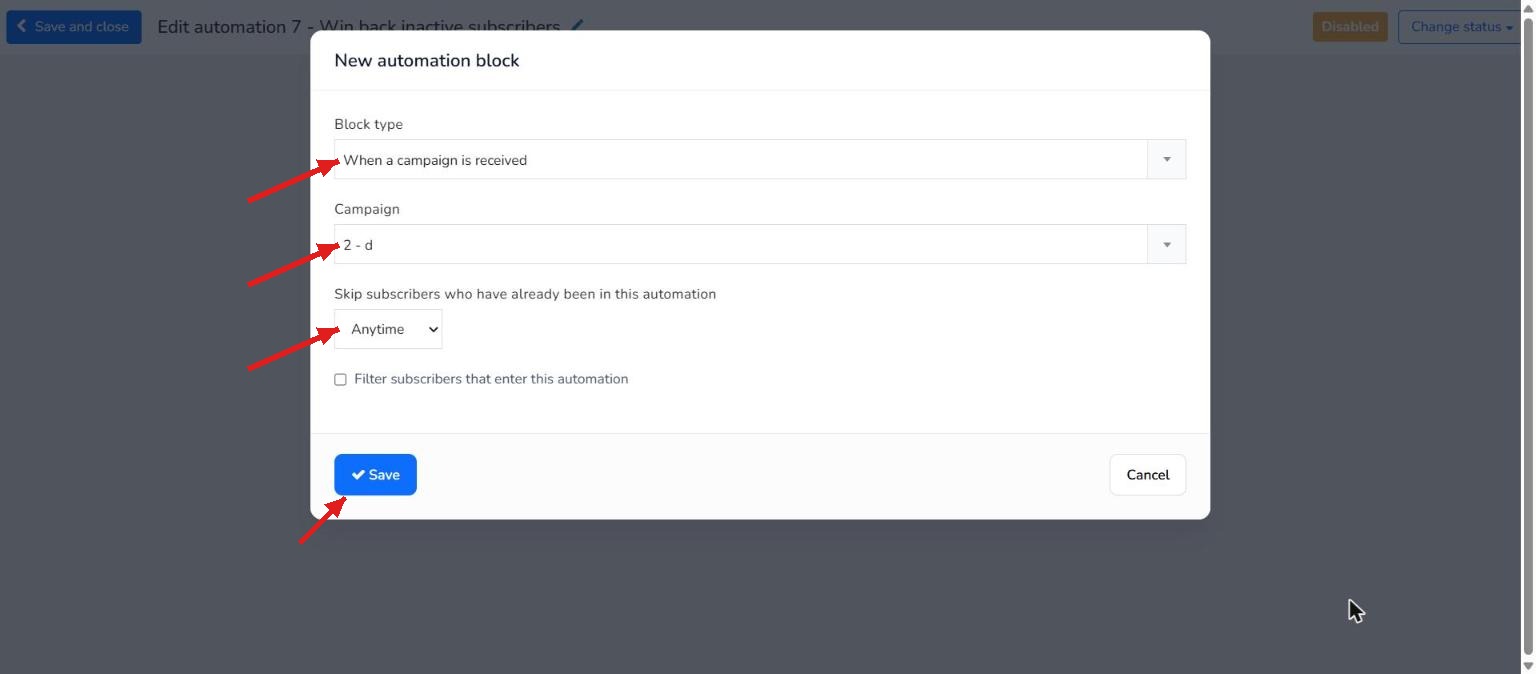
The first step is to select When a campaign is received in the Block type dropdown, choose the name of the newsletter sent in Campaign, and set Skip subscribers who have already been in this automation to Anytime. Finally, click Save.
Now click Add to insert a delay block, giving subscribers time to open the email. In our example, we will leave 4 days. Select Delay in the Block type dropdown, choose An amount of time in Wait, and set the duration to 4 days (entering 4 in Delay offset and selecting days in Delay unit).
Finally, click Save.
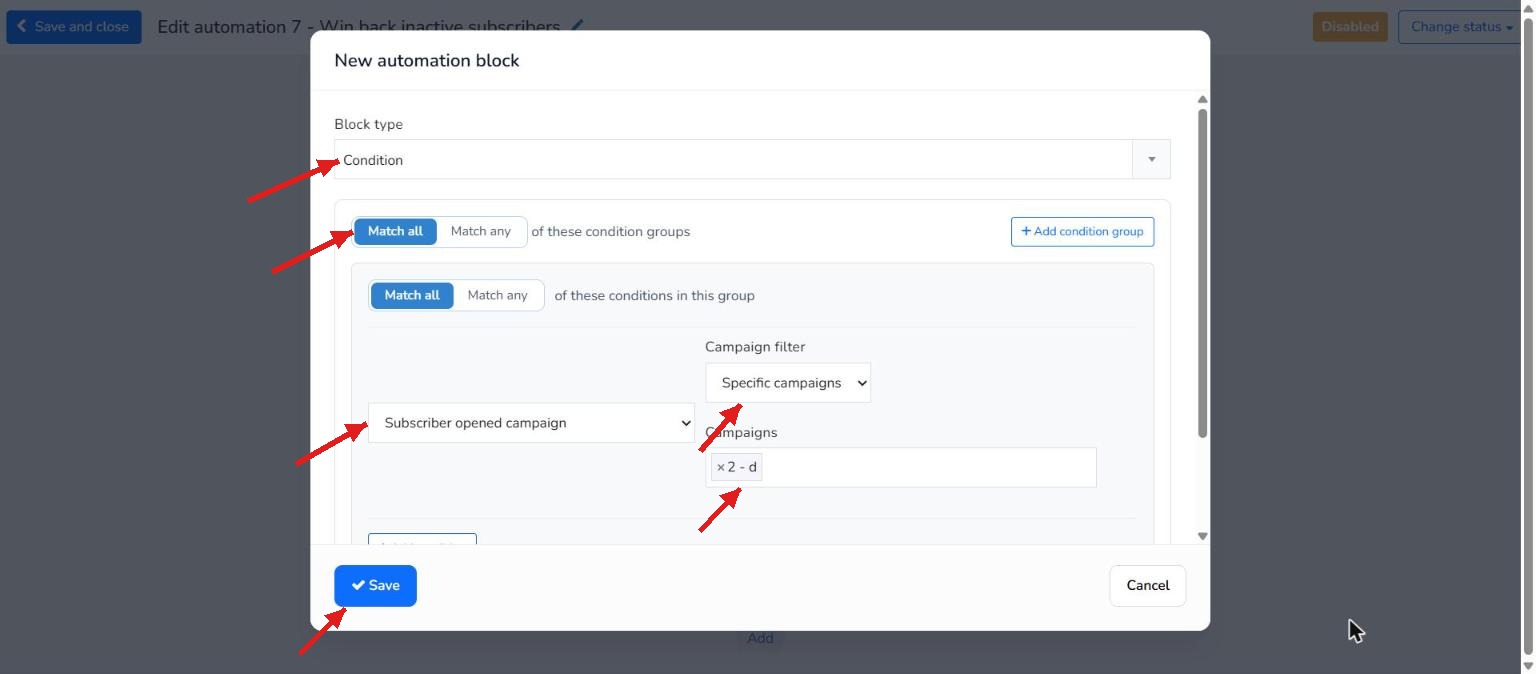
Next, we are going to create two paths: one for subscribers who opened the email, and another for those who did not. Click Add and select Condition in the Block type dropdown. Set up the condition as follows: select Match all. Then set the condition Subscriber opened campaign, set Campaign filter to Specific campaigns, and in Campaigns choose the newsletter they must have opened.
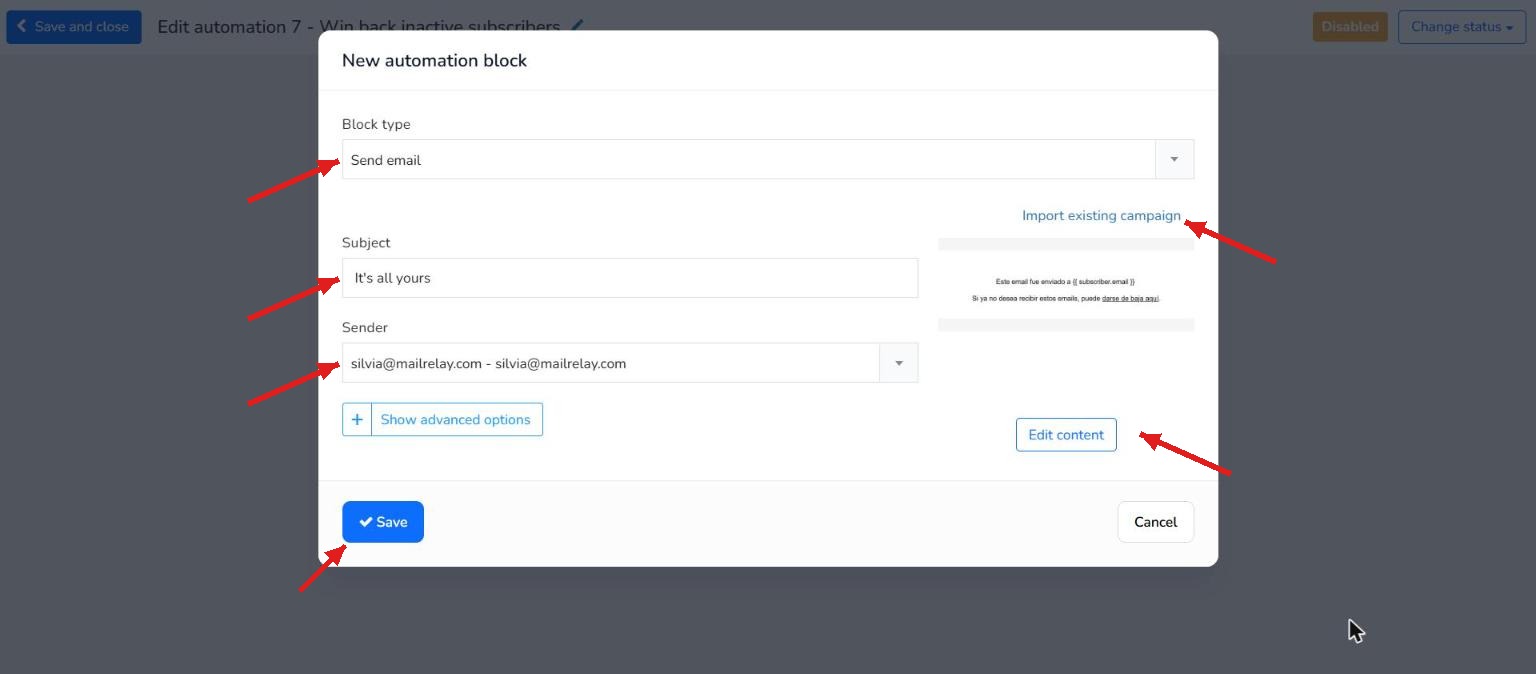
Now specify the email you want to send to users who opened the newsletter. Click Add on the green Yes path. Select Send email in the Block type dropdown, enter a subject in Subject and choose the sender in Sender.
Then choose the design by clicking Import existing campaign, select an already designed newsletter (we will use It's all yours), and click Import. Back in the main window, click Save to complete this path.
Finally, set up the email path for subscribers who did not open the previous email. Click Add on the red No path. Select Send email in the Block type dropdown, enter your subject in Subject and select your sender address in Sender.
Next, choose the design by clicking Import existing campaign, select an already created newsletter and click Import. Back in the main window, click Save to finish.
This setup provides an automated email flow tailored to whether subscribers opened your previous email, sending a specific message to each group.
4.- Frequently asked questions about automations
What is automated email marketing?
It is the sending of emails that are triggered on their own when something happens: a subscriber confirms their subscription, receives or opens a campaign, clicks a link, and so on. Instead of sending each newsletter by hand, you define the flow once (entry point, delays, conditions and emails) and Mailrelay runs it for every subscriber who enters the automation.
Can I use automations with the Mailrelay free account?
Yes. Automations are available on the free account, so you can create and test your automated email marketing flows at no cost.
What is the difference between the form and group entry points?
When subscriber signs up using a signup form is intended for contacts who come from a signup form and is triggered when they confirm their subscription. When a subscriber is added to a group is intended for contacts you add to one of your groups through an import or manually. You can find the details in section 3.1.
Why does the first email of my automation show as ignored?
If you use When a subscriber is added to a group with a signup form, the first email may be processed while the subscriber is still inactive and be marked as ignored. For forms, use When subscriber signs up using a signup form, as explained in section 3.1.
Why isn't my automation sending emails?
Check its status. All automations are created disabled, with the Disabled status. To activate them, click Change status and select Enable; the status will change to Active.
Can I pause an automation?
Yes. In an active automation, click Change status and select Pause. The status will go back to Disabled until you enable it again.
How can I see the results of my automations?
You can check them in the automation reports.
Was this article helpful?
That’s Great!
Thank you for your feedback
Sorry! We couldn't be helpful
Thank you for your feedback
Feedback sent
We appreciate your effort and will try to fix the article