
In Mailrelay you can automatically resend a newsletter to the subscribers who didn't open it with an automation. The automation starts when the subscriber receives the newsletter, waits the time you choose and checks with a condition whether they opened it. If they didn't, it sends them the same email again.
Automations are available in the free account and in the paid accounts. With this automated email marketing you give your newsletter a second chance without preparing another campaign. You can see everything automations include on Mailrelay's email marketing software page.
How the automation works
It is an email marketing automation with four blocks. If this is your first automation, also see Automations, how to create automations in Mailrelay.
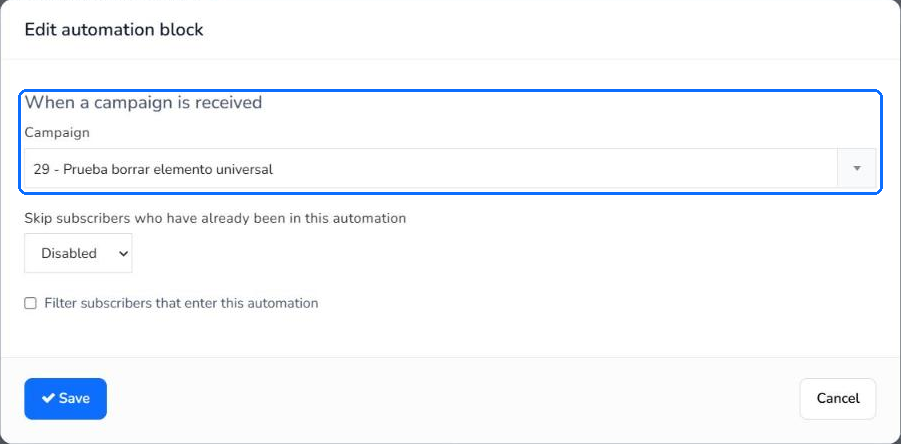
- When a campaign is received: the entry point. The subscriber enters the automation when they receive the newsletter you choose.
- Delay: the time you give the subscriber to open the newsletter, in days, hours or minutes.
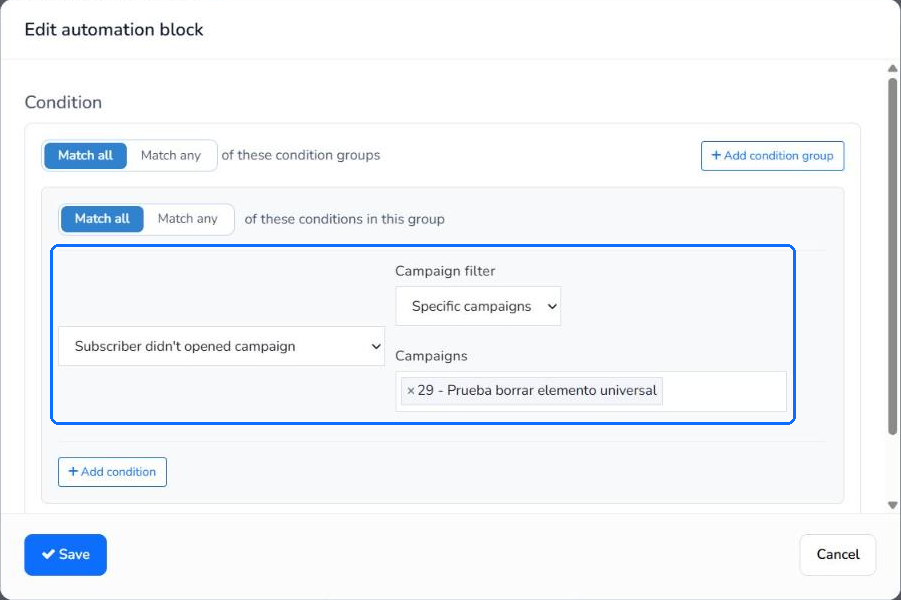
- Condition with Subscriber didn't opened campaign: splits the automation into two branches, Yes and No.
- Send email, in the Yes branch: the resend of the newsletter to whoever didn't open it.
Subscribers who opened the newsletter go to the No branch and don't receive the resend.
Before you start
In the entry point you can only choose a newsletter that has already been sent or scheduled. To set up the automation before sending, schedule the newsletter with Schedule delivery. Then create the automation before the scheduled time. You have the sending steps in How to send a campaign.
You can set up the resend for any email marketing campaign that you send or schedule as a newsletter.
How to create the automation
- Go to Automations and click Add. Type a Name, for example, "Resend to non-openers", and click Create Automation.
- Click New entry point. In Block type, choose When a campaign is received and, in Campaign, the newsletter you want to resend. Click Save.
- Click Add, below the entry point. In Block type, choose Delay. Leave An amount of time and enter the time in Delay offset and Delay unit, for example, 3 days. Click Save.
- Click Add, below the delay. In Block type, choose Condition and, in the condition, Subscriber didn't opened campaign. In Campaign filter, choose Specific campaigns and, in Campaigns, the same newsletter. Click Save.
- The Yes and No branches appear below the condition. Click Add, below Yes. In Block type, choose Send email and click Import existing campaign. Choose the newsletter and click Import.
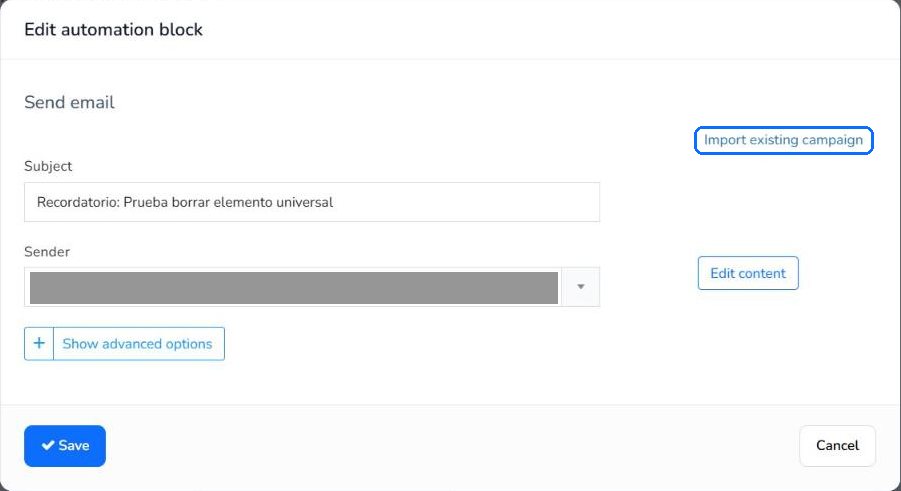
- The subject and content of the newsletter are copied. If you want, change the Subject, for example, to add "Reminder:" in front. Choose the Sender and click Save.
- Click Change status and then Enable.
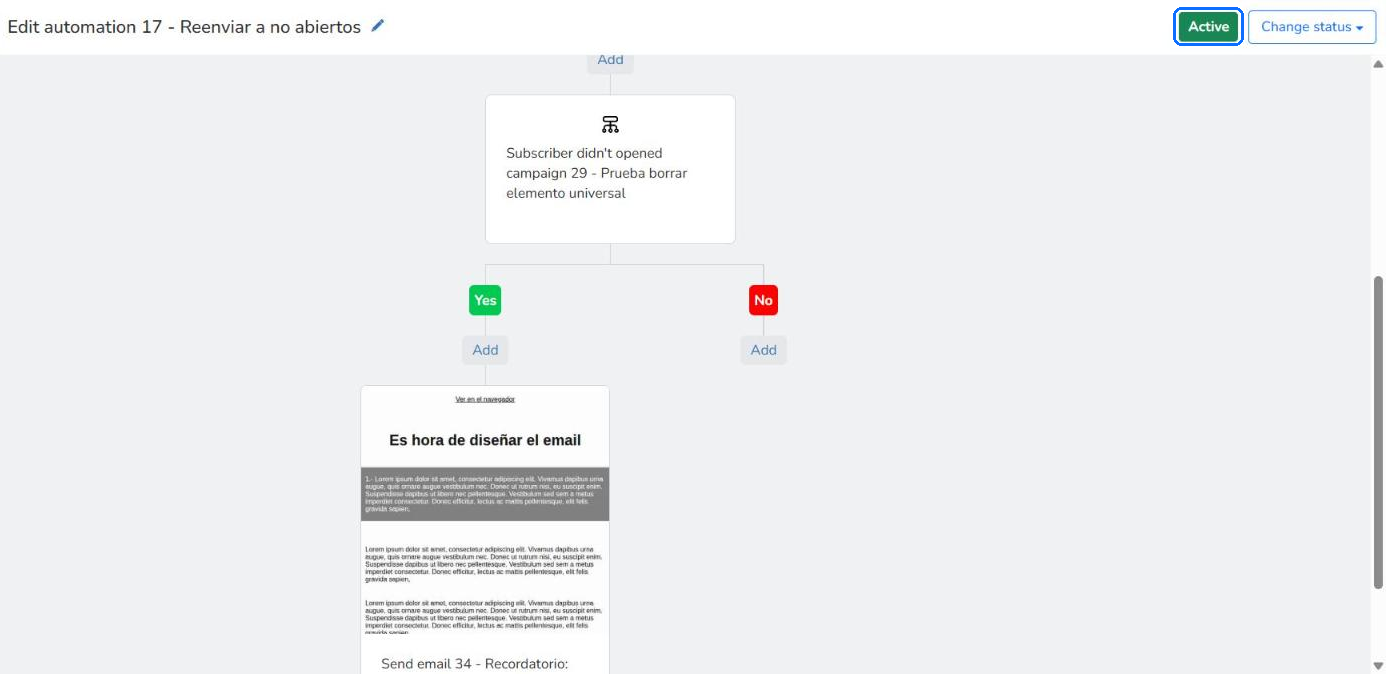
When the automation is active, the status at the top changes from Disabled to Active.
How to check that it works
- In the automation editor, the delay block shows how many subscribers are waiting, for example, 1 waiting.
- In Reports > Automations you see the Sent messages of each automation. You have more details in Automation reports.
Entry point options
- Skip subscribers who have already been in this automation: it has the options Disabled, In the last and Anytime. If you send the same newsletter more than once and choose Disabled, the subscriber enters the automation again with each send.
- Filter subscribers that enter this automation: lets you add conditions to limit who enters the automation.
Limits
- In the entry point you can only choose sent or scheduled newsletters.
- When you import the newsletter, the subject and content are copied, but not the sender: you have to choose it.
- The condition takes into account opens of the newsletter in any send. If the subscriber opened that newsletter in an earlier send, they go to the No branch and don't receive the resend.
Frequently asked questions
These are the most common questions about automatically resending a newsletter to people who didn't open it.
How do I set up an automatic resend to non-openers in Mailrelay?
Create an automation that starts when the subscriber receives your newsletter, with the When a campaign is received entry point. Add a delay and the Subscriber didn't opened campaign condition. In the Yes branch, add a Send email block that imports the same newsletter.
Can Mailrelay resend a newsletter to people who didn't open it?
Yes. Create an automation with the When a campaign is received entry point, a delay and the Subscriber didn't opened campaign condition. Mailrelay sends the email again to whoever didn't open it.
Do subscribers who opened the newsletter receive the resend?
No. Subscribers who opened it go to the No branch of the condition and don't receive the resend.
Can I change the subject of the resend?
Yes. After importing the newsletter in the Send email block, you can change the Subject before saving.
How long should I wait before resending?
You choose it in the delay block, in days, hours or minutes.
Can I do it with the free account?
Yes. Automations are available in the free account and in the paid accounts.