
In Mailrelay you can send automatic emails after a purchase or an event with an automation that starts when the contact joins a group. Mailrelay doesn't detect the purchase or the attendance. You add the contact to a group and the automation sends the emails, with delays between them.
Automations are available in the free account and in the paid accounts. With this automated email marketing you thank each customer and ask for their opinion days later. You don't have to prepare an email marketing campaign every time. You can see everything automations include on Mailrelay's email marketing software page.
Before you start
- Create a group for the contacts who will get the sequence, for example, "Buyers" or "Event attendees". You have the steps in How to create and use groups.
- Prepare the emails as campaigns, for example, a thank-you email and another one to ask for feedback. You then import them into the automation.
- If this is your first automation, also see Automations, how to create automations in Mailrelay.
How to create the email sequence after a purchase
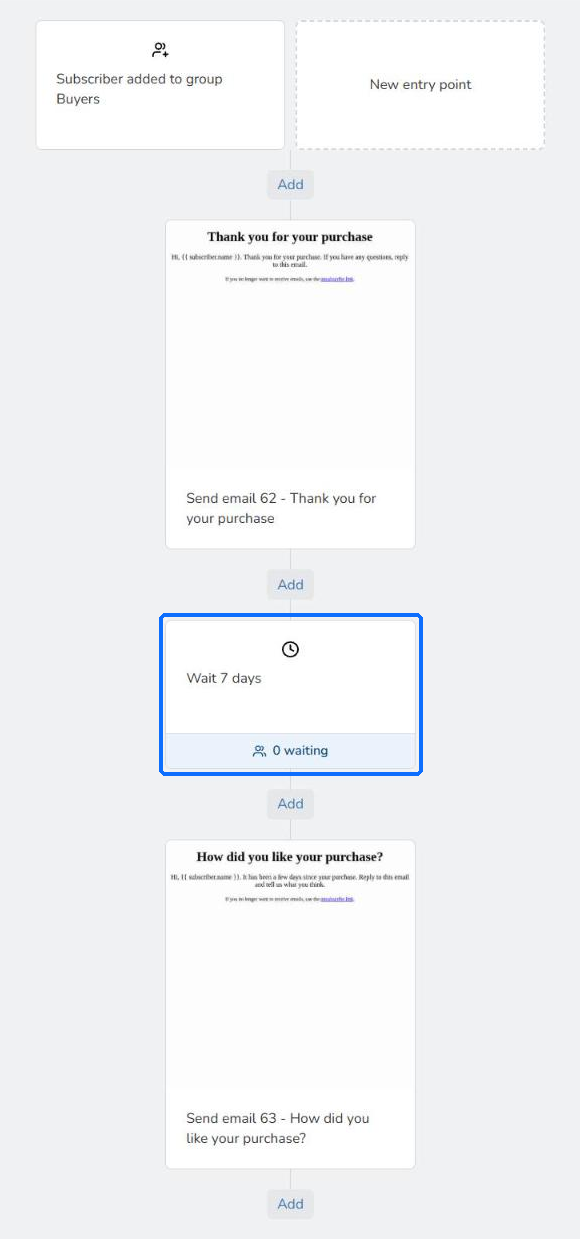
This example sends a thank-you email as soon as the customer joins the group and another email 7 days later:
- Go to Automations and click Add. Type a Name, for example, "Post-purchase follow-up", and click Create Automation.
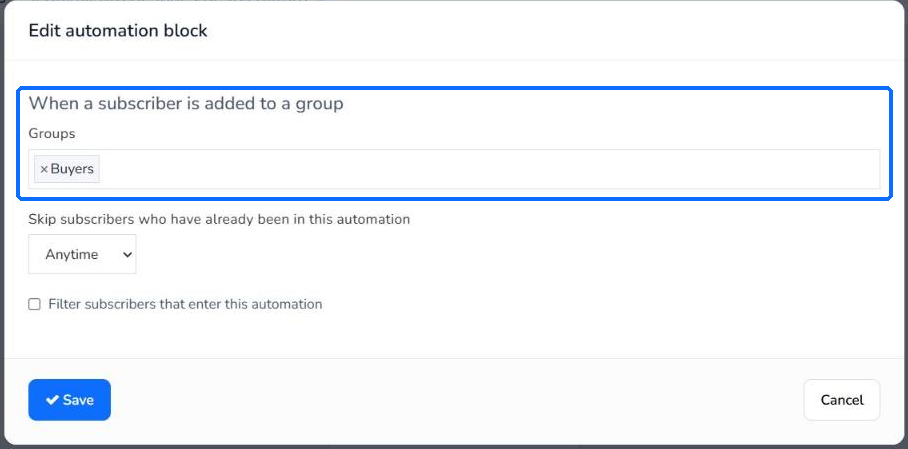
- Click New entry point. In Block type, choose When a subscriber is added to a group and, in Groups, the group. Click Save.
- Click Add, below the entry point. In Block type, choose Send email. Click Import existing campaign and choose the thank-you campaign. Check the Subject and the Sender and click Save.
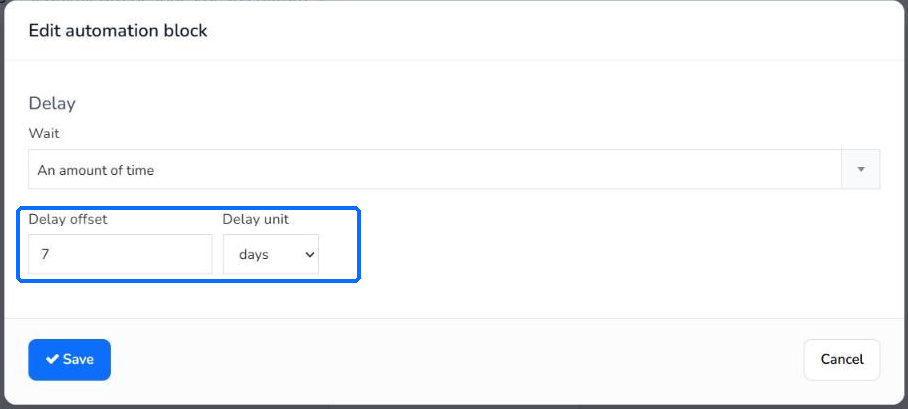
- Click Add, below the email, and choose Delay. Leave An amount of time in Wait and enter the time in Delay offset and Delay unit, for example, 7 days. Click Save.
- Click Add, below the delay, and choose Send email. Import the second campaign, for example, the one that asks for the customer's feedback, and click Save.
- Click Change status and then Enable.
You can add more emails and delays below the last block to make the sequence longer. The delay block shows how many subscribers are waiting at that moment, for example, "0 waiting".
To add the customer's name to the subject or the text, see How to personalize the subject and content with variables and conditional blocks.
How to add a customer to the group
The automation starts when the contact joins the group. To add a customer manually:
- Go to Subscribers > Subscribers and edit the subscriber.
- In Groups, type the name of the group and choose it.

- Click Update Subscriber.
If you have many customers, you can import them into the group. You have the steps in Imports.
How to do it after an event
For an event, such as a webinar or a trade fair, create a group for the attendees and an automation with the same steps. When the event is over, add the attendees to the group and each of them will get the sequence. For example, a thank-you email with the recording and, a few days later, another one with your next offer. It is a simple form of email marketing for small businesses.
How to test the automation
Before you use it with your customers, set a short delay, for example, 5 minutes. Then enable the automation and add your own address to the group. In a test, the first email arrived as soon as the subscriber was added to the group and the second one, 5 minutes later. When you have checked that it works, change the delay to the time you want.
Limits
- Mailrelay doesn't detect purchases or event attendance: there is no entry point for them. The contact has to join the group, manually or with an import.
- The delay doesn't take into account the date of the purchase or the event: it counts the time you choose in the block.
- The Skip subscribers who have already been in this automation option comes set to Anytime. Check it if the same customer can enter the sequence more than once, for example, with every purchase.
Frequently asked questions
These are the most common questions about automatic emails after a purchase or an event.
How do I set up automations after an event or a purchase?
Add the buyers or attendees to a group. Then create an automation with the When a subscriber is added to a group entry point, emails and delays.
Can I send several emails a few days apart?
Yes. Add a Delay block between the emails, with the time you want.
Does Mailrelay know when a customer has made a purchase?
No. You have to add the customer to the automation's group, manually or with an import.
Can I use a campaign I already have?
Yes. In the Send email block, click Import existing campaign and choose the campaign.
Can I do it with the free account?
Yes. Automations are available in the free account and in the paid accounts.