How to send a campaign
When your newsletter is ready, the last step of your email marketing campaign is to send it to your subscribers. In this article, we explain how to send a campaign from Campaigns >> Campaigns: how to send a test, choose the recipients, schedule the delivery and check the result.
The steps are the same whether you send a newsletter to a small group or send bulk emails to all your subscribers, and you can also do it with the free account of your email marketing platform.
INDEX
- Before sending
- How to open the sending screen
- How to send a test email
- How to choose the recipients
- How to schedule the delivery and limit the time frame
- How to confirm the delivery
- After sending
- Frequently asked questions
- Related articles
Before sending
To send a campaign, you first have to create it. In Campaigns >> Campaigns, click Add and choose how you want to create it: New editor with AI, Paste code, Upload ZIP or Import from URL. We explain how to design it in the article Create a newsletter with the visual editor.
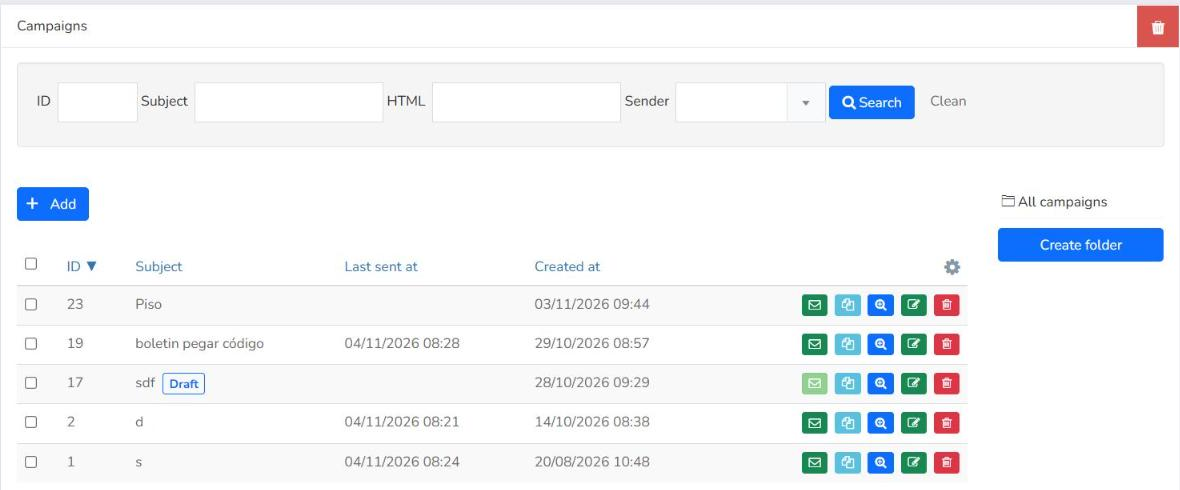
Campaigns that appear in the list with the Draft label have the Send button disabled.
How to open the sending screen
Go to Campaigns >> Campaigns. You will see the list of your campaigns with their ID, Subject, Last sent at and Created at. In the row of the campaign you want to send, click the Send button, the first of the buttons on the right.
The Send campaign screen opens. It reminds you to review the campaign carefully, because once it is sent its content cannot be changed. On the right you will see a preview of the campaign.
If your account does not have a custom domain configured, on this screen you will also see the notice There is an issue that may affect your newsletter's deliverability, with a link to configure it. More information in the article Tracking and bounce domains.
How to send a test email
Before sending the campaign to your subscribers, it is a good idea to send yourself a test to check how it looks in the email, the links and the unsubscribe link.
Select the Send a test email option and enter in Test emails the addresses you want to send it to. You can enter several addresses separated by commas. If you click Use my email, the field is filled in with the email of your user.
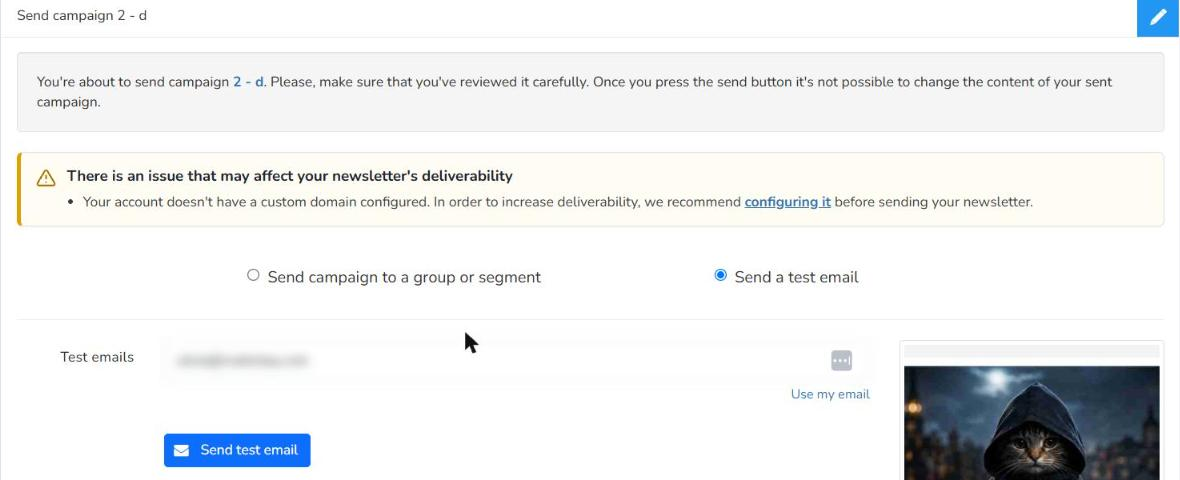
Click Send test email. You will see a message confirming that the test email has been sent.
How to choose the recipients
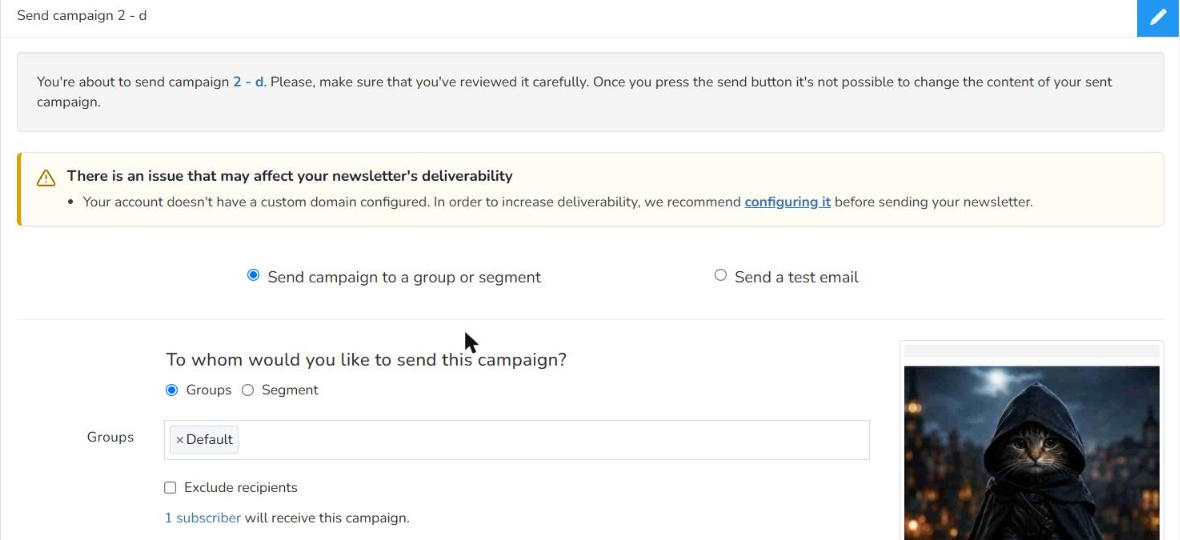
Once you have reviewed the test, select the Send campaign to a group or segment option. In To whom would you like to send this campaign? choose between:
- Groups: select one or more groups of subscribers in the Groups field.
- Segment: search for and select a segment in the Segment field. If you do not have the segment you need yet, you can create it with the New segment button next to the field.
Below you will see how many subscribers will receive the campaign. This way you know, before sending, how many people your mailing will reach.
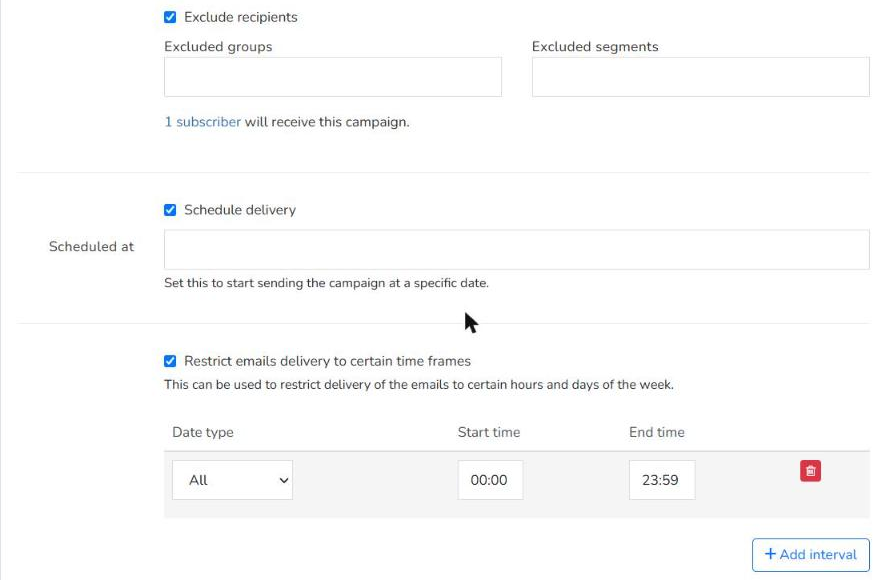
If there are subscribers you do not want to receive this campaign, check Exclude recipients and choose the Excluded groups or Excluded segments. The number of subscribers who will receive the campaign is updated and no longer includes the excluded subscribers.
How to schedule the delivery and limit the time frame
If you do not want the delivery to start right away, check Schedule delivery and enter in Scheduled at the date and time when the campaign should start being sent, in the format dd/mm/yyyy hh:mm. The time you enter corresponds to your account's time zone, which you can see in Settings >> General settings.
If you want the emails to be delivered only at certain times, check Restrict emails delivery to certain time frames. For each interval, choose the Date type (All, Specific day, Weekends or Weekdays), the Start time and the End time. If you choose Specific day, a field appears to choose the day of the week. With Add interval you can add more intervals, and with the trash button you can remove an interval.
How to confirm the delivery
When everything is ready, click Send. The Ready to send your campaign? window opens with a summary of the delivery:
- Subject: the subject of the campaign.
- To: the number of subscribers who will receive it.
- When: Immediately or the date and time you have scheduled.
- Track opens and Track clicks.
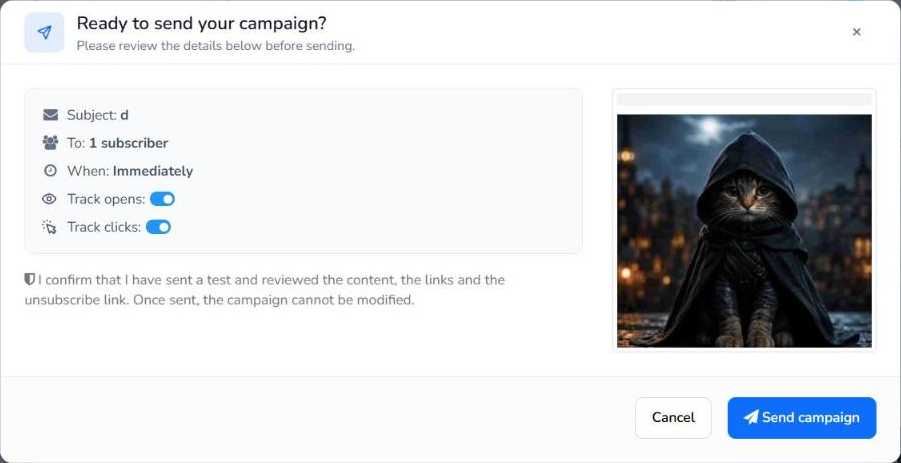
Review the details and click Send campaign. If you want to change something, click Cancel: the window closes and you go back to the sending screen without sending anything.
After sending
When you confirm, the page of the sent campaign opens, in Reports >> Sent campaigns, with a message saying that your email is being added to the sending queue and that this may take some time depending on the number of subscribers. While it is being sent, you have the Cancel and Pause buttons.
If you have scheduled the delivery, on that page you will see the message This campaign is scheduled to be sent at followed by the date and time, and in the Sent campaigns list the delivery appears with the status Scheduled and the date in the Scheduled at column.
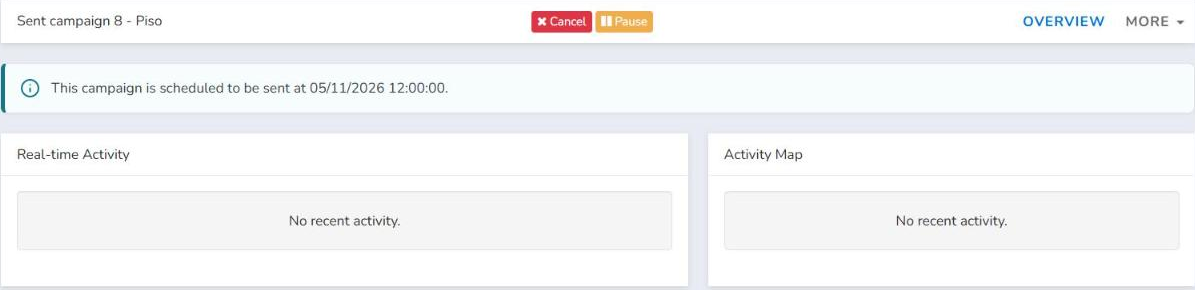
In the Reports >> Sent campaigns list, the Status column shows Processing while it is being sent and Finished when it ends. There you can also see the Sent emails, Impressions and Clicks of each delivery. More information in the article Sent campaigns.
In Campaigns >> Campaigns, the Last sent at column shows the date of the last delivery. You can send the same campaign again by following the same steps. If you sent it recently, it is not sent when you confirm, and the sending screen shows a notice asking you to confirm that you want to send it again, together with a checkbox to send it anyway.
Frequently asked questions
Can I send a newsletter for free?
Yes. You can send your campaigns from Campaigns >> Campaigns with the free account, following the same steps as in this article.
Can I send a mailing to several groups at once?
Yes. In the Groups field you can select several groups of subscribers for the same delivery. Below you will see the total number of subscribers who will receive the campaign.
If a subscriber is in several of the groups you choose, they only receive the campaign once. The delivery is never duplicated, even if their email is in several groups at the same time.
Can I change the campaign after sending it?
No. Once it is sent, its content cannot be changed. That is why it is a good idea to send a test first and review the campaign.
How can I see the results of my email marketing campaigns?
In Reports >> Sent campaigns you have each delivery with its Sent emails, Impressions and Clicks.
Related articles
Was this article helpful?
That’s Great!
Thank you for your feedback
Sorry! We couldn't be helpful
Thank you for your feedback
Feedback sent
We appreciate your effort and will try to fix the article