Tracking and bounce domains
To get optimal results in your email communications, it's essential to have a properly configured custom domain for your sends with Mailrelay.
What is a custom domain?
A custom domain is a configuration that lets you replace the generic domain assigned to you in tracking links and image URLs with a personalized one, to improve deliverability and give your subscribers a better perception of your emails.
You can create several custom domains in your account, which is useful if your company has multiple domains you're authorized to use in your Mailrelay account.
IMPORTANT: This configuration must be done in your domain's DNS panel. If you're not sure how to do it, contact your hosting provider so they can do it for you.
Setting up a custom domain
Go to Settings >> Custom Domain and click +Add.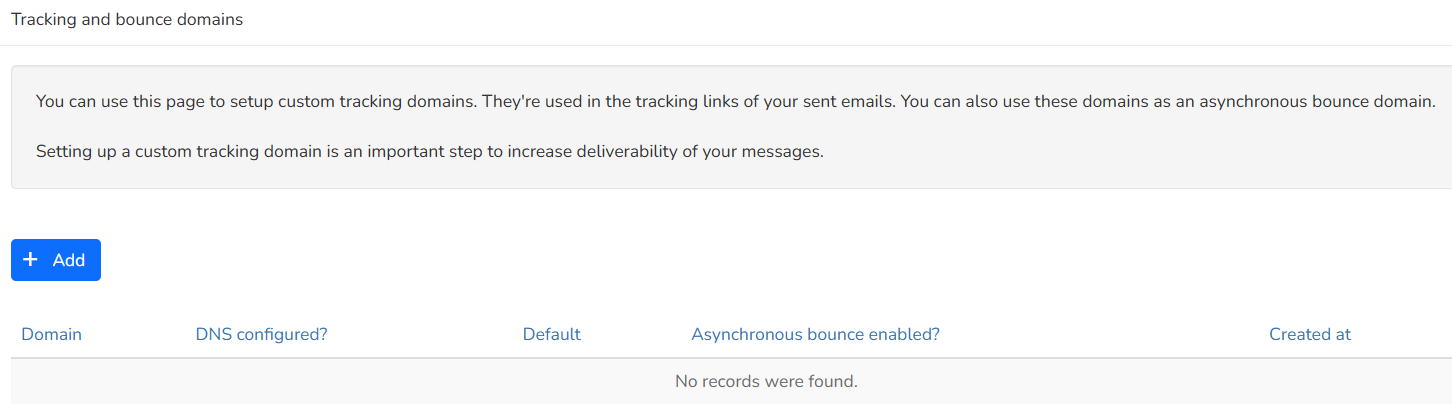
A new window will appear where you must enter the subdomain you want to use as your custom domain in the Domain field (e.g., newsletter.consultorpc.com). Then click Next.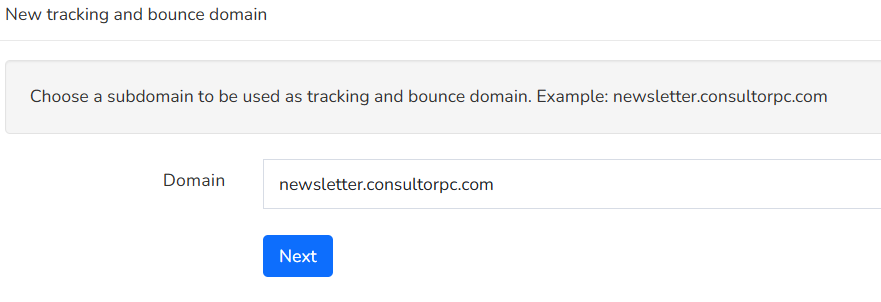
A window will show the record you need to create to complete setup in two steps: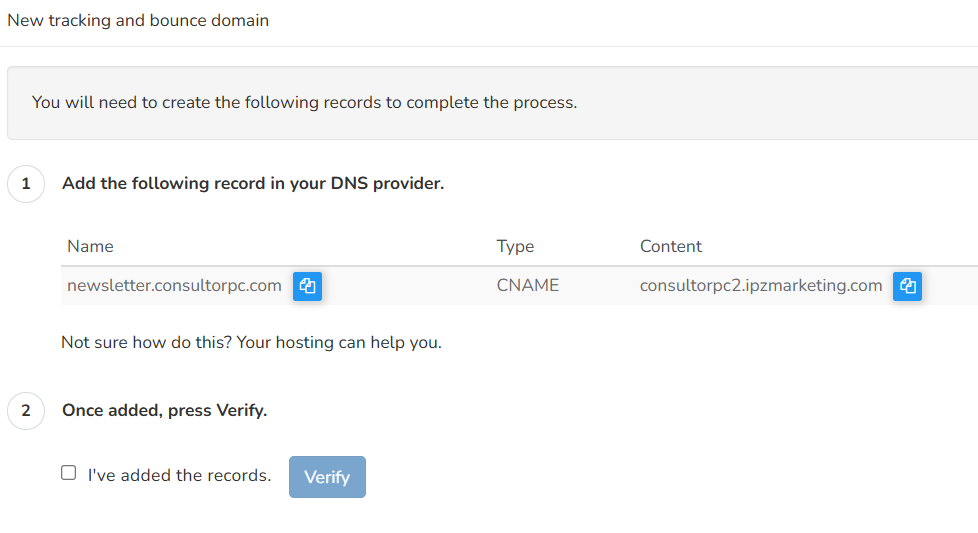
- Add the following record to your DNS provider:This displays the CNAME record you must add in your DNS control panel.
newsletter.consultorpc.com CNAME consultorpc2.ipzmarketing.comIn this example, the Mailrelay account is consultorpc2.ipzmarketing.com and the chosen subdomain is newsletter.consultorpc.com. (If you are unsure how to add this record, contact your hosting provider for assistance.)
- Once added, click Check: After creating the CNAME record in your DNS control panel, check the box I have added the records and click the Check button.
Clicking Check will yield one of two outcomes:
The domain is correct
If the custom domain is correctly configured, a green message will appear: Custom domain has been created successfully.

The new entry will appear under Settings >> Custom Domain. Finally, enable asynchronous bounces for your account by clicking "Enable asynchronous bounces" (this will change the red "No" label to a green "Yes" label); this feature captures bounces that occur after the message has been sent, so we recommend enabling it.
The domain is not correct
If the configuration was not done correctly, a red error message will appear: This domain is not configured yet. You will need to create the DNS entry pointing to our server.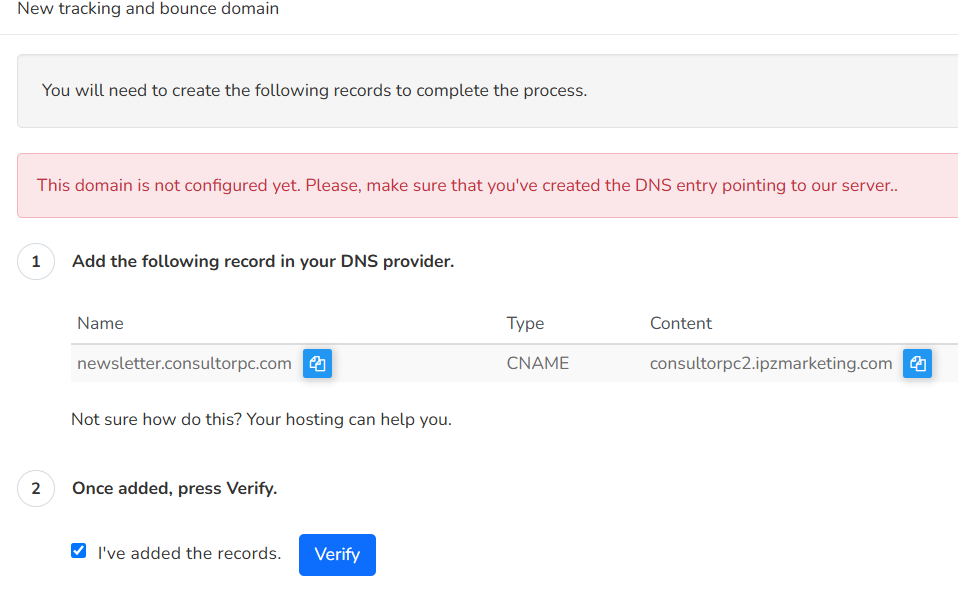
If this happens, re-check your DNS settings or contact Mailrelay online support for help.
Was this article helpful?
That’s Great!
Thank you for your feedback
Sorry! We couldn't be helpful
Thank you for your feedback
Feedback sent
We appreciate your effort and will try to fix the article