
In Mailrelay you can save a section of your campaign as a universal element and reuse it in other campaigns of the New editor with AI, for example, a header with your logo or a footer with your details. Saved blocks appear in the editor's Universal tab and, if you change one with Edit Across All Instances, the change is applied to every campaign that contains it.
Universal elements are also available in the free account. Reusing blocks saves you time when you create a newsletter and keeps the same design in all your email marketing campaigns.
Universal elements are available both in the free account and in paid accounts.
What a universal element is
A universal element is a section of the campaign that you save with a name to use it in other campaigns. All the campaigns that contain it share the same content: if you change it with Edit Across All Instances, it is updated in all of them.
It is useful for the parts you repeat in every send, such as the header, the footer or a social media block, and it works like an email template for those parts.
You can see everything the editor includes on Mailrelay's email marketing software page.
How to save a section as a universal element
- Go to Campaigns > Campaigns and open a campaign created with the New editor with AI. In the Content section, click Edit.
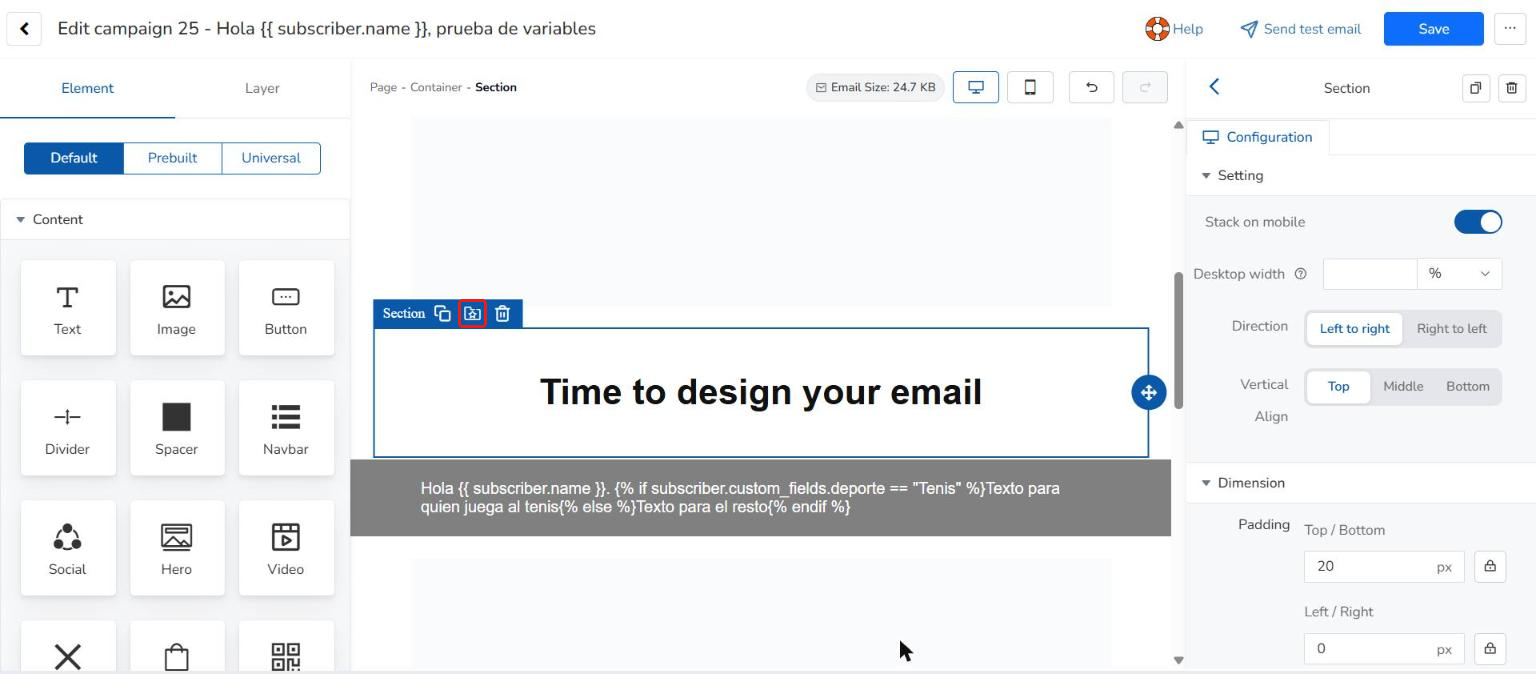
- Click the section you want to save. If clicking selects a block inside it, click Section in the path shown above the canvas (for example, Page - Container - Section).
- In the blue bar of the section, click the second icon.
- The Create Universal Element window opens. In Element name, write a name that helps you recognize it, for example, "My newsletter header".
- Click Save.
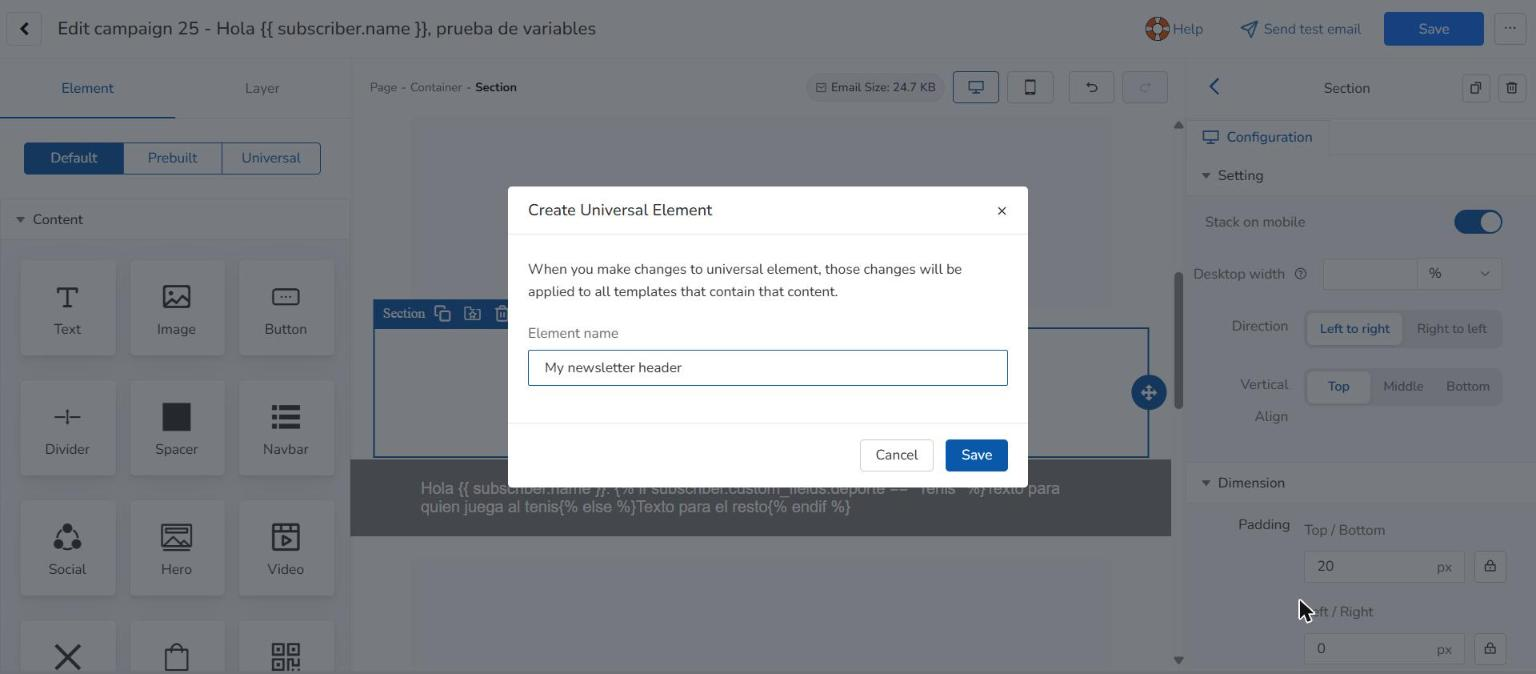
The window warns you that the changes you make to the universal element will be applied to all templates that contain that content.
How to insert a saved block in another campaign
- Open the editor of the campaign where you want to use the block (Content > Edit).
- In the left panel, in the Element tab, click Universal. Your elements appear in the Custom list, with a preview. If you have many, search for them by name in Search blocks.
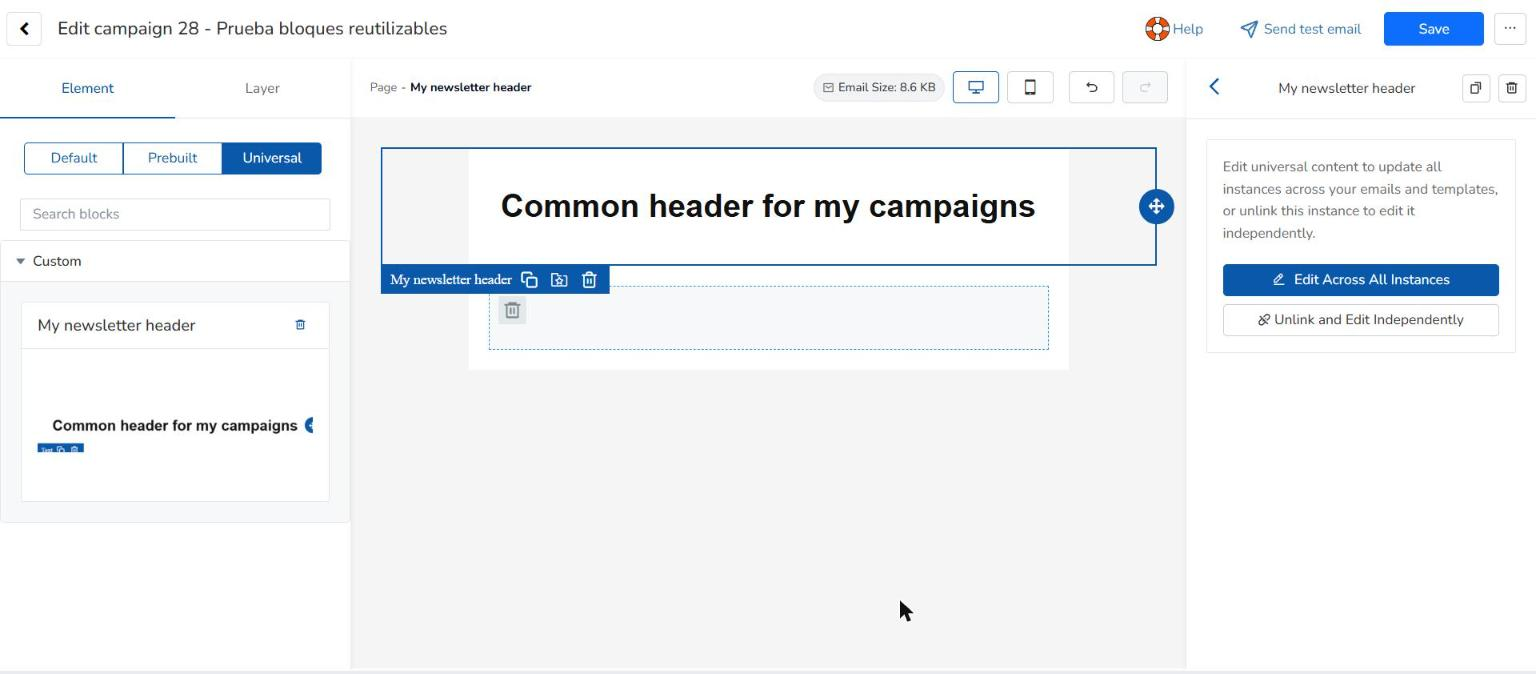
- Drag the element to the place in the campaign where you want it. Drag it by its name.
- Click Save.
On the canvas, the element is marked with its name in the blue bar, instead of Section. When you select it, the right panel shows the Edit Across All Instances and Unlink and Edit Independently buttons.
How to change a block in all campaigns
- In the editor, click the universal element.
- In the right panel, click Edit Across All Instances. The element opens on its own, with its own Cancel and Save changes buttons.
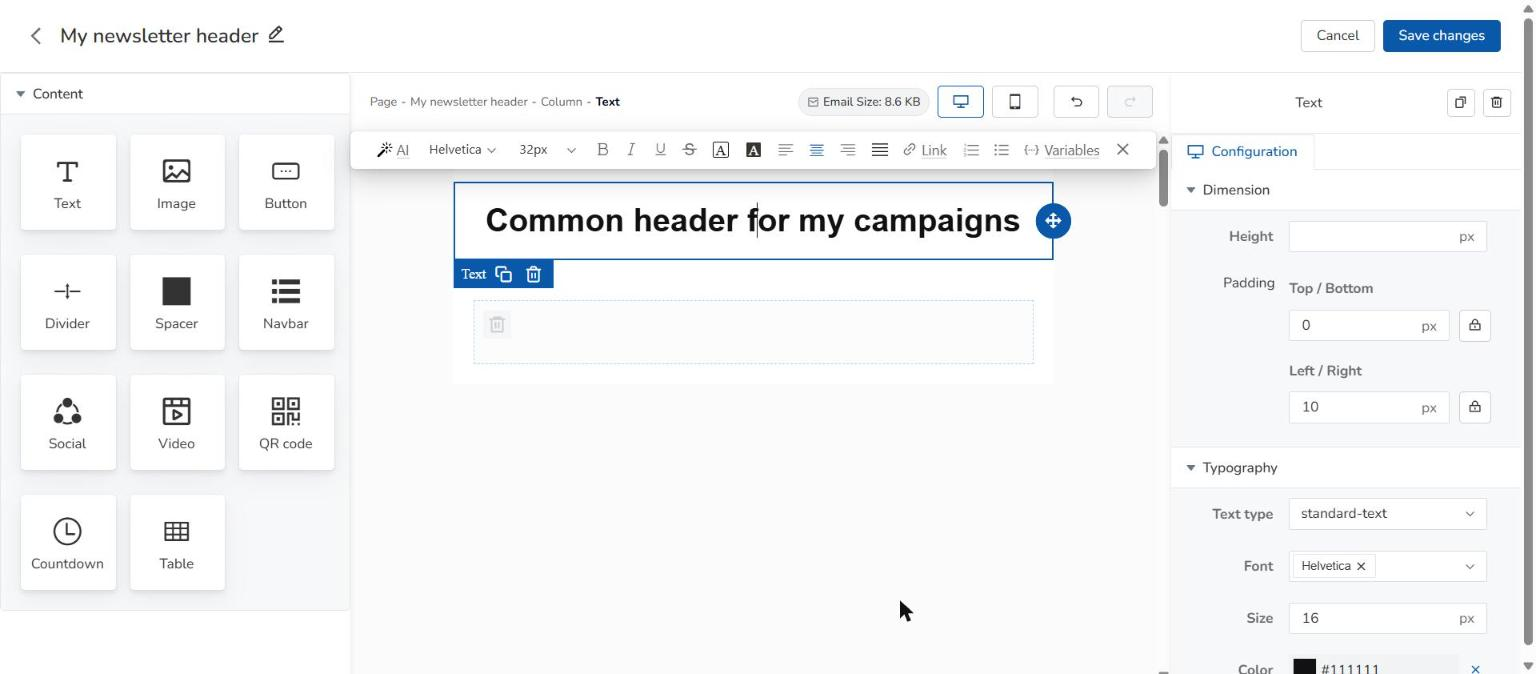
- Make your changes, for example, to the text or the images. To change the name of the element, click the pencil next to its name at the top, write the new name and press Enter.
- Click Save changes.
The changes are applied to all the campaigns that contain the element. If you only want to review it without changing anything, click Cancel.
Campaigns you have already sent don't change: they keep the content the element had when they were sent.
How to change a block in one campaign only
If you want to change the block only in the campaign you are editing, click the element and, in the right panel, click Unlink and Edit Independently. That copy becomes a normal section of the campaign: you can change it without affecting the other campaigns, and the changes to the universal element are no longer applied to it.
How to delete a universal element
In the Universal tab, click the trash icon next to the name of the element. The editor asks you to confirm it.
When you delete it, the element disappears from the Universal tab, but the campaigns that already contained it don't lose it: the copy stays in the campaign with its latest content and becomes a normal section, which is no longer updated with Edit Across All Instances. Campaigns that have already been sent don't change either.
How to reuse a whole campaign
If you want to reuse a whole campaign and not just a block, go to Campaigns > Campaigns and click the Duplicate icon of the campaign. A copy with the same content is created, which you can change before sending it. If the campaign had universal elements, the copy keeps them.
How to start a campaign from a predesigned template
If you want to start from a ready-made design, the New editor with AI has a gallery of predesigned email marketing templates, organized by categories such as Newsletters or Ecommerce.
- In the campaign editor, click More (the three-dot button next to Save) and then Change template.
- The Select template window opens. Choose a category in the left column or search by name in Search templates.
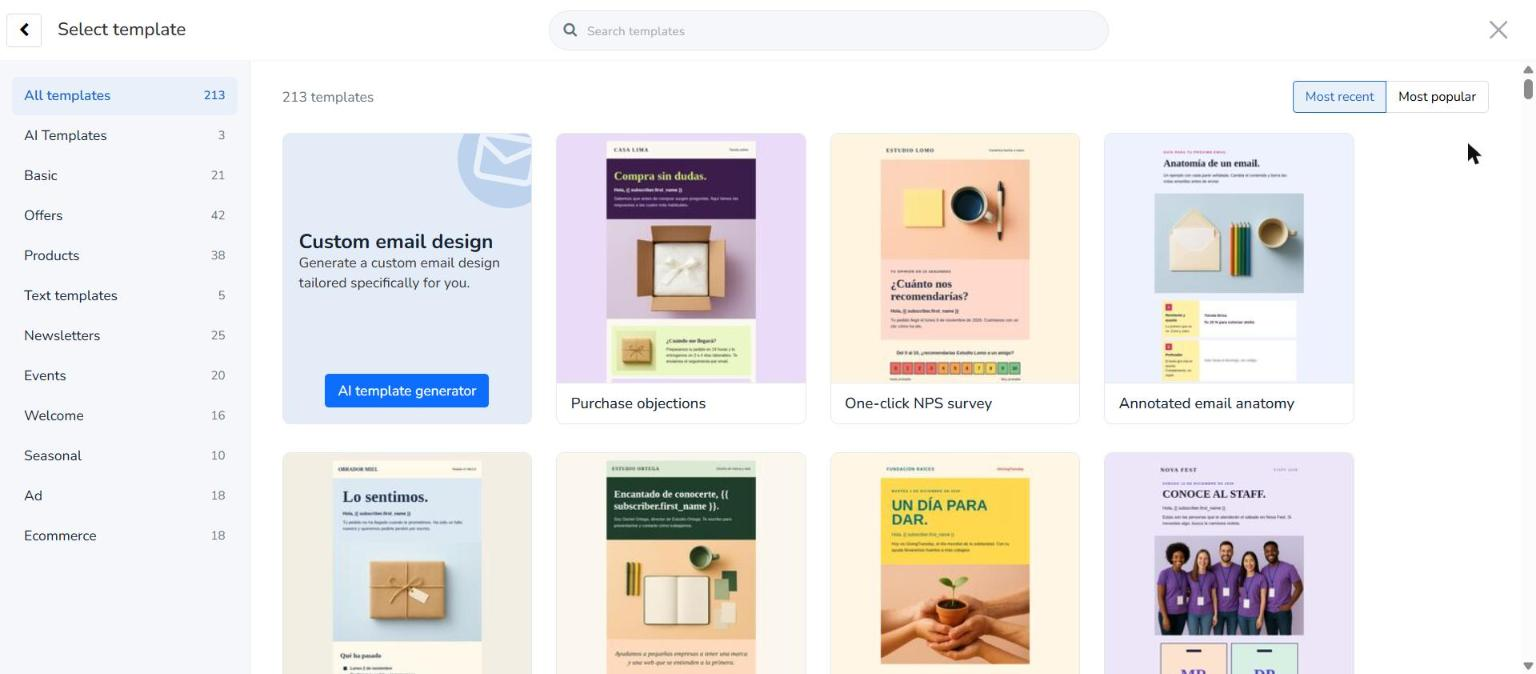
- Click the template you want and confirm the change.
- Click Save.
The content of the canvas is replaced with the content of the template. Until you click Save, the saved campaign doesn't change.
You can also see the templates on Mailrelay's free email marketing templates page.
Predesigned blocks in the Prebuilt tab
Besides your own blocks, the New editor with AI has predesigned blocks in the Prebuilt tab. They are grouped by categories, and the tab has a search box and a category drop-down.
How to see your newsletter on mobile and desktop
Above the editor canvas there are two buttons to change the view: desktop and mobile (their name appears when you hover over them). With mobile, the canvas gets narrower so you can see how the campaign looks on a phone screen. With desktop you go back to the normal view.
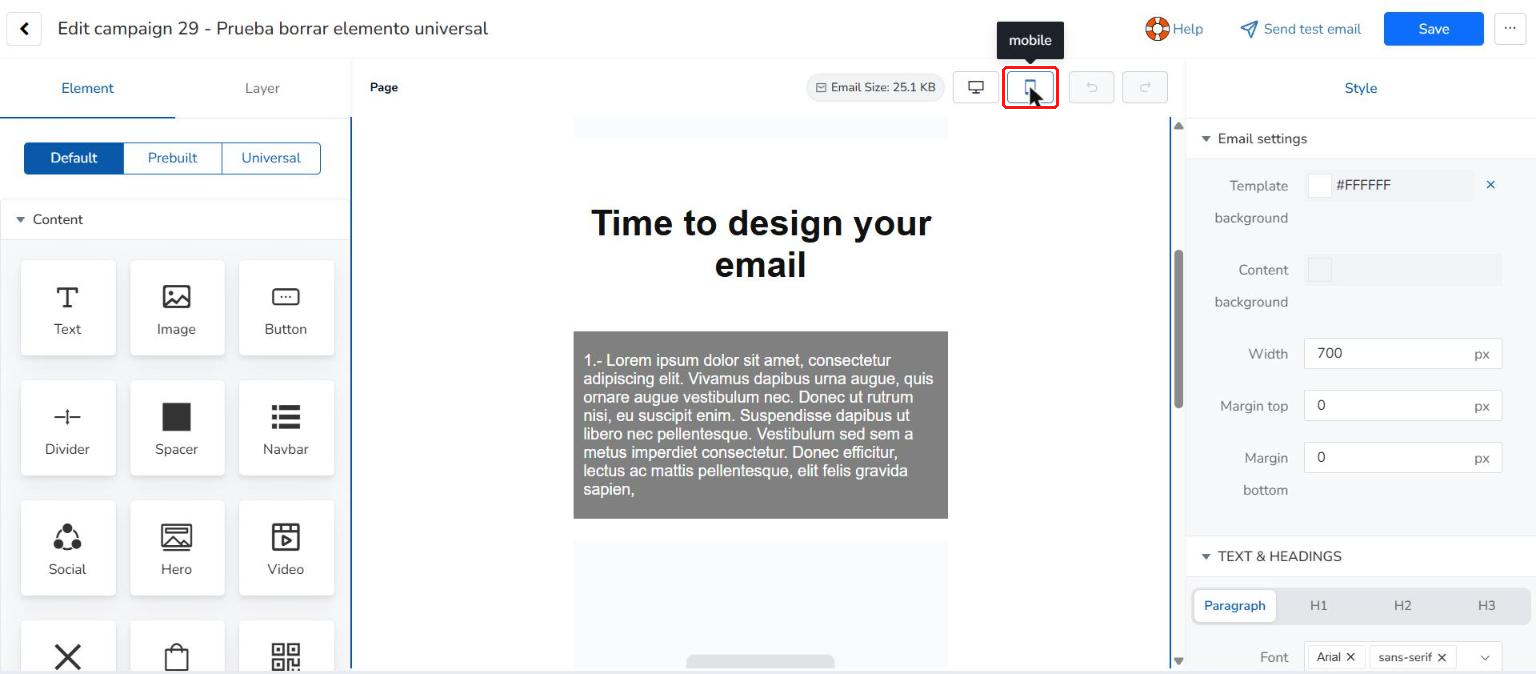
To see the email on your own phone, send yourself a test email with Send test email.
If you prefer to work with your own HTML code
Besides the New editor with AI, Mailrelay has separate options to create the campaign with your own HTML. Go to Campaigns > Campaigns and click Add. In the New campaign window, under For advanced users, you have three options:
- Paste code: you paste your HTML code.
- Upload ZIP: you upload a ZIP file with the HTML code.
- Import from URL: you import the HTML from a URL.
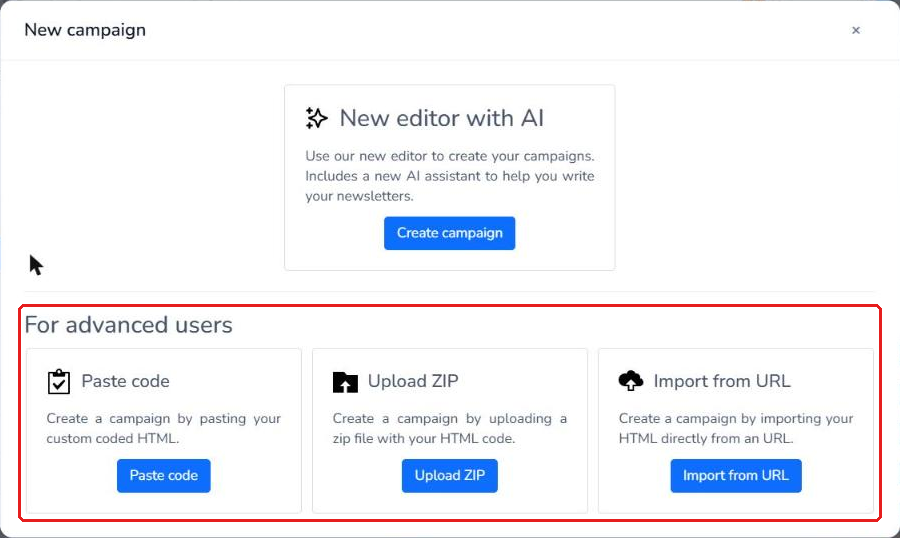
To save and reuse blocks as universal elements, create the campaign with Create campaign, under New editor with AI.
Limits
- Universal elements belong to the New editor with AI. The Paste code editor does not have the Universal tab.
- The icon to save as a universal element is in the section bar. The bar of a Text block only has the duplicate and delete icons.
- A change saved with Edit Across All Instances is applied to all the campaigns that contain the element. If you only want to change it in one campaign, use Unlink and Edit Independently.
- Changing or deleting a universal element doesn't affect campaigns that have already been sent.
Frequently asked questions
Does Mailrelay have an email editor with reusable blocks?
Yes. In Mailrelay's New editor with AI you can save sections as universal elements and reuse them in other campaigns, also with the free account.
Can I save blocks with the free account?
Yes. The universal elements of the New editor with AI are available in the free account.
Which plans include universal elements?
The free account and the paid accounts. The universal elements of the New editor with AI are available in both.
Where do I find the blocks I have saved?
In the campaign editor, in the Element tab, click Universal. Your blocks are in the Custom list.
If I change a saved block, does it change in all my campaigns?
Yes, if you change it with Edit Across All Instances and click Save changes. If you use Unlink and Edit Independently, the change only affects the campaign you are editing.
Can I change the name of a saved block?
Yes. Click the element, then Edit Across All Instances and the pencil next to its name. Write the new name, press Enter and click Save changes.
What happens to my campaigns if I delete a universal element?
The campaigns that contained it keep it. The copy stays with its latest content and becomes a normal section of the campaign.
Do sent campaigns change if I change or delete a universal element?
No. A sent campaign keeps the content it had when it was sent.
Can I save a campaign as a template?
The editor's More menu doesn't have an option to save the campaign as a template. To reuse a whole campaign, duplicate it from Campaigns > Campaigns with the Duplicate icon.
Can I see how my newsletter looks on mobile?
Yes. In the editor, click the mobile button above the canvas. To see it on your phone, send yourself a test email with Send test email.
How does reusing blocks help my email marketing campaigns?
With universal elements you don't have to design the header or the footer of each newsletter again, and all your campaigns keep the same look. It is a way of working with email marketing templates inside your email marketing platform.