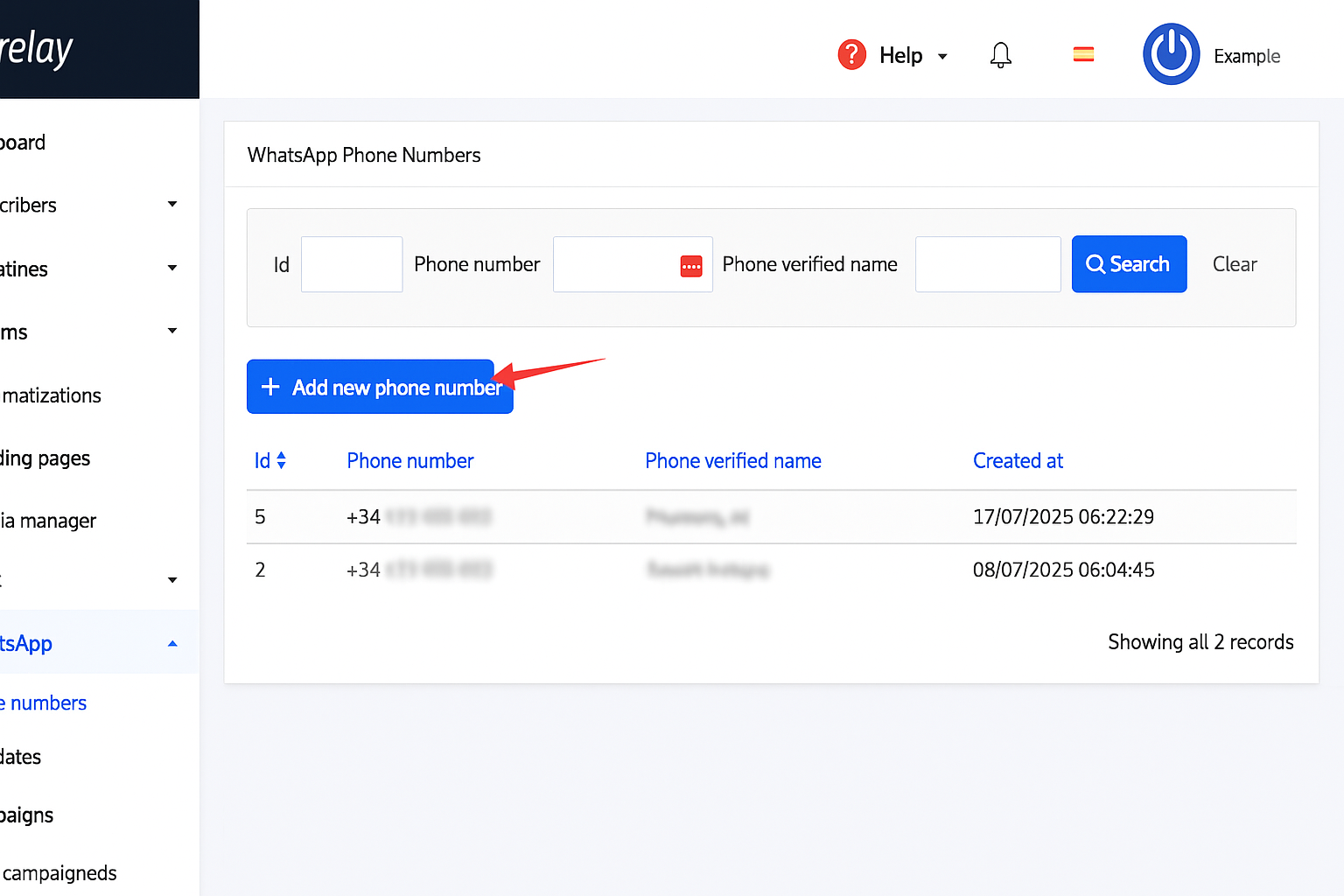
To associate a phone number with your account and validate it in WhatsApp Business, the first thing you must do is enter the Phone numbers option, now click on +Add new phone number to begin the process of registering your phone number in WhatsApp Business.
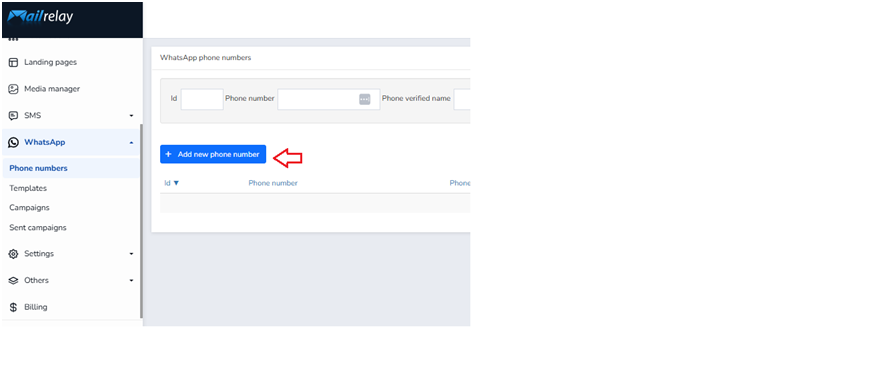
On the screen that appears, click Start to begin the sign-up process.
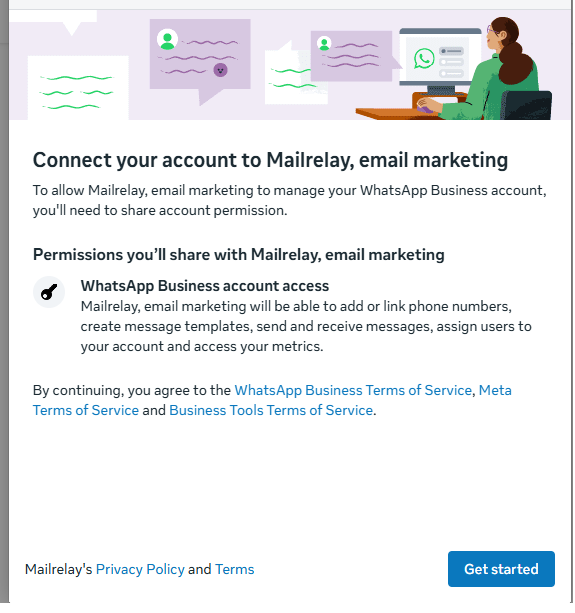
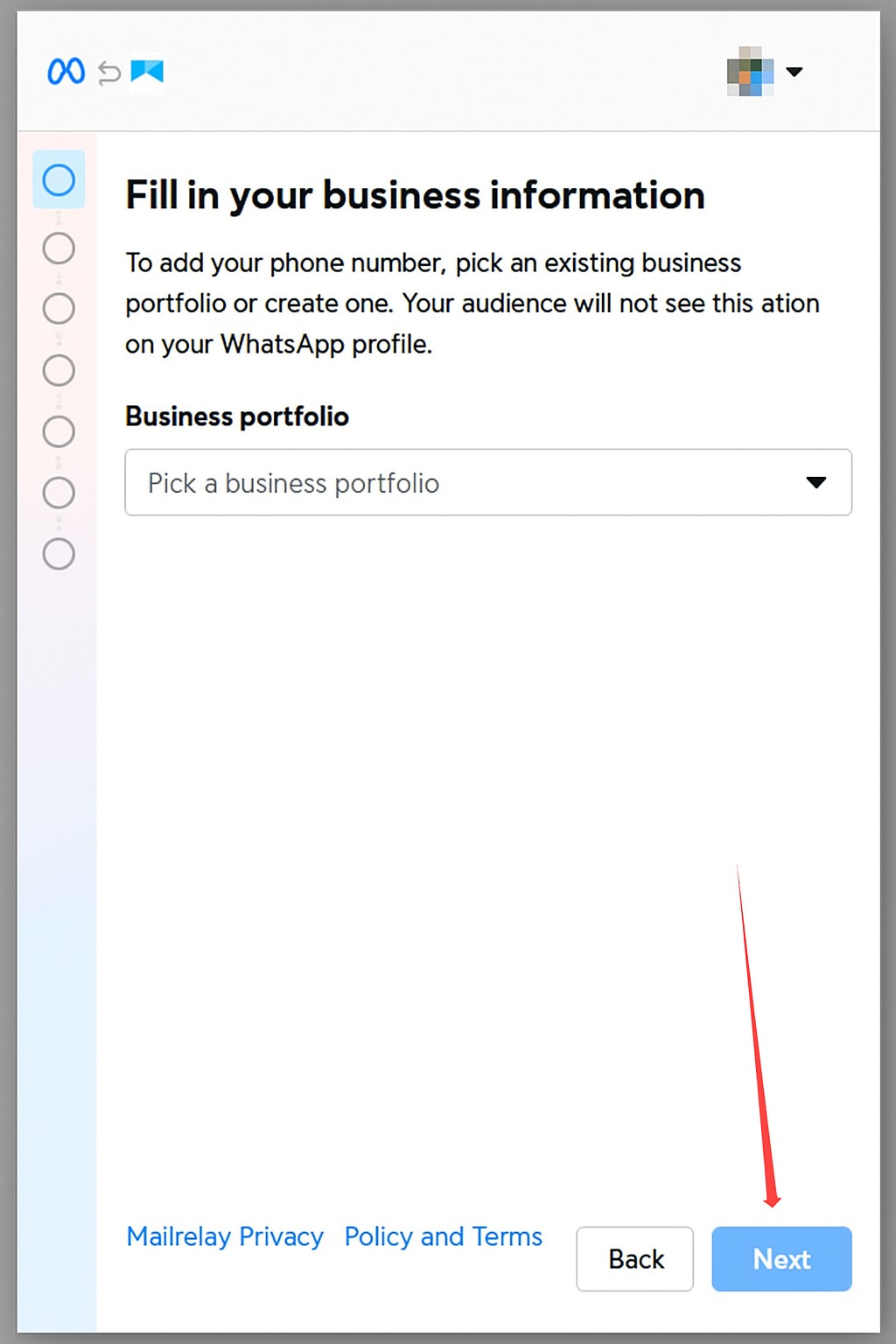
Next, you'll need to provide some basic information about your company, such as its industry. Continue clicking Next until all the requested information is complete.
IMPORTANT: If you use the WhatsApp Business app to reply to your customers, you must click the option Connect a WhatsApp Business app, otherwise, the phone number cannot be linked.
If you don't have the WhatsApp Business app yet but need to install it to reply to customers, you must download it and create an account in the WhatsApp Business app before linking the phone number in Mailrelay.
Click Next
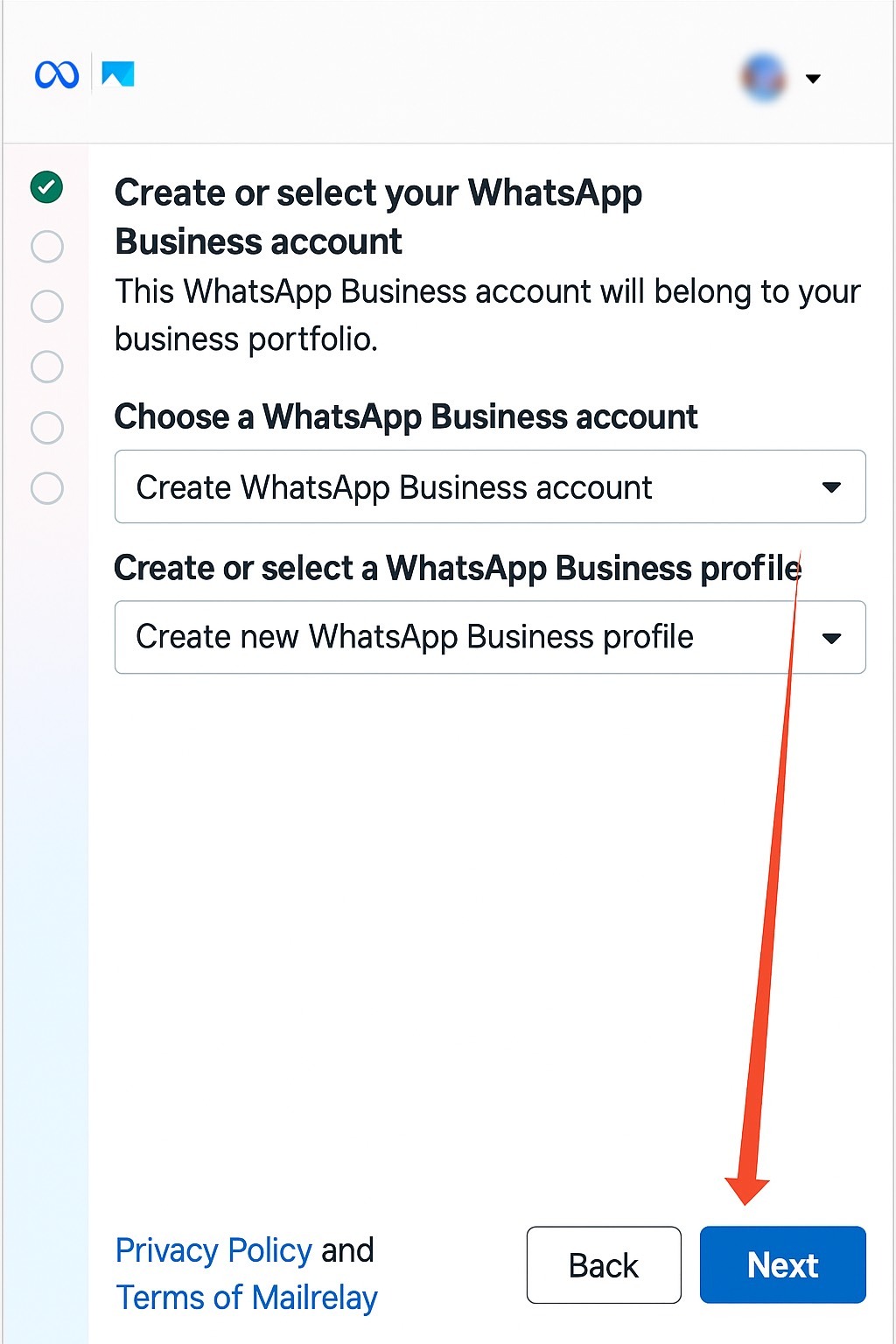
After having entered your company's data, it is time to create your account in WhatsApp Business, to do so in Choose a WhatsApp Business account select Create a WhatsApp Business account and click on Next.
Now, enter the phone number you want to use. Select Add a new number, then choose your verification method: Text message or Phone call. As an example, select Text message and click Next.
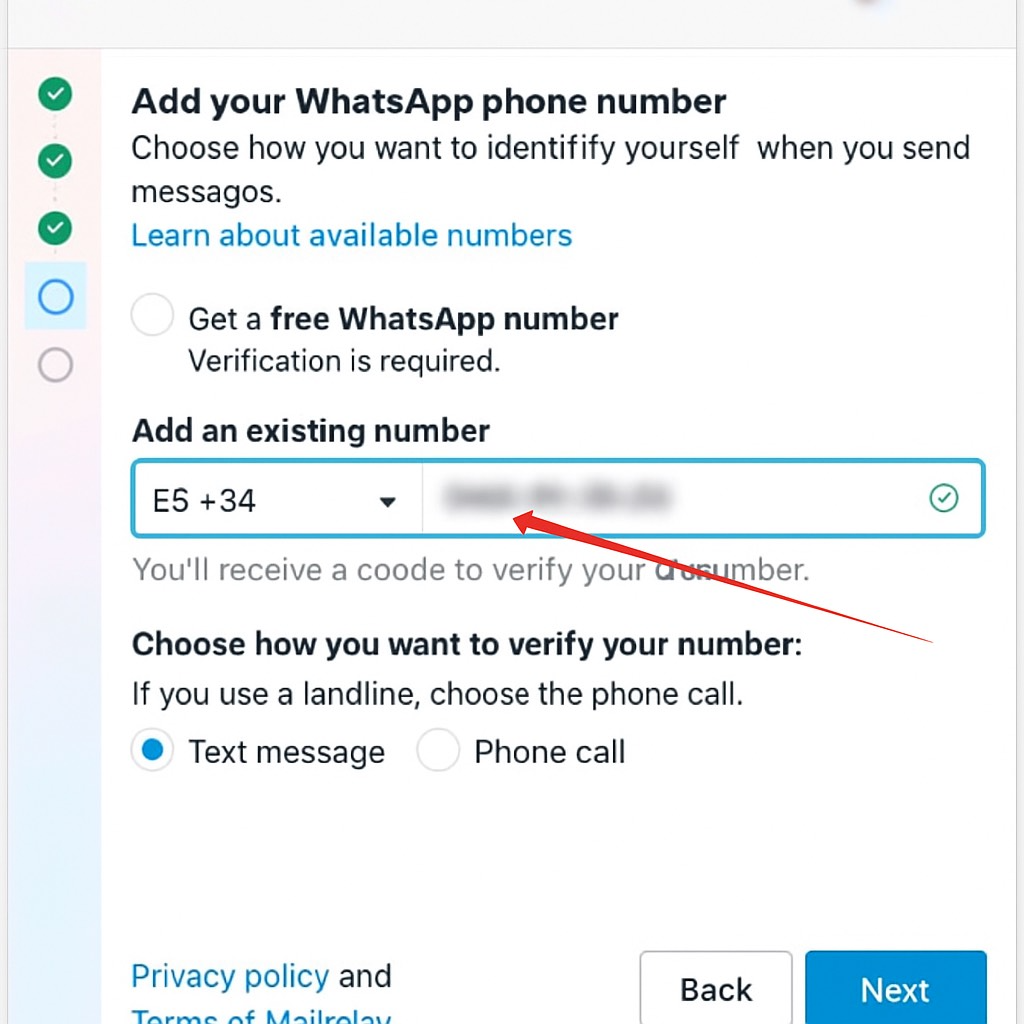
When you receive the SMS, enter the 6-digit code into the Verification code field and click Next.
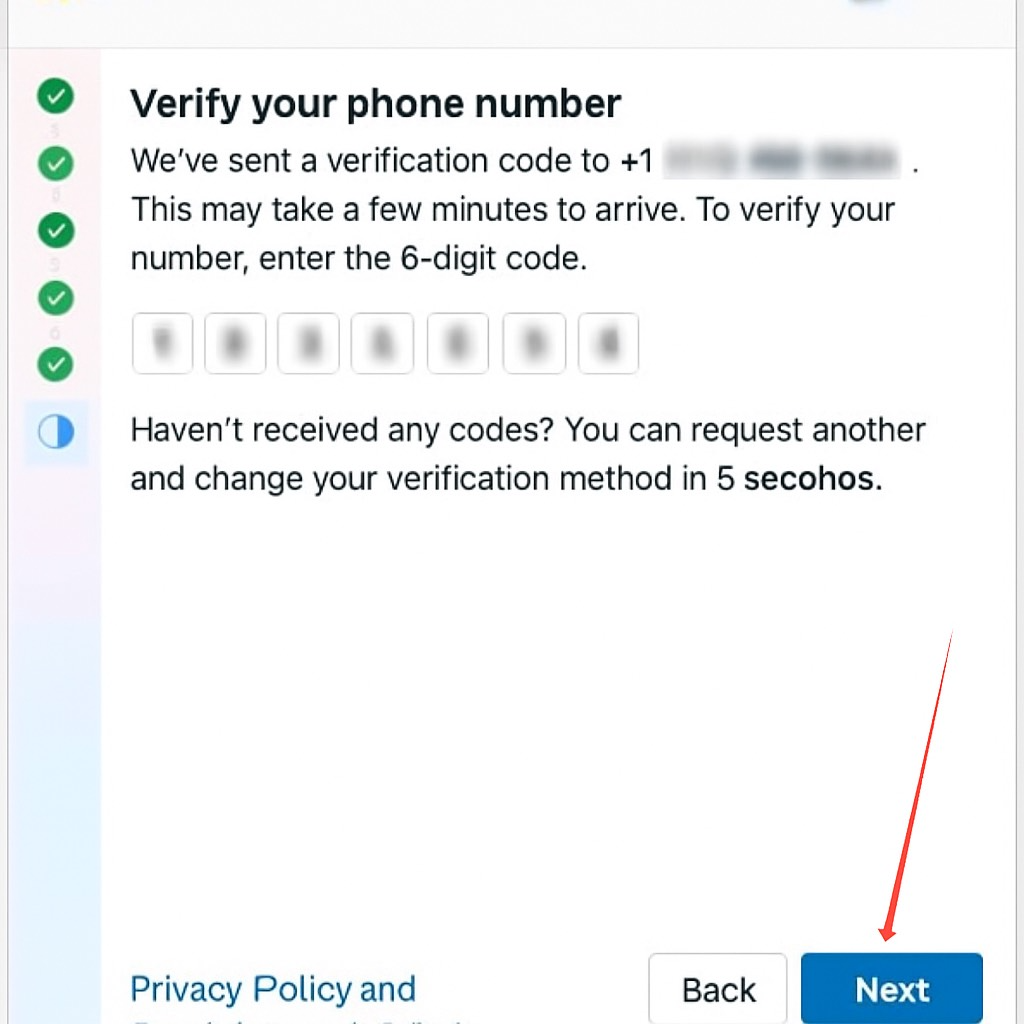
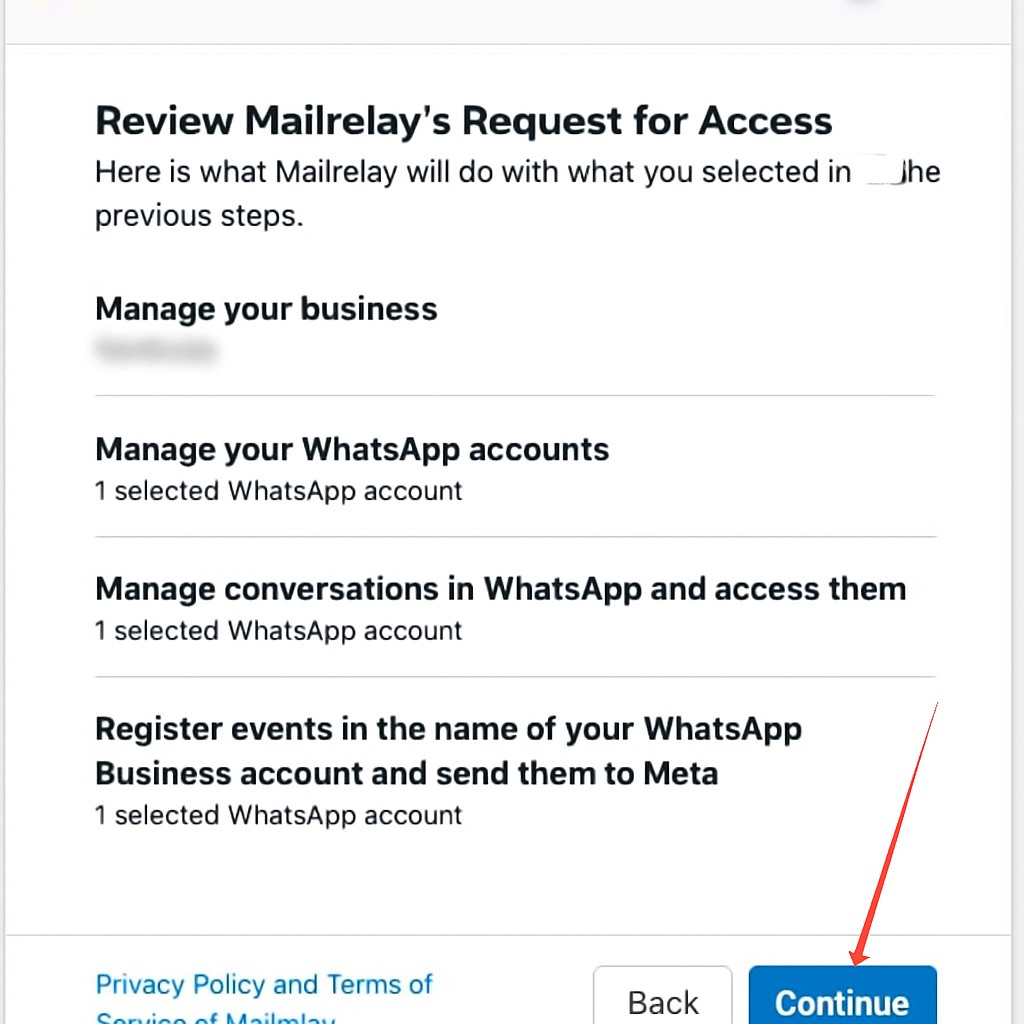
If you have successfully completed the account validation, the next window will ask you to confirm if the data you have provided is correct and click on Continue.
This section is where you will add the phone numbers for your campaigns. If you're familiar with Mailrelay, this is the equivalent of the Senders section for email.
To add a phone number and use it in your campaigns, just click on +Add new phone number and the configuration wizard shown in the previous point (2.- Signing up for WhatsApp Business) will appear.
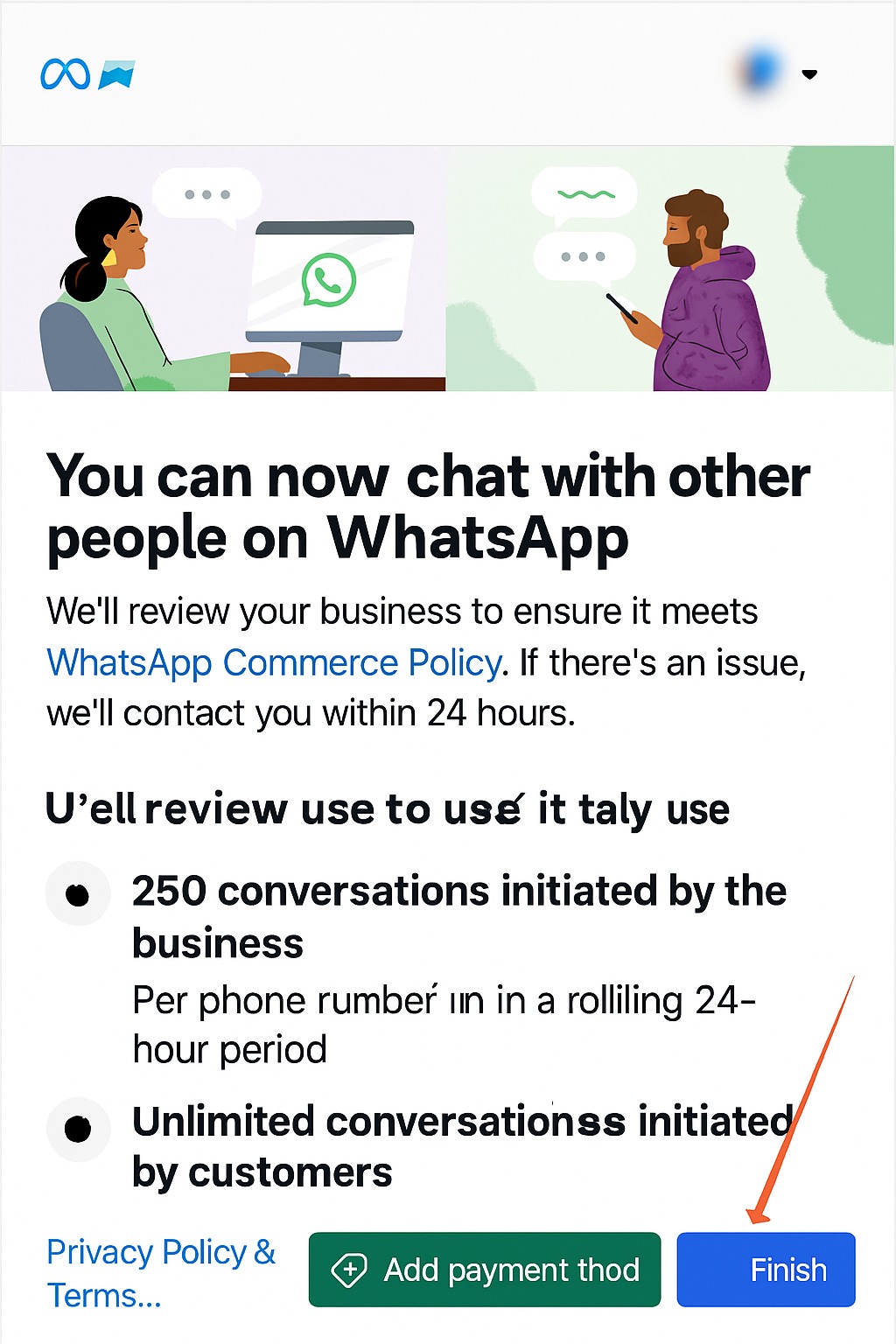
IMPORTANT: You need to add a payment method by clicking "Add payment method", otherwise the campaigns you send will NOT be delivered.
At the top of this window you have a search area where you can filter between your different authorized WhatsApp numbers and just below it the results area where you will see the phones you already have validated.
Was this article helpful?
That’s Great!
Thank you for your feedback
Sorry! We couldn't be helpful
Thank you for your feedback
Feedback sent
We appreciate your effort and will try to fix the article