Templates WhatsApp
Here you can create and manage the different templates you create; all of them must be validated by WhatsApp Business before you can use them.
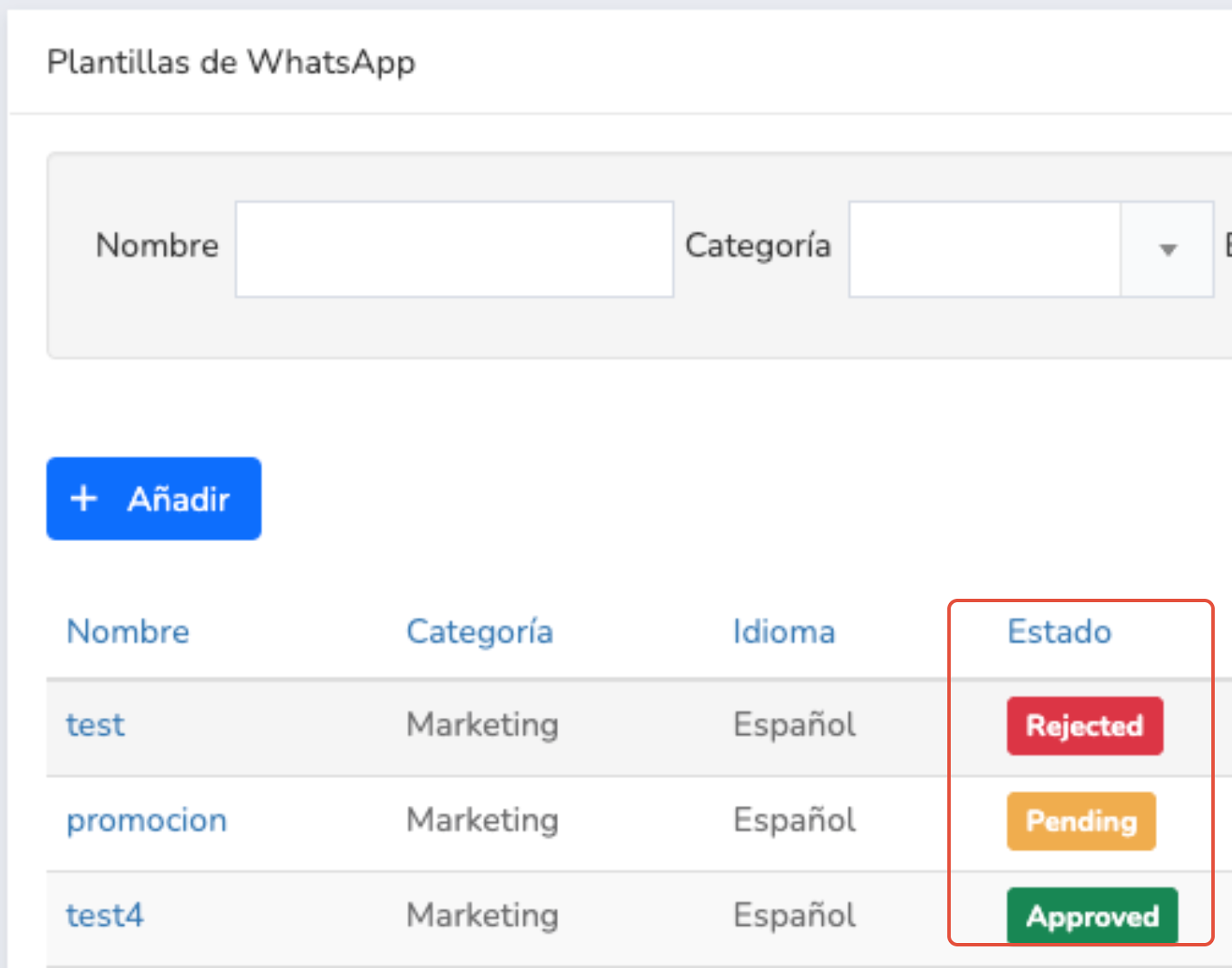
At the top of this window you have a search area where you can filter through the different templates created, and just below it the results area where you can see the templates created.
IMPORTANT: All templates must be approved directly by WhatsApp Business; check the Status column to find out whether it is already selectable or not. In general:
|
In the results area, pay special attention to the Status column, since that's where you'll see whether you can use your templates or not. This column shows three statuses: Approved (you can already use it), Pending (awaiting approval from Meta), and Rejected (rejected by Meta and unusable).
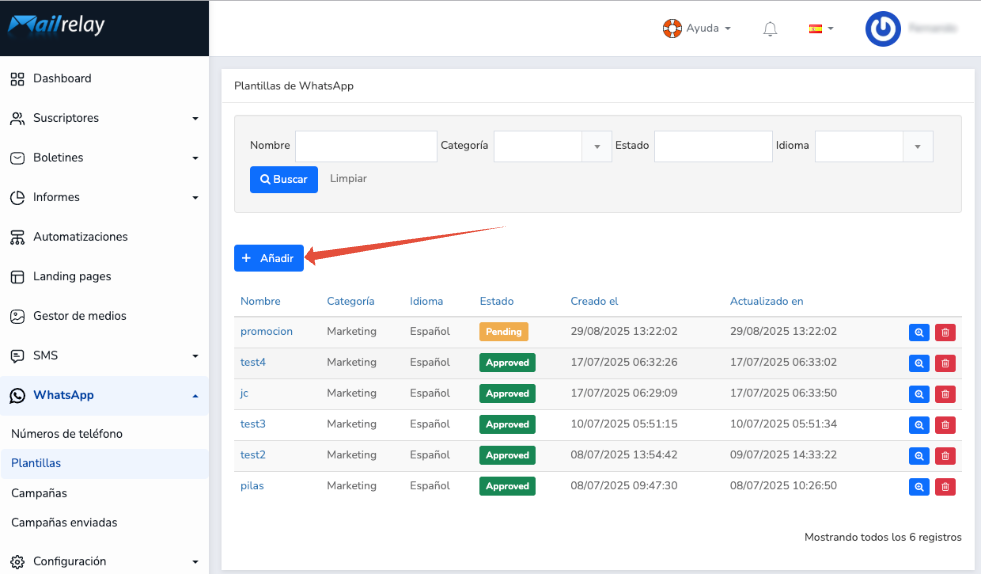
Right between both areas is the +Add button, which we'll use to create a template; click +Add to create a template.
Now the New WhatsApp template window will appear, where you need to create the template according to your needs. To do this, you must fill in the following details:
- WhatsApp phone number: select one of the phone numbers you have validated as a sender in WhatsApp Business.
- Name: enter a name to identify the template.
- Category: indicate which category you want to associate the template with.
- Language: indicate the template's language.
- Header (optional): define a header if you consider it necessary.
- Body: add the body of the WhatsApp message.
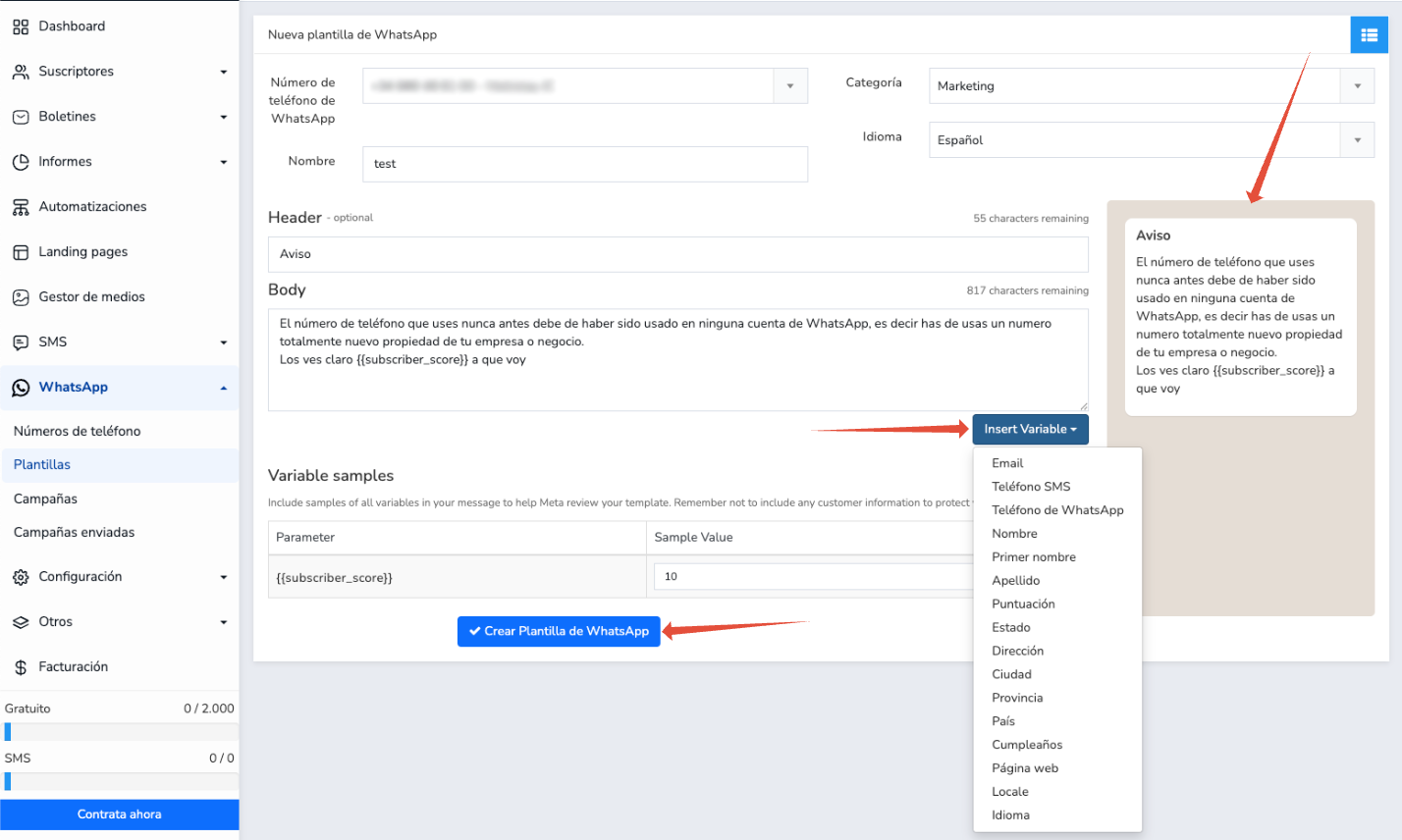
That's all you need, and on the right side of the window you'll be able to see a preview of the template ; click Create WhatsApp Template to save it. Now all that's left is to wait for the template to be approved by Meta.
You can also add variables to the message by clicking the Insert Variable button; in this case, keep in mind that Meta does not allow variables to be placed at the beginning or end of the message. Either way, click the Insert Variable button and add the variables you consider necessary to your template.
How to add a button
In the new WhatsApp template form, scroll down to Buttons (optional), just below Footer.
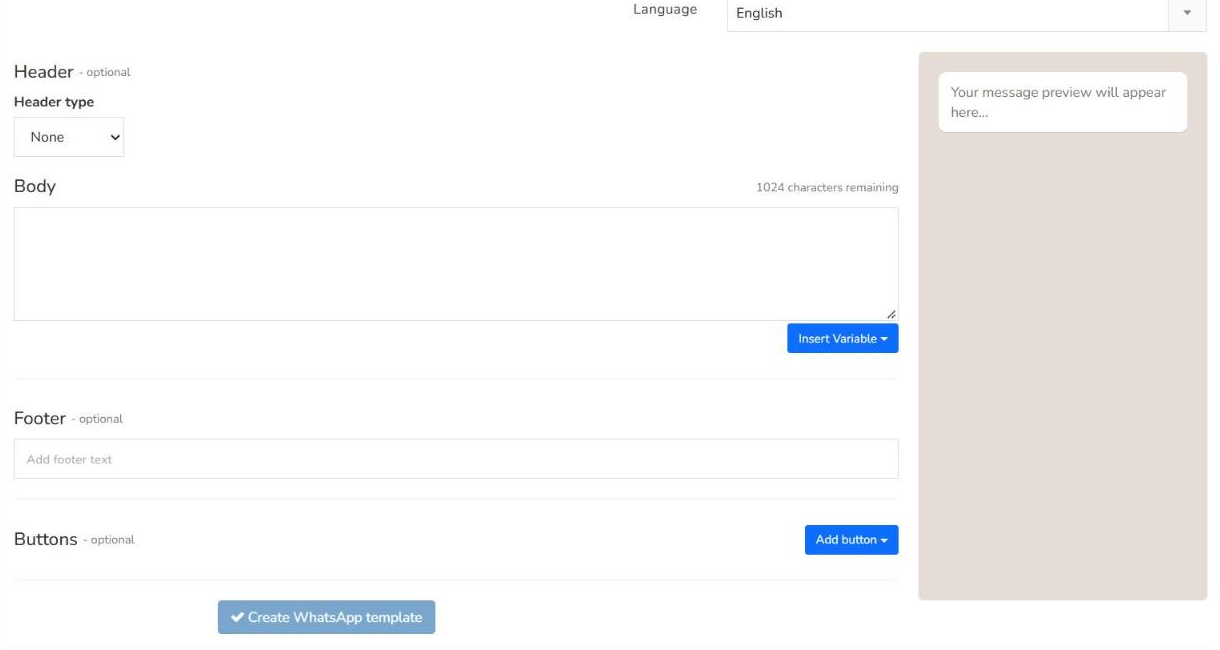
Click the blue Add button ▾ on the right. A menu opens with two options: Quick Reply and URL.
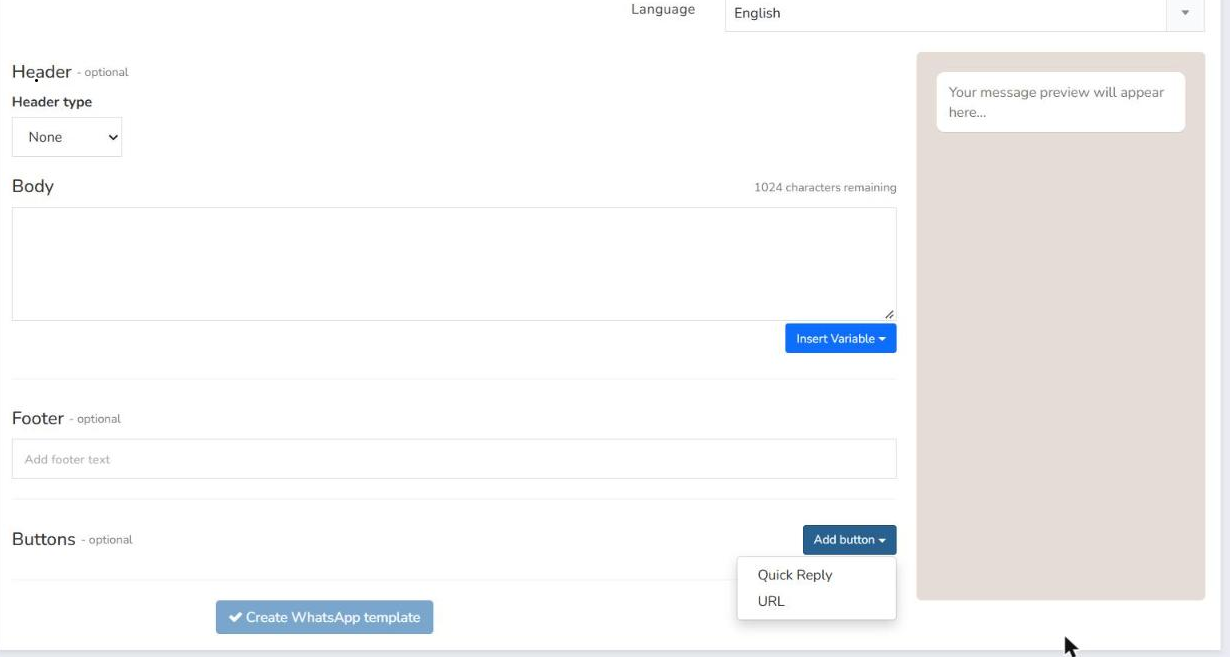
Pick one. A card called Button 1 appears with its fields. Repeat to add Button 2, and so on.
To remove a button, click the red ✖ on its card.
The preview on the right shows the button under the message as soon as you add it.
Options for each button
Every card has a Button type dropdown (Quick Reply / URL), so you can change the type later without deleting the button.
Quick Reply
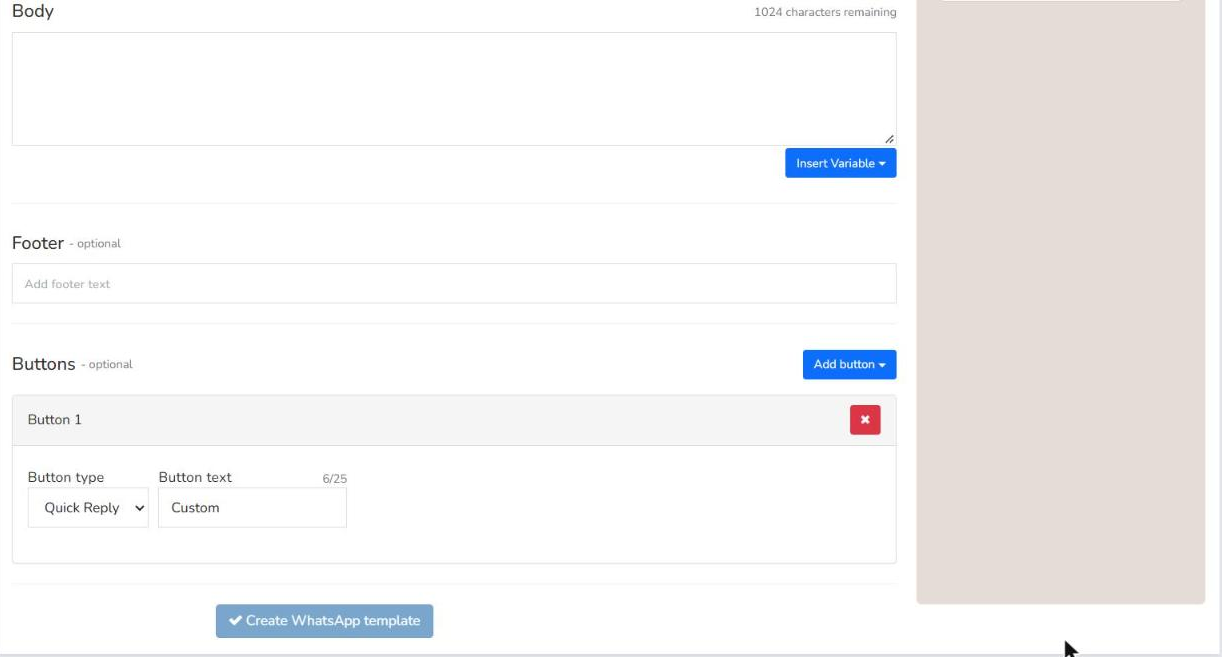
Button text: what the recipient sees. Maximum 25 characters. The default is “Custom”.
There are no other fields. When tapped, the recipient sends that text as a reply.
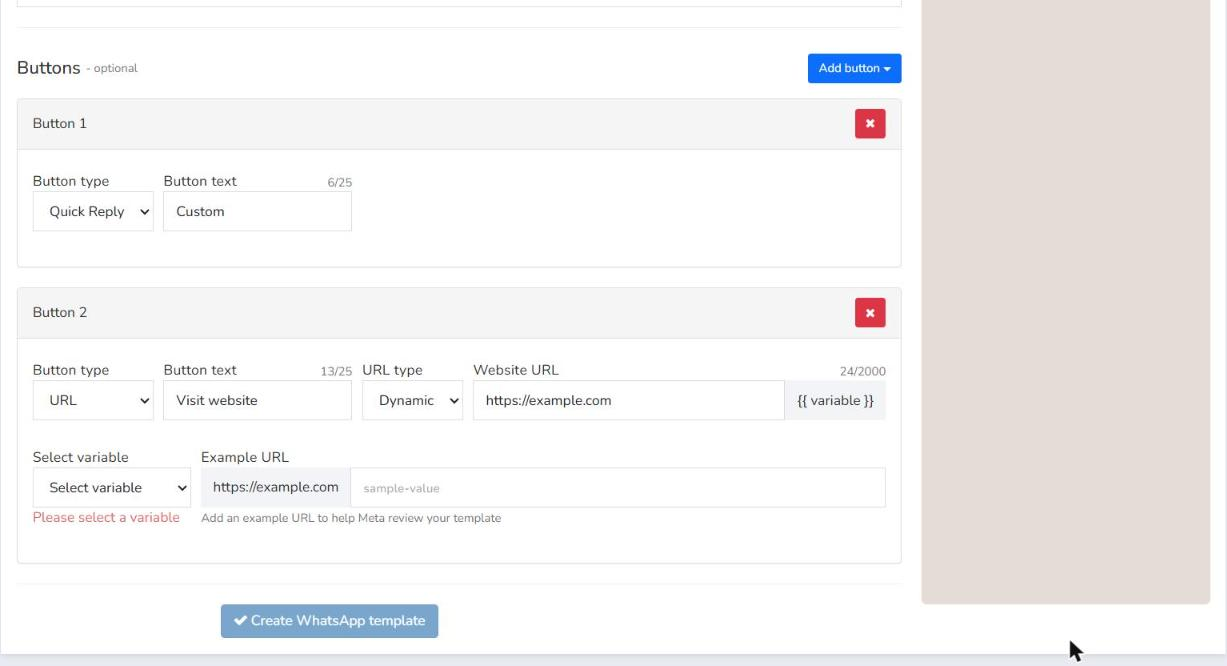
Button text: maximum 25 characters. The default is “Visit website”.
URL type:
Static: the same link for everyone. Fill in Website URL (up to 2,000 characters).
Dynamic: the link ends with a value personalised for each subscriber, shown as {{ variable }}. Two more fields appear:
Select variable (required, otherwise you see “Please select a variable”): ID, Email, SMS phone, WhatsApp phone, Name, First name, Last name, Score, Status, Address, City, State, Country, Birthday, Website, Locale, Language, plus the custom field “Apellido”.
Example URL: a sample value for the variable part. It helps Meta review your template.
Tip: use Dynamic for personalised links (e.g. https://yoursite.com/profile/ + ID). Use Static for a general link.
In summary:
1. In the template, go to the "Buttons" section and click "Add button."
2. Under "Button type," select "URL."
3. In "Button text," enter the text that the subscriber will see (up to 25 characters)—for example, "Sign up."
4. Under "URL type," select "Static."
5. In "Website URL," paste the link to your form.
6. Save the template.
Keep in mind that the template must be approved by Meta before it can be used. The review process typically takes anywhere from a few minutes to 24 hours..
Was this article helpful?
That’s Great!
Thank you for your feedback
Sorry! We couldn't be helpful
Thank you for your feedback
Feedback sent
We appreciate your effort and will try to fix the article