Event subscription
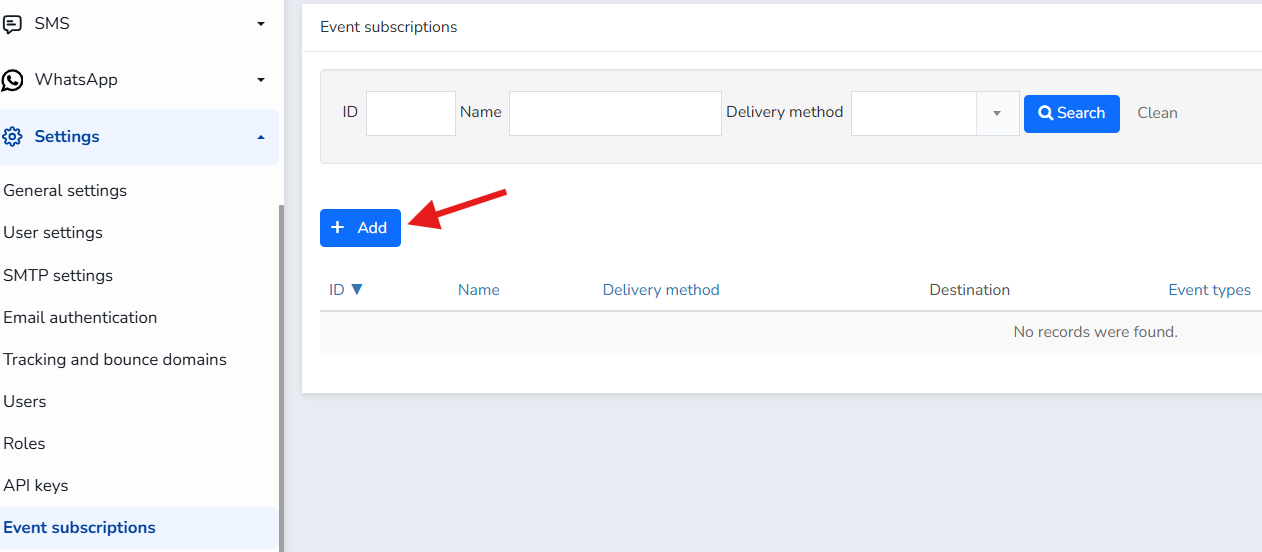
On this screen, you can find various events to set up notifications for specific times.
First, tap Add.
Next, you will find this screen where you can enter the name and select the event types and delivery method.
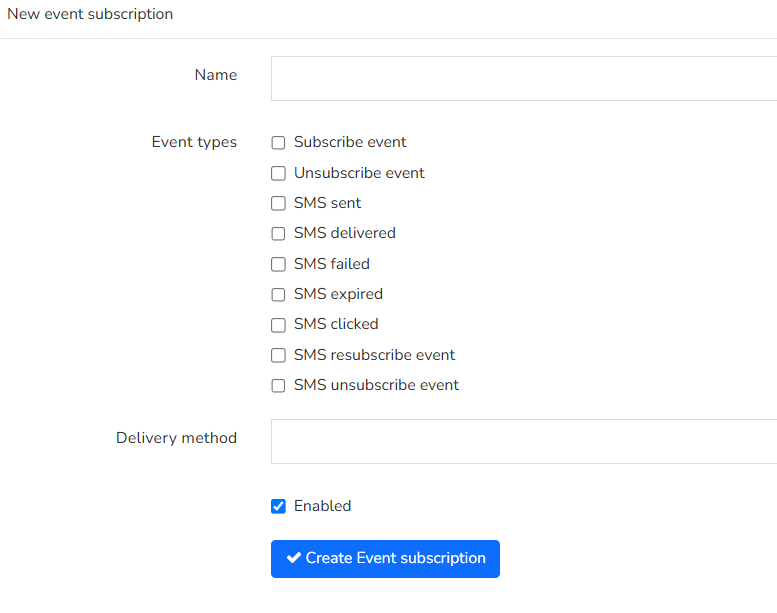
Name: Enter the event name to identify it.
Event types are the actions that trigger data transmission. You can select multiple options:
Subscription event: Notifies when a user signs up
Unsubscribe: Notifies when a user cancels their subscription
SMS sent: Notifies when an SMS is sent
SMS delivered: Notifies when the SMS is delivered
SMS failed: Notifies if the SMS fails
SMS expired: Notifies if the SMS has expired
SMS clicked: Notifies if the SMS has been clicked
SMS re-subscription event: Notifies if a user has re-subscribed
SMS unsubscribe: Notifies if a user has unsubscribed via SMS
Delivery method:
It allows you to choose between Email or Webhook.
Here you can see the email icon highlighted, it allows you to specify the email address to which you want to send the notification.
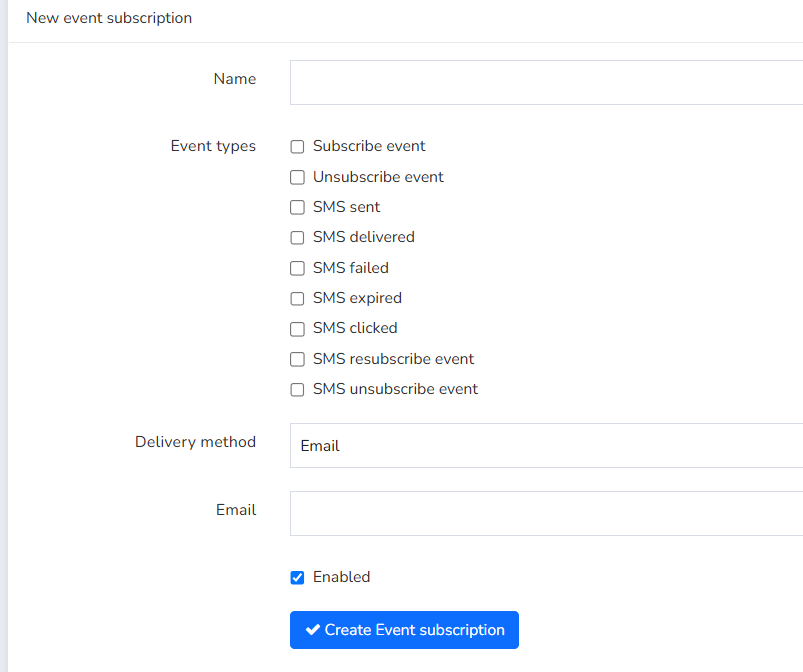
By providing an email address, you will receive notifications at that address.
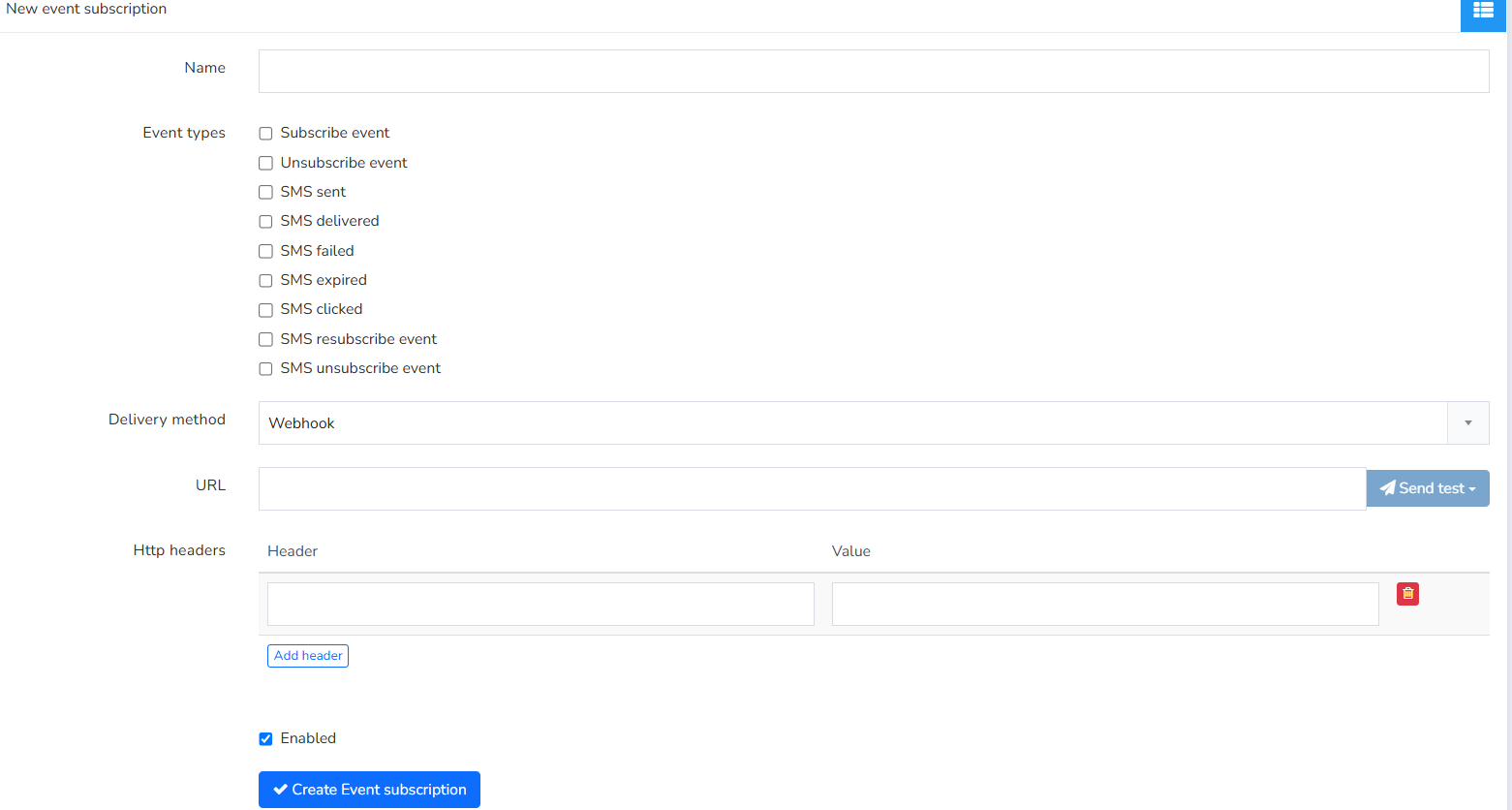
For the webhook, you add the URL and have the option to add headers and their values.
Enabled
You can keep the event enabled or disabled without deleting it, in case you want to use it in the future.
Once you have the event, you need to click on "Create event subscription"
Was this article helpful?
That’s Great!
Thank you for your feedback
Sorry! We couldn't be helpful
Thank you for your feedback
Feedback sent
We appreciate your effort and will try to fix the article