
In Mailrelay you clean your list from Subscribers > Subscribers. With Quick filters you see the bounced, inactive, unsubscribed or spam-reported contacts, and with Mass edit you move them to the trash. Duplicates never get in, because when you import, Mailrelay ignores or updates the emails you already have.
A clean list improves the deliverability of your email marketing campaigns. If your sends have many bounces, Mailrelay may limit your account's sending.
What statuses a subscriber can have
Every contact in your list has a status. These are the ones to review when you clean your list:
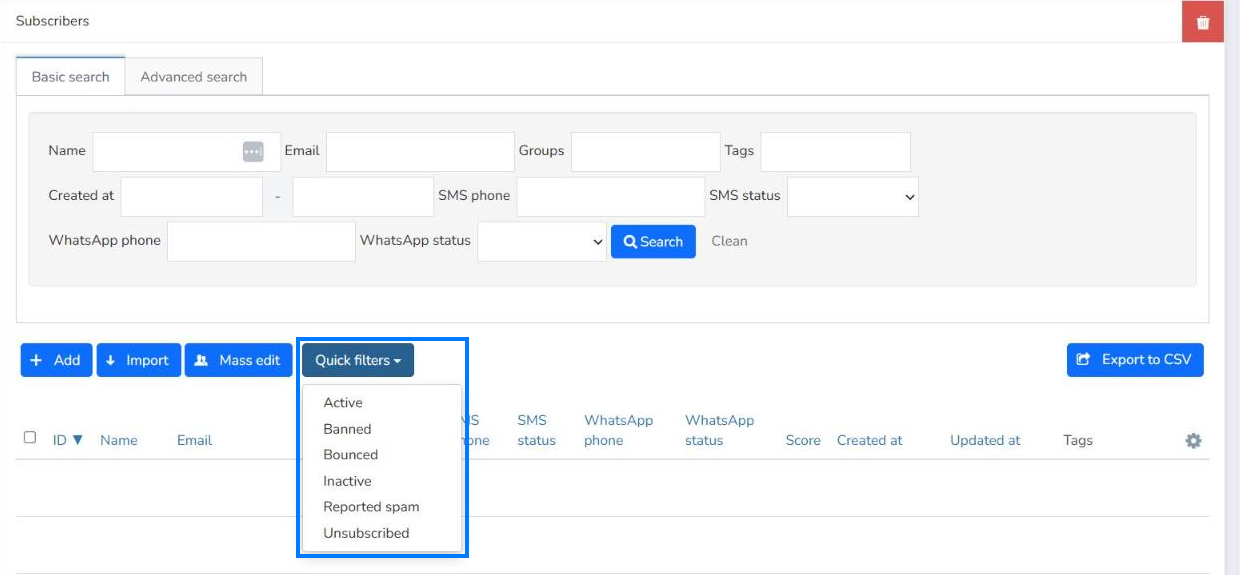
- Bounced: the destination server rejected the email permanently. Mailrelay no longer sends to this contact.
- Inactive: signed up through a double opt-in form and hasn't confirmed the subscription.
- Unsubscribed: unsubscribed from your emails.
- Reported spam: marked one of your emails as spam.
- Banned: is blocked and doesn't receive your sends. You added it yourself or it is on an advertising exclusion list.
See the contacts with each status
To see the contacts that have a specific status:
- Go to Subscribers > Subscribers.
- Click Quick filters and choose the status you want to review, for example Bounced. The list shows only the contacts with that status.
Delete bounced or inactive contacts
With the filtered list, you can delete all those contacts at once:
- Filter the list by the status you want to clean, for example Bounced or Inactive.
- Click Mass edit. The window shows how many subscribers the action will apply to: the ones in the filtered list or, if you have checked some, only those.
- In Action, choose Delete subscriber (move to trash).
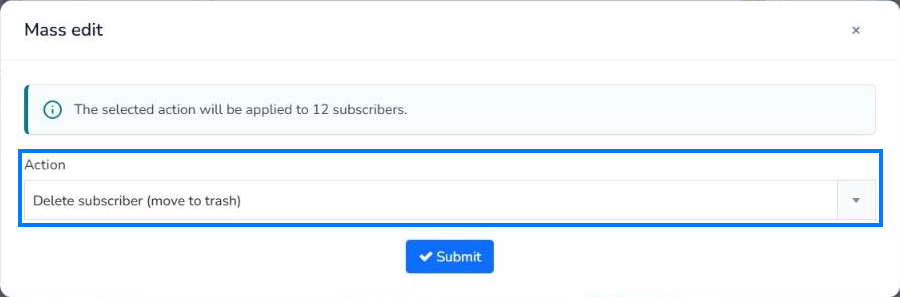
- Click Submit.
The contacts stay in the trash until you delete them permanently, so you can restore them if you make a mistake.
Delete contacts permanently
Permanent deletion erases the subscriber's data and anonymizes their statistics. It's the option to use when a person exercises their right to erasure (Article 17 of the GDPR). You also need it if you want to import contacts that are in the trash again as new contacts.
To permanently delete several contacts at once:
- In Subscribers > Subscribers, filter the list or check the contacts you want to delete.
- Click Mass edit and check how many subscribers the action will apply to.
- In Action, choose Permanent delete and click Submit.
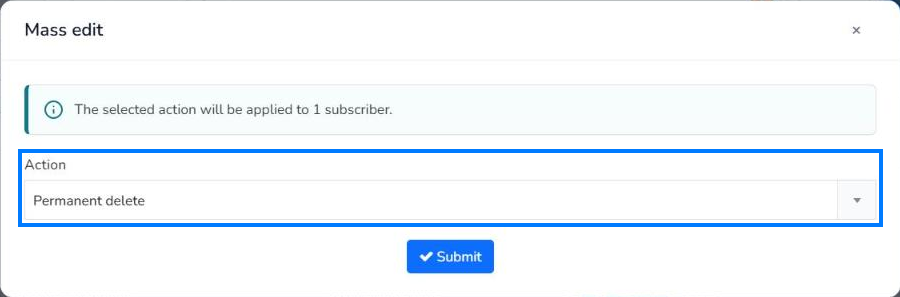
Permanent deletion can't be undone: you won't be able to restore the contacts.
- In the Are you sure? window, type
CONFIRMand click Permanently delete.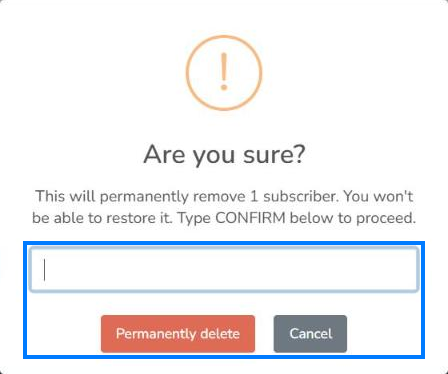
Permanently deleted contacts don't go to the trash.
You can also permanently delete contacts that are already in the trash. Click the red trash button at the top right of Subscribers to open Deleted subscribers. There you can use Mass edit with the Permanent delete action or the Permanent delete button of each contact.
Avoid duplicates when importing
When you import a list, Mailrelay checks which emails you already have in your account. You choose what to do with them in the Map columns step, under Additional options.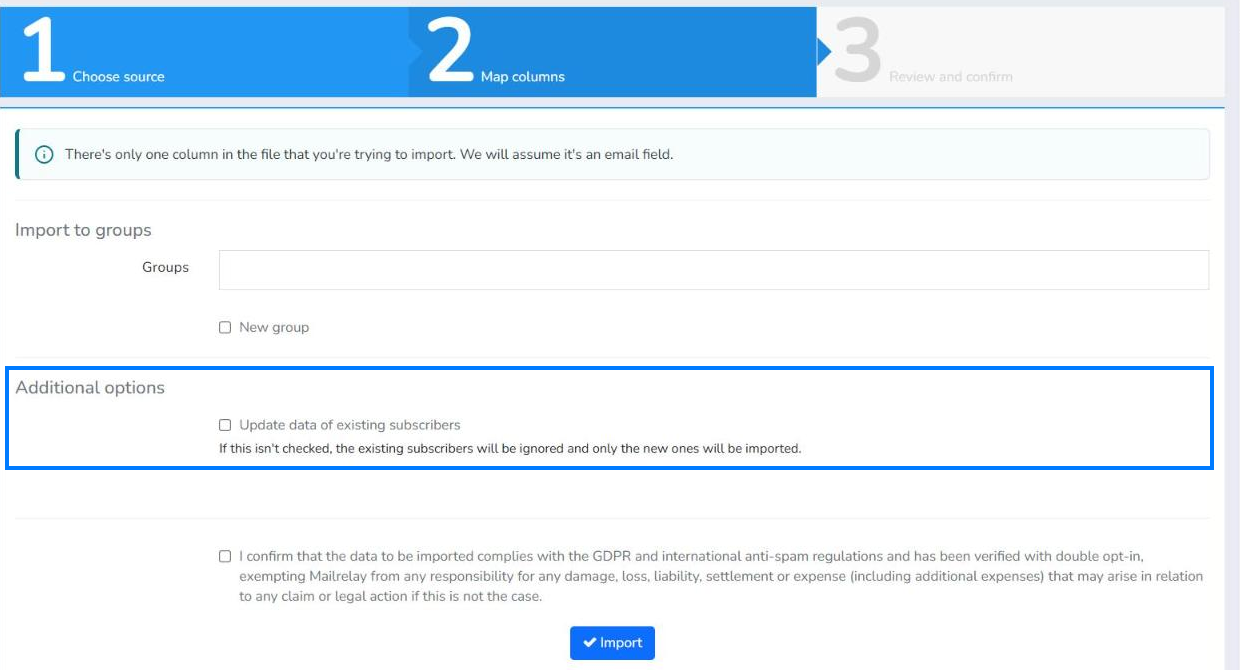
If you don't check Update data of existing subscribers, the subscribers that already exist are ignored and only the new ones are imported. If you check it, their data is updated with the data in the file.
Contacts in the trash also count as existing. If you import a contact who unsubscribed, the import respects the unsubscription and doesn't import it. You'll find all the details in how to import subscribers.
Find subscribers who don't open your emails
To find them, create a segment with the condition Subscriber didn't open campaign and the interval Days ago, for example 90 days. You can also use the Subscriber score, which is lower the less they open and click.
With that segment you can send them a re-engagement campaign before you decide whether to delete them. We explain both examples in segment subscribers by data and activity.
Frequently asked questions about cleaning your list
These are the most common questions when cleaning your list.
Can I recover a subscriber I moved to the trash?
Yes. In Subscribers > Subscribers, click the red trash button at the top right (View and restore deleted subscribers) and restore it.
Can I reactivate a bounced contact?
If the email works again, contact Mailrelay support to reactivate it. In bounce reasons and solutions you'll find what to do in each case.
How do I keep fake addresses out of my list?
Use a form with double opt-in. The contact stays Inactive until they confirm the subscription from the email they receive.