
Mailrelay offers several support options so you can choose the one that best suits your needs. No matter if you want to do it offline or connected to your account, we always try to be as close as possible to our customers.
Mailrelay is an email marketing platform and, whether you use the free account or a paid plan, you can contact our team to answer your questions about using the platform, sending your newsletters and email marketing campaigns, imports or your account settings.
INDEX
1. Support on our website
Go to our homepage https://mailrelay.com/en/ and click on the Contact option. This will open the contact page, where you can see the different support options available. You can also access this page: https://mailrelay.com/en/contact/
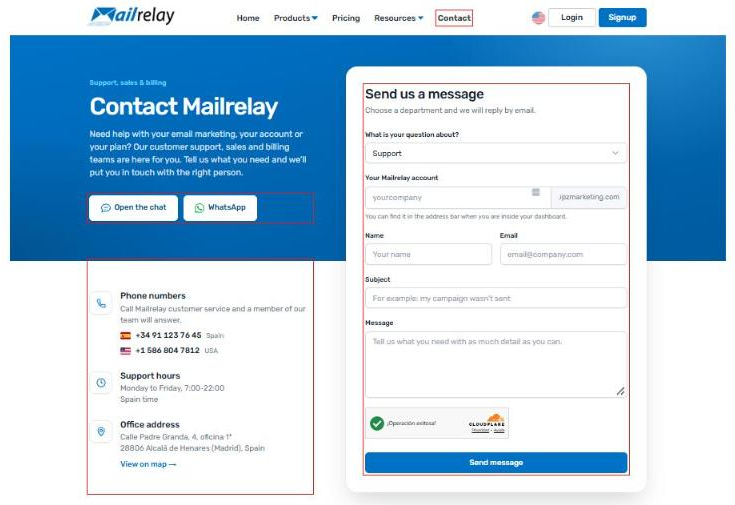
On this page you will find the Open the chat and WhatsApp buttons, the Send us a message form and the Phone numbers block, together with the Support hours.
Support channels depend on your plan:
- Free account: ticket-based support.
- Standard version (monthly or prepaid): ticket-based and chat support (online chat and WhatsApp).
- Enterprise version (monthly or prepaid): ticket-based, chat (online chat and WhatsApp), and phone support.
Hours: Monday to Friday, 7:00 to 22:00 (Spain time).
Let's take a look at each of the options in more detail:
1.1 Send us a message
It allows you to create a ticket that will be answered by our team via email. You just need to choose the department you want to send your query to in What is your question about?: Support, Sales, Billing or Other questions.
If you choose Support, you will also have to enter Your Mailrelay account. You can find it in the address bar when you are inside your dashboard (for example, yourcompany.ipzmarketing.com).
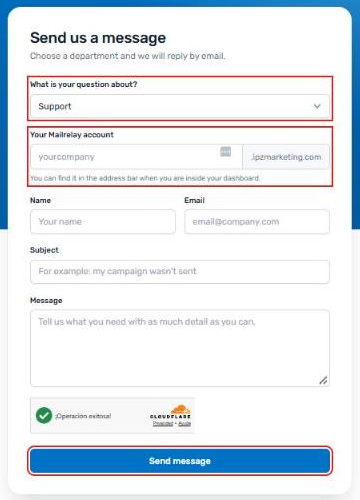
You will then have to write your query, for which you will have to fill in the following fields: Name (your name so that we can address you), Email (email address to send the reply to), Subject (clearly indicate the reason for the query) and Message (write your message and add any details you consider necessary so that we can help you).
Finally, click the Send message button.
You will receive a confirmation of the creation of the ticket in your email and you will soon receive a reply to your inquiry, at the same email address.

In that same email, you will find a link called click here. By clicking on it, you will have access to the ticket you created and you will be able to check its status, as well as review it and add more information to it if you wish.
1.2 Chat and WhatsApp
Available in the Standard and Enterprise versions.
At the top of the contact page you have two buttons to chat with a Mailrelay member:
- Open the chat: where you open a chat session to interact with a Mailrelay agent.
- WhatsApp: to receive support via the WhatsApp messaging system.
Let's see each of the options in detail:
1.2.1 Open the chat
Once you click on the Open the chat button, the Chat with us window will open in the lower right corner of the screen, where, before you start, you have to enter your Name and Email and click Start chat.
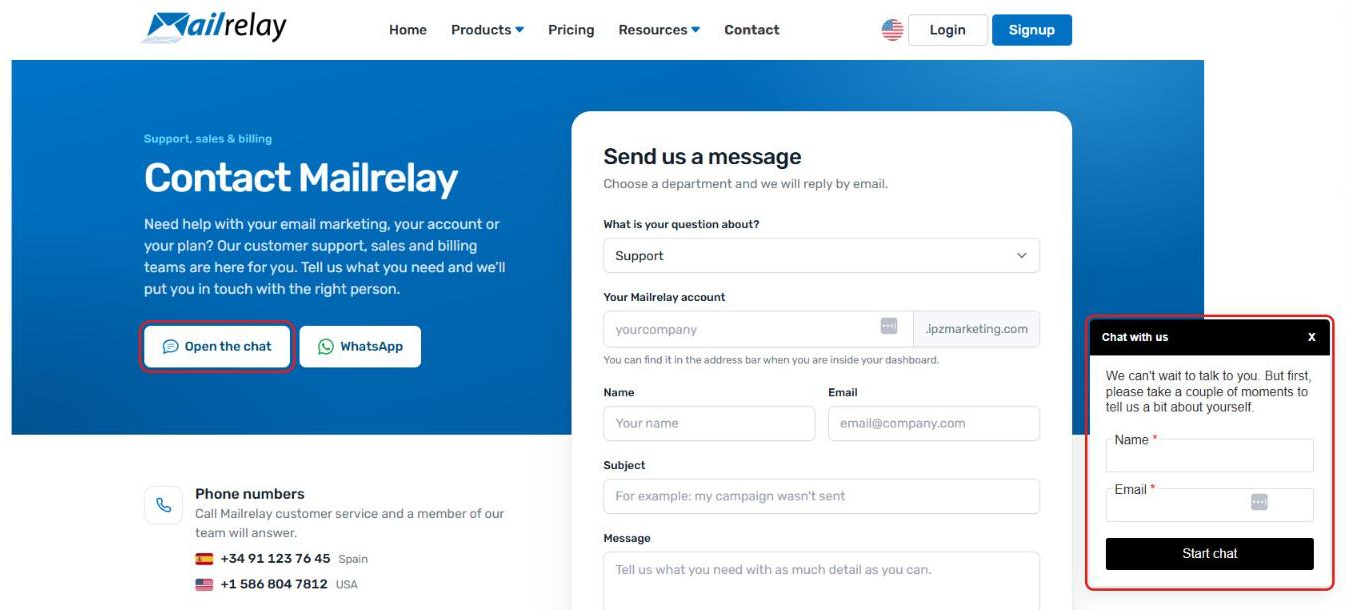
After that, you will be put in touch with a member of Mailrelay's support department who will answer your questions about the service we offer.
1.2.2 WhatsApp
If you choose to contact us via WhatsApp, simply click on the WhatsApp button and create a chat with us in this application. You can contact us directly, whether you are visiting us from your smartphone, desktop or laptop.
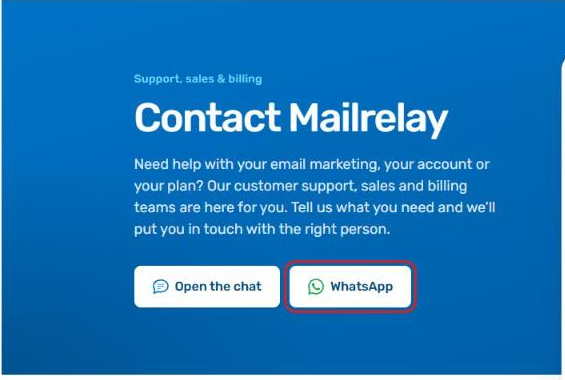
By clicking on the WhatsApp button, you start a new chat session in the normal WhatsApp interface. Using this chat, you will be able to access our support area.
From your desktop or laptop: By clicking on the WhatsApp button, you start a new chat session in the WhatsApp web interface, which must be activated on your computer.
Initially, you will be asked for confirmation so that you can establish the chat session. To do this, you must click on the Open WhatsApp button and this will open the interface of the desktop version of WhatsApp.

And now you can start chatting with us. By default, you will see the text Hello, I have a question about the Mailrelay service, you can change it if you want, before starting the session.
1.3 Phone numbers
Available in the Enterprise version.
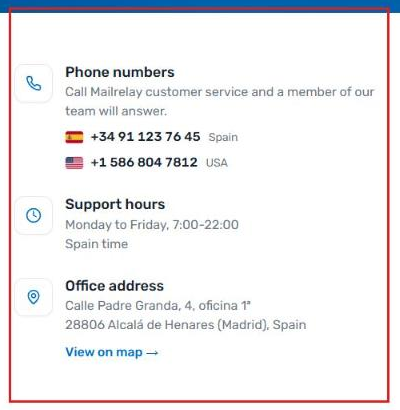
In the Phone numbers block you have the Mailrelay customer service phone numbers in Spain and the USA. Just below, under Support hours, you will see the hours: Monday to Friday, 7:00-22:00, Spain time.
If you can't call any of these numbers, you can choose to use any other means of contact if you wish.
2. Support on your account
If you're logged into your Mailrelay account, you can access support from your dashboard. To do this, click on the "Help" option in the upper right corner, and you'll see four options: Support Tickets, Chat, Knowledge Base, and Generate Support Code. Let's look at each of these in detail.

2.1 Support tickets
This option will open a pop-up window at the bottom of the browser, where you can ask your questions, choosing the department and filling in the subject.
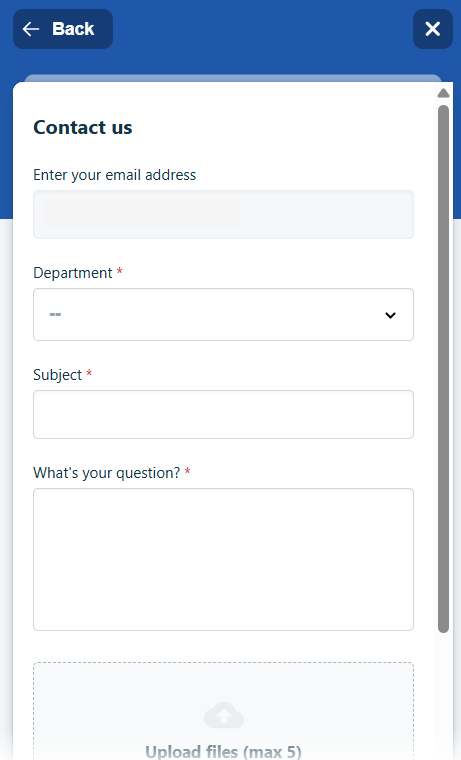
- Requestor: email that the system automatically fills in with the email address of the current user.
- Department: you must select the department to which you want to send the query: Support, Billing and API and Mailrelay Integrations.
- Subject: clearly indicate the reason for your query.
- Description: write your message and add the details you consider necessary so that we can help you.
Likewise, just below you have the option to Upload files (max. 5), in which you can include attachments, such as images, that you consider of interest for your query.
Finally, check the box I am not a robot (to bypass the Captcha) and press the Submit button.
This will send a confirmation of the creation of the ticket to your email address.
2.2 Chat
Available in the Standard and Enterprise versions.
This option lets you talk live with a member of the Mailrelay team without leaving your account. In the Help menu it appears as Chat.
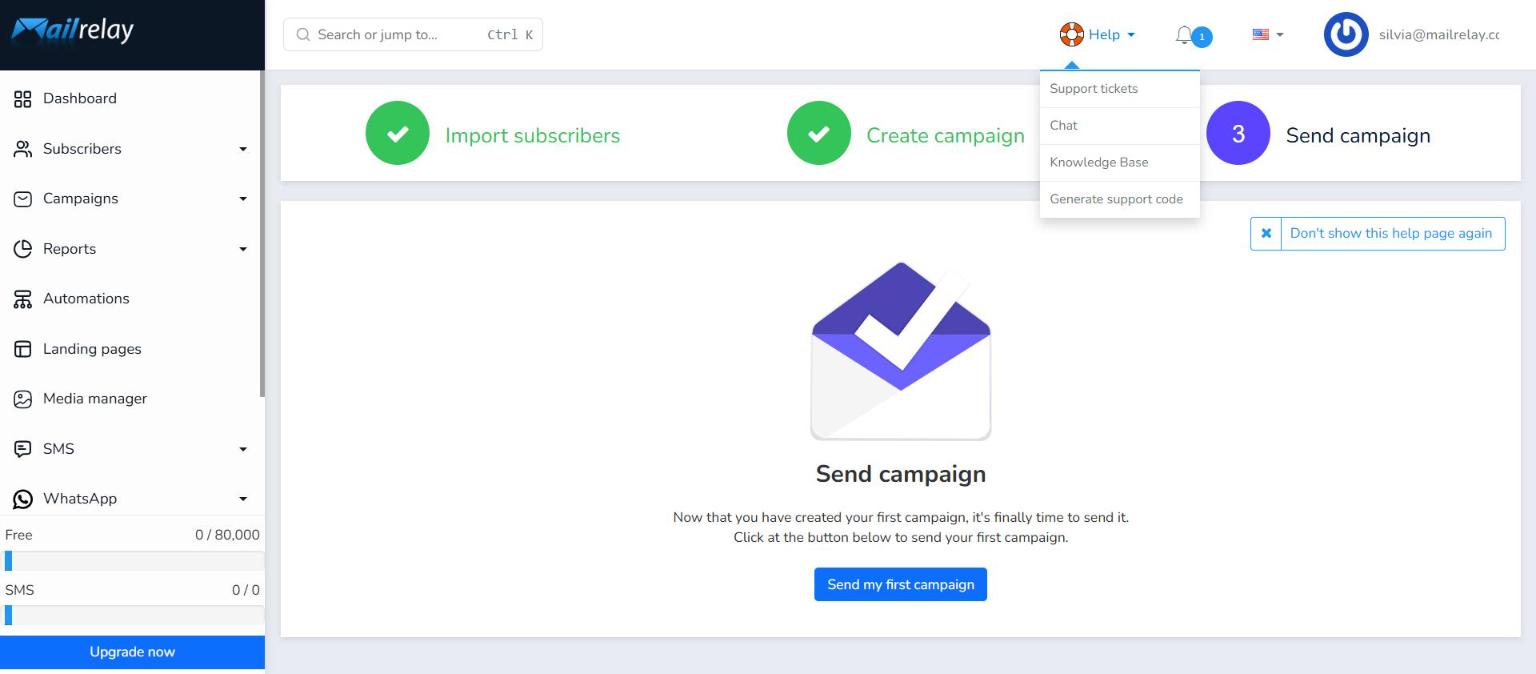
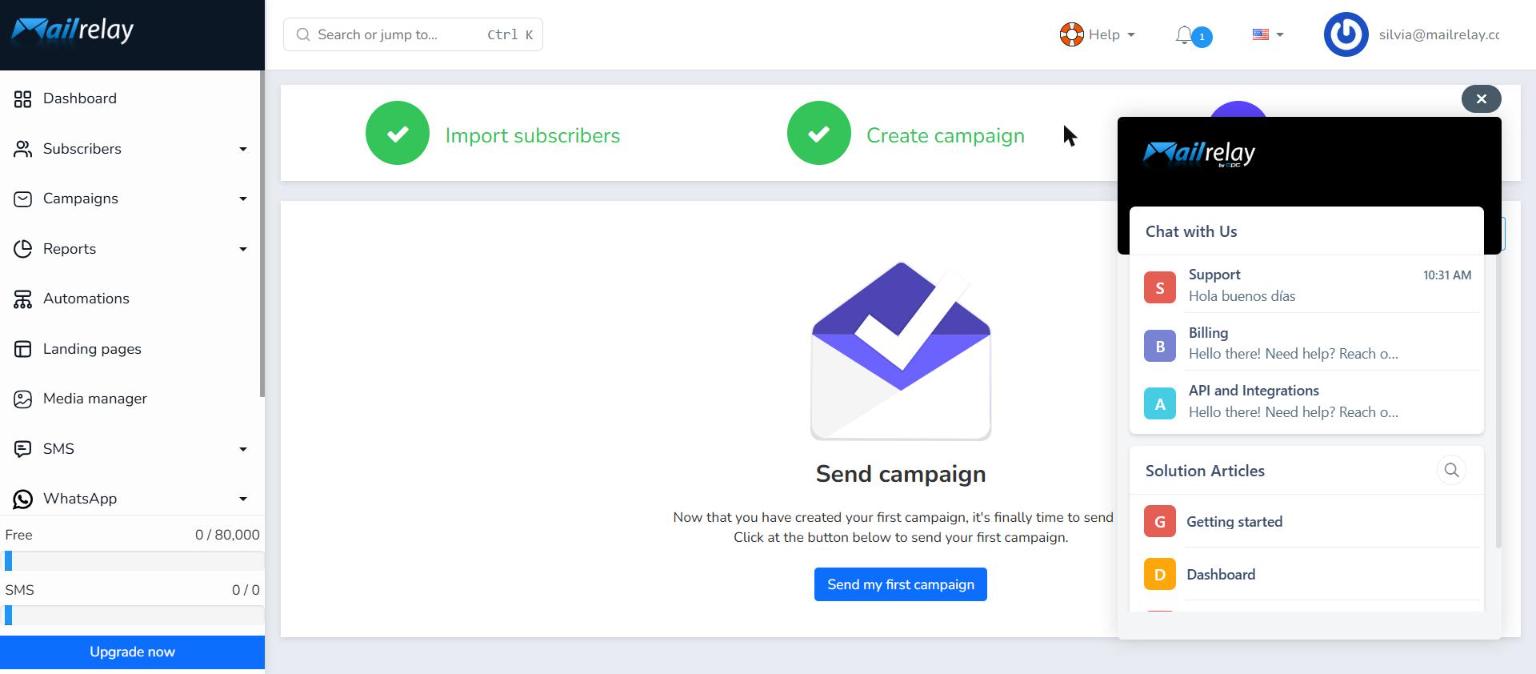
When you click it, a window opens in the bottom right corner of the screen with the Chat with Us area, where you can choose the department you want to talk to:
- Support: questions about using the platform, sending, imports, settings, etc.
- Billing: questions about payments, plans and invoices.
- API and Integrations: technical questions about the API or connecting with other tools.
When you select a department, for example Support, the conversation opens. The header shows the estimated response time (for example, Currently replying in 1 minutes) and a welcome message from Mailrelay.
Type your question in the Reply field and click the send button (the arrow). You can also attach files with the paperclip icon or add emojis. Your message will appear in the conversation and a team member will reply in the same window.
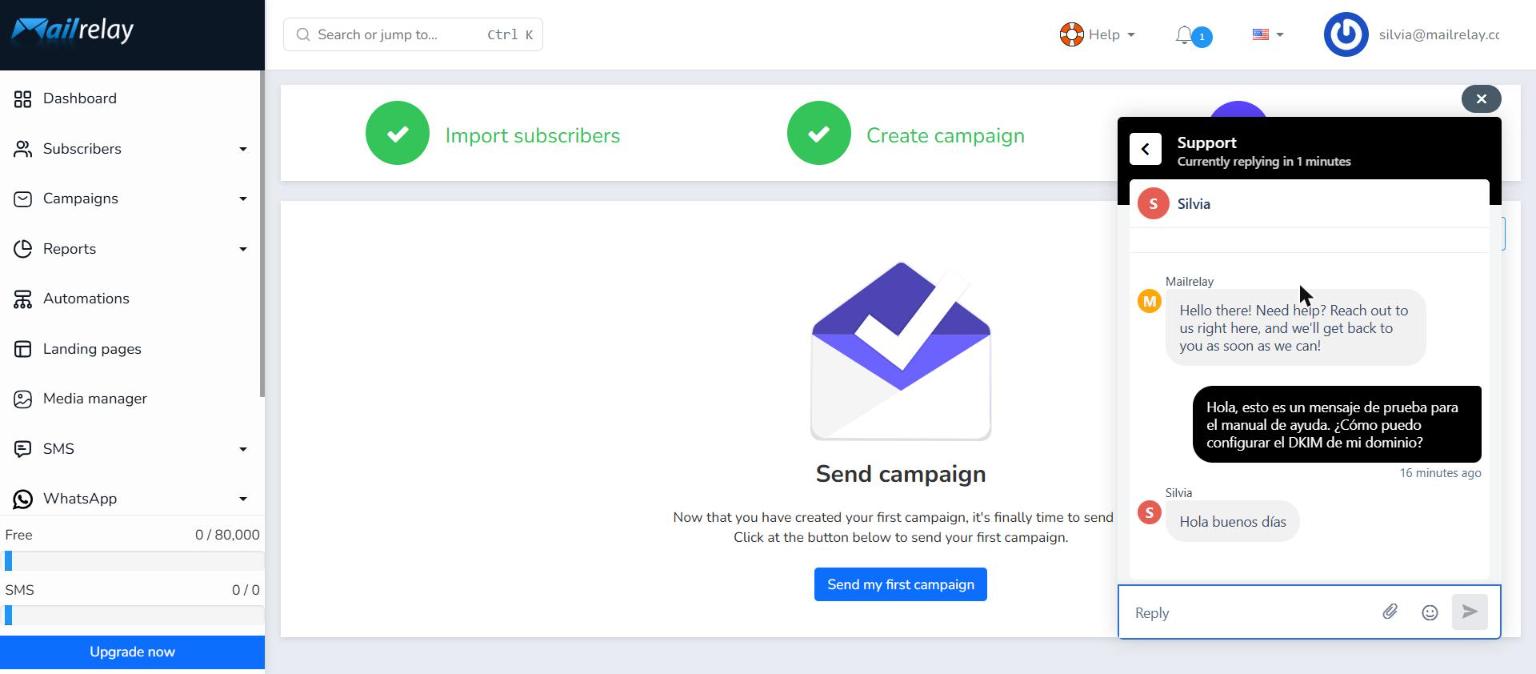
To go back to the list of departments, click the arrow in the top left corner of the window. To close the chat, click the X.
2.3 Knowledge Base
This option gives you access to Mailrelay's help articles and guides, so you can answer your own questions at any time without leaving your account.
When you click Knowledge Base, the Support panel opens. In the Got questions? section you'll find:
- Search for help: a search box to find articles by keyword.
- Suggested articles: the most viewed articles, such as sender setup (SPF, custom domain, DKIM and DMARC), two-factor authentication or importing contacts.
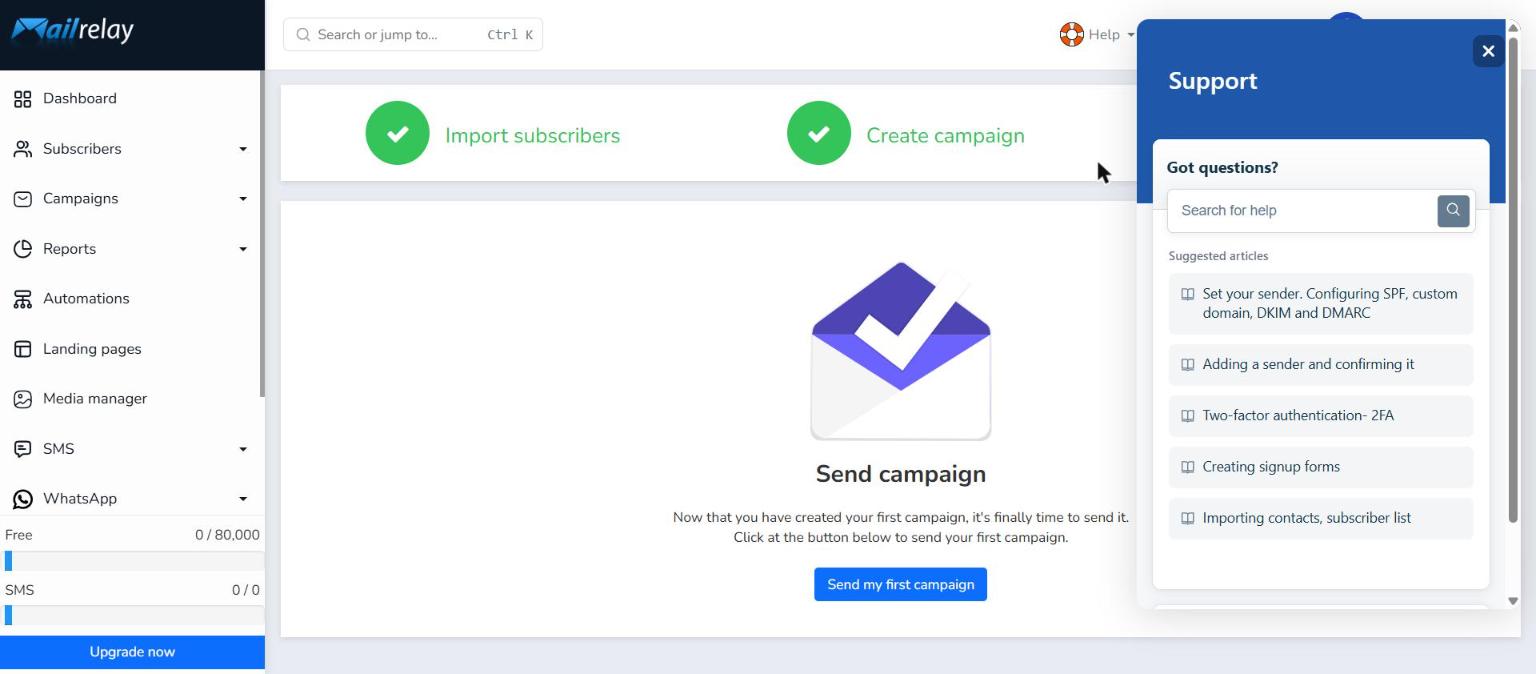
To look up a specific topic, type a keyword in Search for help (for example, DKIM) and click the magnifying glass or press Enter.
You'll see the number of articles found and the list of related articles.
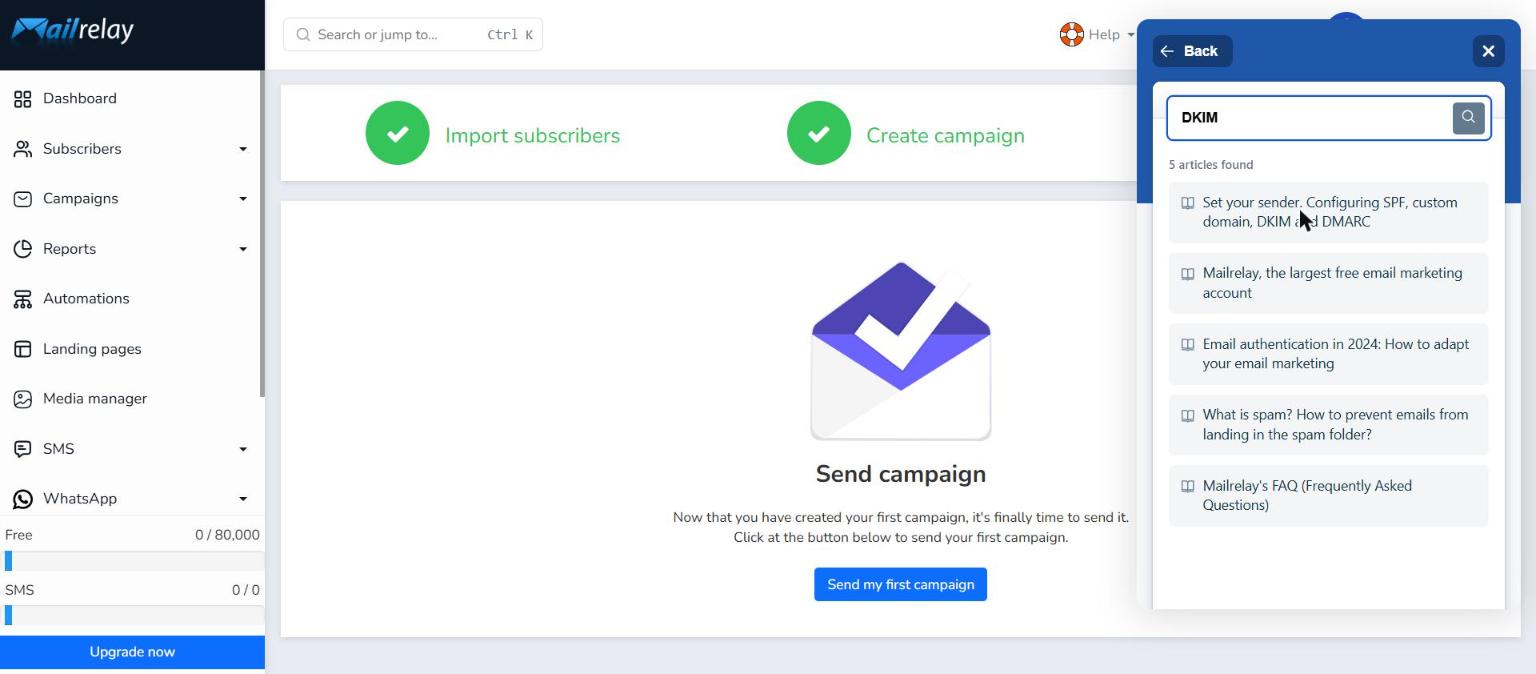
Click an article to read it directly in the panel. If you'd rather open it in a new tab, click the external link icon next to the title. To return to the results, click Back.
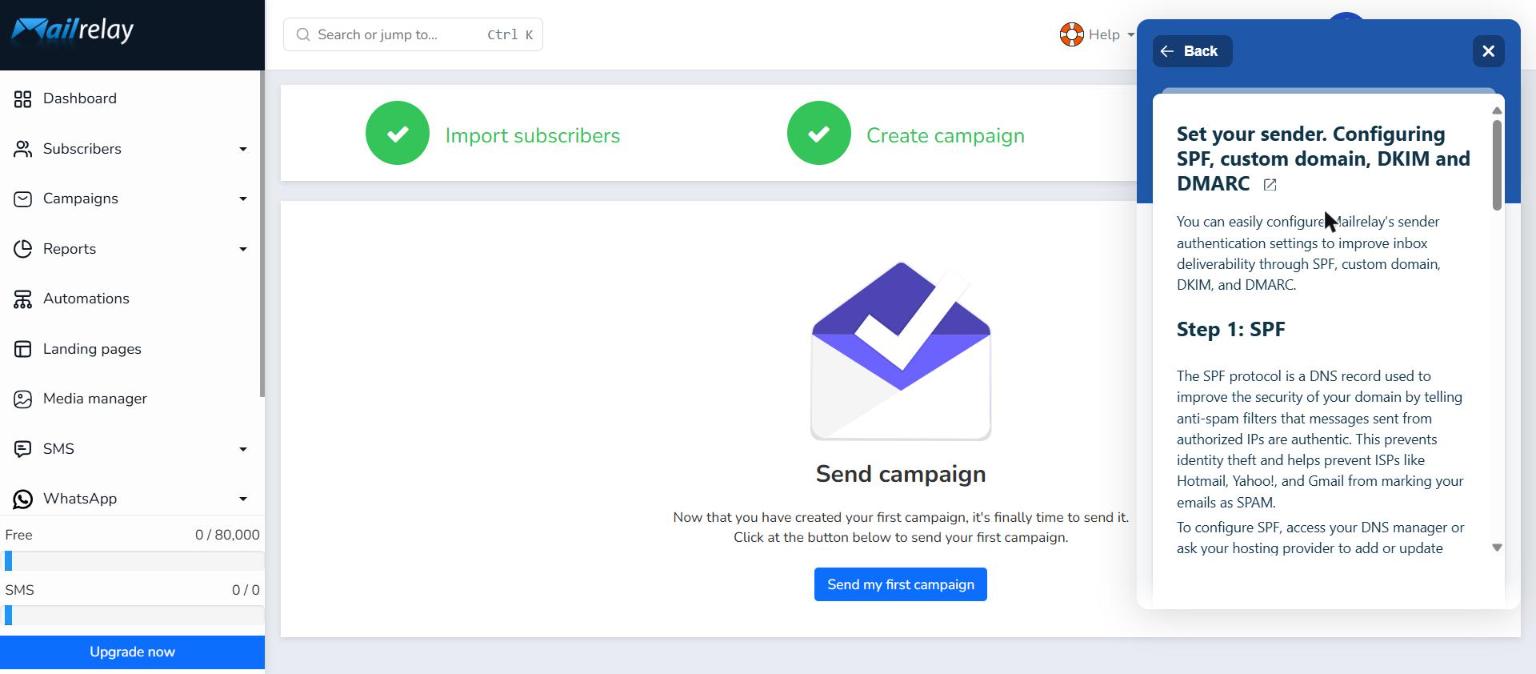
If you can't find the answer you're looking for, you can open a ticket (section 2.1) or contact us by chat (section 2.2).
2.4 Generate support code
Generate support code is a button that creates a temporary PIN that the Mailrelay team uses to log in to the account as if they were the customer. It works as an authorization.
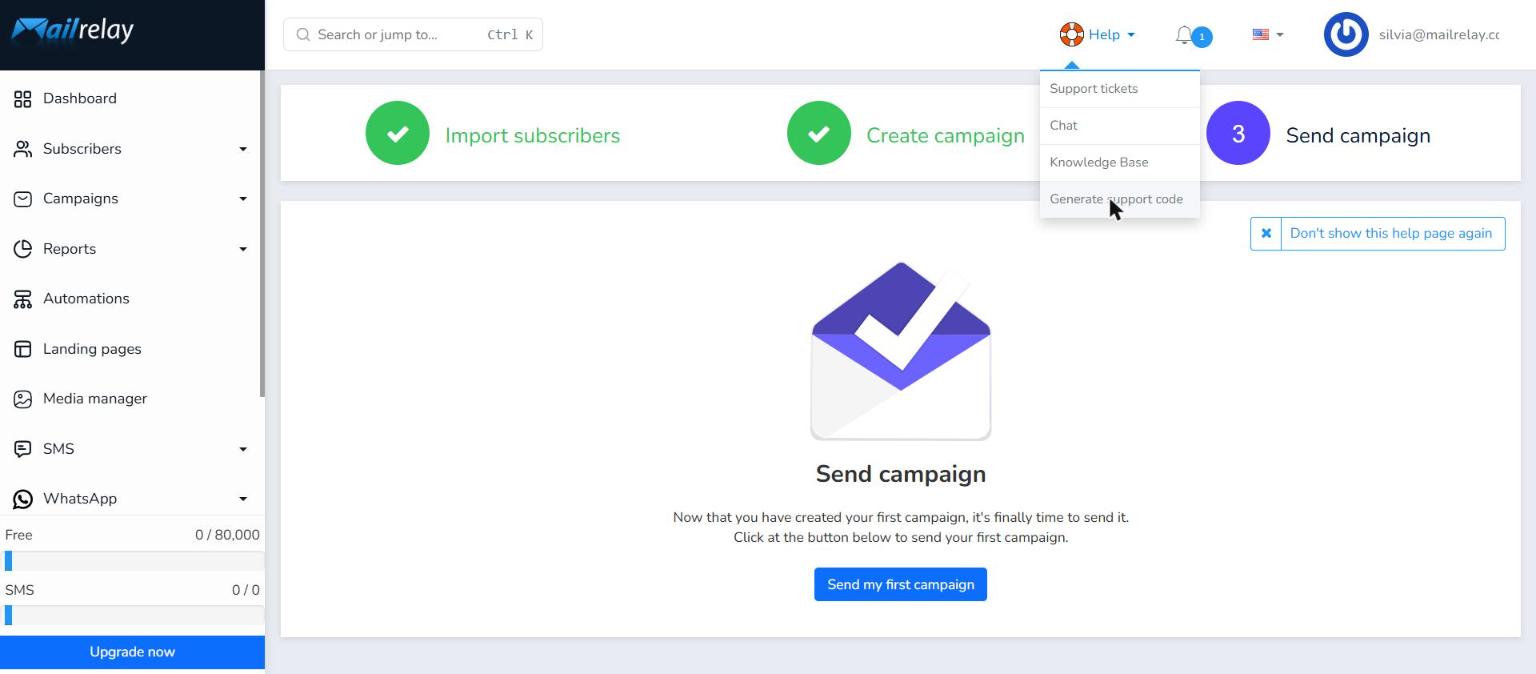
How to generate it:
- Click the Help option in the top right corner.
- Select Generate support code.
- The system will create a temporary PIN. It is valid for 24 hours and can only be used once.
- Give that PIN to the Mailrelay team.
Because it is temporary, the PIN stops working after a while. If the team needs to access the account again later, just generate a new one. For security, share the PIN only with the Mailrelay support team.
3. Frequently asked questions
What support does the Mailrelay free account include?
With the free account you get ticket-based support. The Standard version adds chat support (online chat and WhatsApp) and the Enterprise version also adds phone support.
What are the support hours?
Monday to Friday, 7:00-22:00, Spain time.
Which option should I choose in the contact form if I don't have an account yet?
In What is your question about?, choose Other questions. If you choose Support, the form asks for Your Mailrelay account.
Can I open a ticket without leaving my account?
Yes. In the Help menu of your account you have the Support tickets option (section 2.1).
What is the support code for?
It is a temporary PIN that the Mailrelay team uses to log in to your account as if they were you. It is valid for 24 hours and can only be used once. For security, share it only with the Mailrelay support team.
4. Related articles
- I cannot access my account: what to do if you can't log in to your account.
- How to create an account with Mailrelay: create your free account step by step.
- Two-factor authentication- 2FA: protect access to your account.