
Create an event subscription to get a notification by email or webhook when something happens in your email marketing platform. For example, when someone subscribes to or unsubscribes from your newsletter, or when the status of an SMS changes.
Create an event subscription
To set up the notifications, follow these steps:
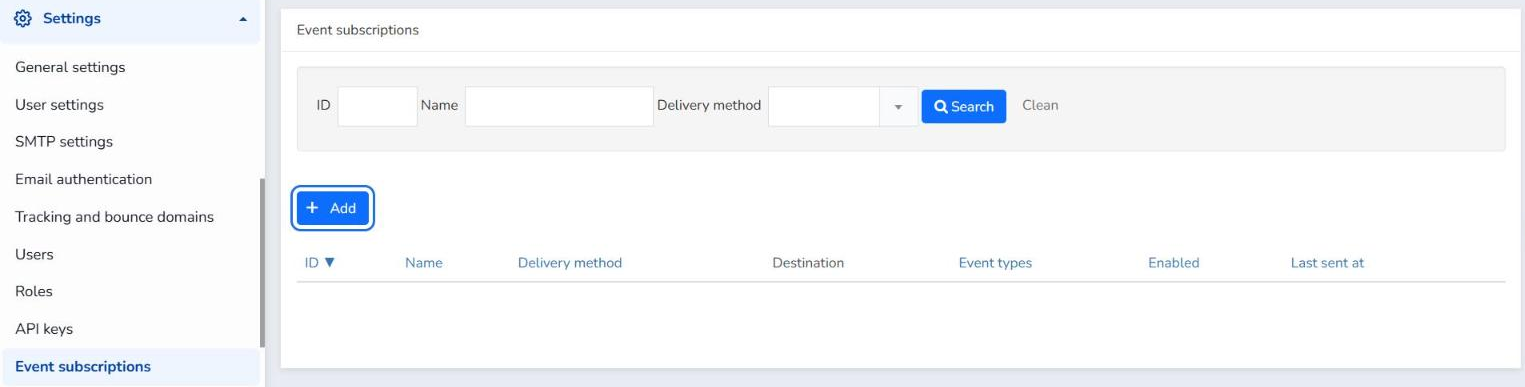
- In the menu, click Settings > Event subscriptions.
- Click Add.
- In Name, enter a name to identify the subscription.
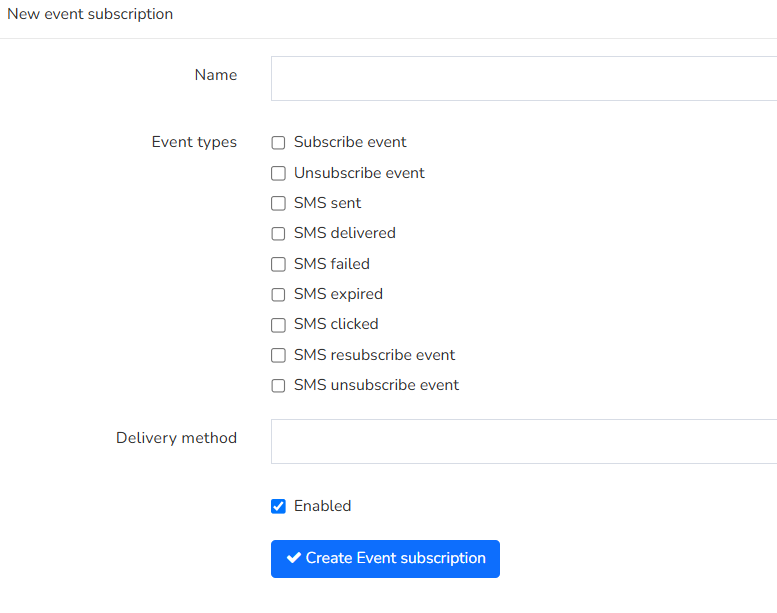
- In Event types, select the actions that trigger data transmission. You can select several:
- Subscribe event: notifies when a user signs up.
- Unsubscribe event: notifies when a user cancels their subscription.
- SMS sent: notifies when an SMS is sent.
- SMS delivered: notifies when the SMS is delivered.
- SMS failed: notifies if the SMS fails.
- SMS expired: notifies if the SMS has expired.
- SMS clicked: notifies if the SMS has been clicked.
- SMS resubscribe event: notifies if a user has re-subscribed.
- SMS unsubscribe event: notifies if a user has unsubscribed via SMS.
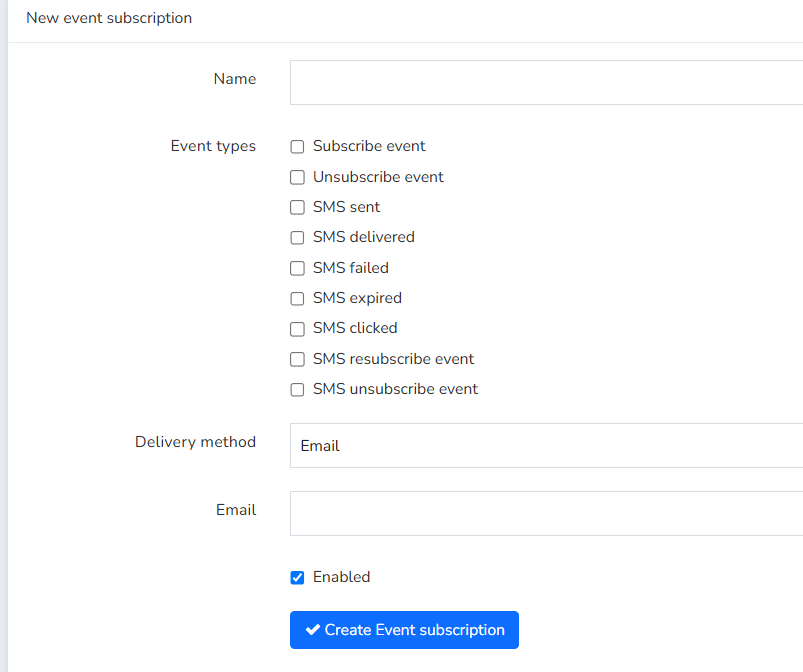
- In Delivery method, choose how you want to receive the notifications:
- Email: enter the email address where you want to receive them.
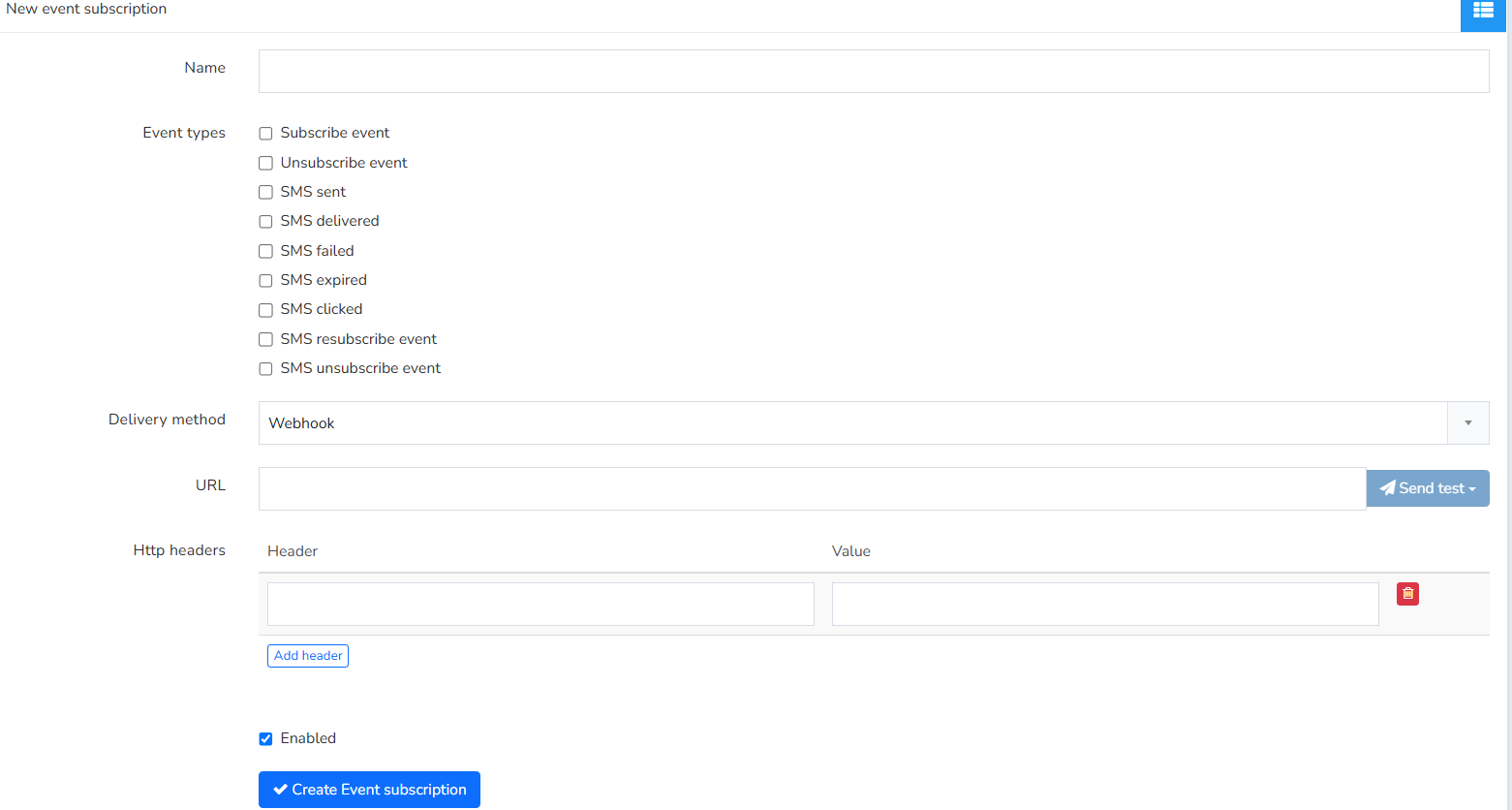
- Webhook: enter the URL. Optional: to add headers and their values, click Add header.
- Email: enter the email address where you want to receive them.
- Leave the Enabled checkbox ticked, as it is by default. If you untick it, the subscription is saved disabled and you can use it in the future without deleting it.
- Click Create Event subscription.
Test a webhook
Before creating the subscription, you can check that your server receives the notifications:
- Next to the URL field, click Send test and choose the event type you want to test.
- In the Are you sure? window, click Yes. Mailrelay sends a request with test data to the URL.
If your server does not accept the request, you will see the "Webhook failure" notice with the http code it returned.
Manage your event subscriptions
In Settings > Event subscriptions you will see the list of your subscriptions. To find one, use the ID, Name or Delivery method filters and click Search.
Each row has these buttons:
- Show: you see all the subscription details, including when it was created (Created at) and updated (Updated at).
- Edit: you change its details, for example to untick Enabled and pause it without deleting it.
- Delete: you delete the subscription.
In Show, the Log tab lists the changes made to the subscription: when, which user, from which IP and what action. If several people in your company have their own user in the account, this way you know who created or changed each subscription.
Manage subscriptions with the API
You can also create, view, update and delete event subscriptions with the Mailrelay API. To use it, you need an API key. You will find how to do it in the Event Subscriptions section of the API documentation.
If you send SMS with the API, see also SMS using our API and SMS sent messages by API.
Frequently asked questions
These are the most common questions about event subscriptions.
Can I choose several event types in the same subscription?
Yes. For example, select Subscribe event and Unsubscribe event to know when someone subscribes to or unsubscribes from your newsletter.
What is the difference between Email and Webhook?
With Email, you receive the notifications at the email address you enter. With Webhook, the data is sent to the URL you enter, and you can add headers.
Can I pause a subscription without deleting it?
Yes. Edit it and untick the Enabled checkbox. In the list, the Enabled column will show "No".
Is it available on the free account?
Yes. You can create event subscriptions with the free account. It is the same account you use for your email marketing campaigns and mass email sending.