SMTP configuration with recipients.csv
INDEX
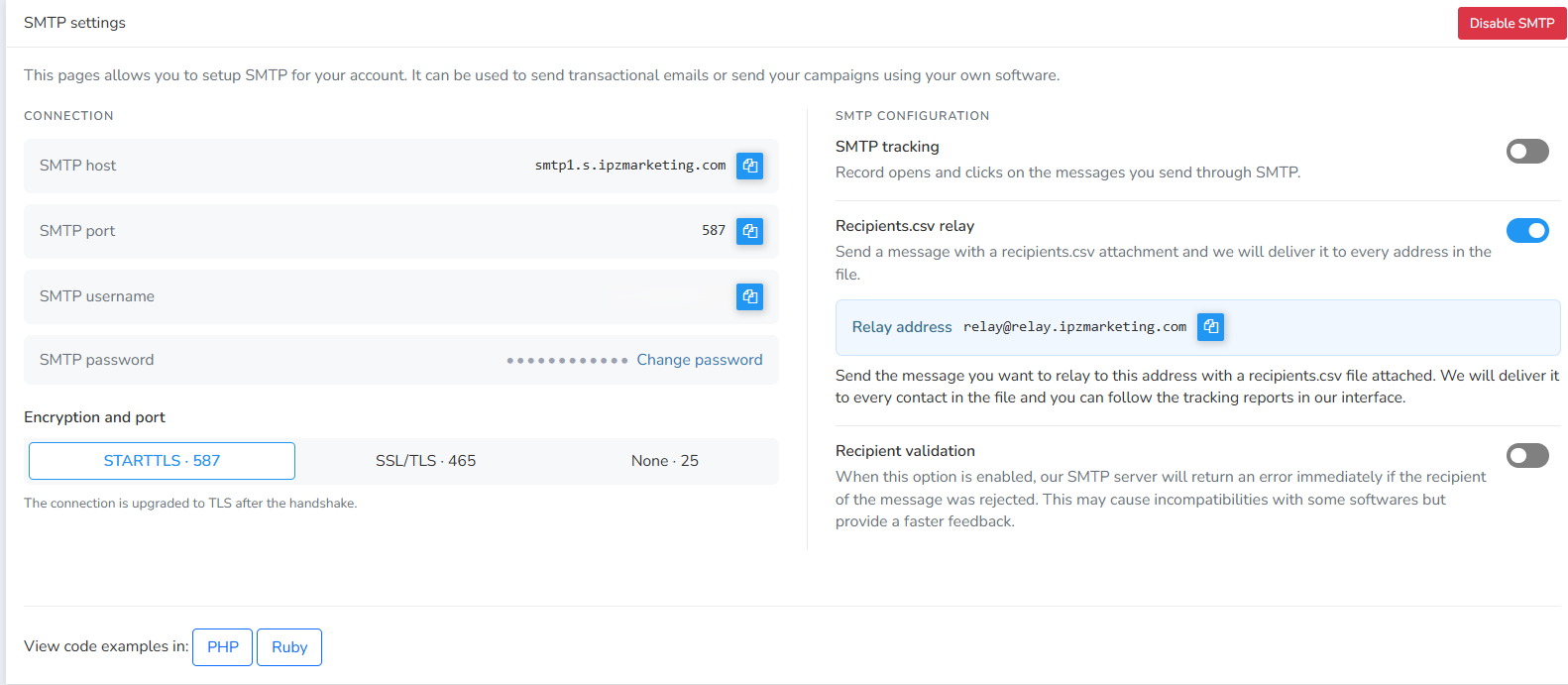
How to use Recipients.csv relay
Send a single email to a relay address with a recipients.csv file attached, and Mailrelay delivers it to every address in the file. The sends then show up in your account’s tracking reports.
When to use it
- You want to send the same message to a list of contacts from your email client (Outlook, Gmail, Thunderbird…) without importing the list into Mailrelay or creating a campaign.
- You have a system that generates recipient lists as CSV and need a simple way to send to them.
- You want to track opens, clicks and deliveries for that send in the Mailrelay interface.
Step by step
Open the SMTP settings
In the side menu, go to Settings → SMTP settings. In the right-hand column, under SMTP configuration, you’ll see the Recipients.csv relay block.
Check that the relay is on
The block’s switch must be on . When it is on, the relay address is shown and a link to disable the relay appears.
Copy the relay address
Click the copy button next to Relay address. For this account it is:
Relay address relay@relay.ipzmarketing.com CopyPrepare the recipients.csv file
Create a CSV file with one email address per line. Save it as UTF‑8 and name it exactly
recipients.csv.recipients.csv
email
anna.smith@example.com
john.miller@example.com
laura.jones@example.com
You can export it from Excel or Google Sheets with Save as → CSV. Make sure there are no empty rows, extra spaces or duplicate addresses.
Write the message and attach the CSV
Write the email exactly as you want your contacts to receive it: subject, body, images and attachments. Put the relay address as the recipient and attach
recipients.csv.Fromnewsletter@yourdomain.comTorelay@relay.ipzmarketing.comSubjectOctober newsAttachmentrecipients.csvHi, this month we’re sharing…Send the message
Mailrelay receives the email at the relay address, reads the CSV and delivers the message to every contact in the file. You send one email; the server handles the distribution.
Check the reports
Review the results of the send in Mailrelay’s tracking reports. To record opens and clicks, also turn on SMTP tracking on this same page.
Other options in the same panel
| Option | What it does | How it relates to the relay |
|---|---|---|
| SMTP tracking | Records opens and clicks on messages sent through SMTP. | Turn it on if you want those metrics in the send’s reports. |
| Recipient validation | The server returns an immediate error if a recipient is rejected. | Gives faster feedback, but may be incompatible with some software. |
| Disable SMTP | Turns off the account’s SMTP server. | Use it with care: it affects all SMTP sends. |
Tips and common issues
- Nobody receives it: check that the attachment is named exactly
recipients.csvand that the relay is enabled. - Some contacts are missing: look for misspelled addresses, cells with spaces, or a different separator (semicolon instead of comma).
- Test first: send with a CSV that only contains your own addresses before sending to the real list.
- Deliverability: send from a domain authenticated in Settings → Email authentication so the message doesn’t end up in spam.
- Consent: only include contacts who have agreed to receive your emails.
Account notice: transactional sending through SMTP is now a paid add-on.
Was this article helpful?
That’s Great!
Thank you for your feedback
Sorry! We couldn't be helpful
Thank you for your feedback
Feedback sent
We appreciate your effort and will try to fix the article