SMS package usage
INDEX
This option shows us, visually, the usage we have made of the SMS sends purchased. It offers a status bar, showing the total number of emails purchased and the total consumption made.

As well as the possibility of adding new SMS sending balance to the account (Buy package button) and access to a detailed view of the consumption/usage made in our SMS campaigns (View detailed package usage button).
View detailed package usage
When you click the View detailed package usage button, a detailed breakdown of the account's usage will appear, based on the desired time period.
The first thing you need to do is select the time range to check in Start date and End date, then click Search so the results appear just below (in the results area).
In the results area the data is organized into 4 columns:
- ID, the unique identifier of the campaign
- Name, the name assigned to the campaign
- Number of messages sent, the number of phones the message was sent to
- Credits used, the total credits consumed by the campaign.
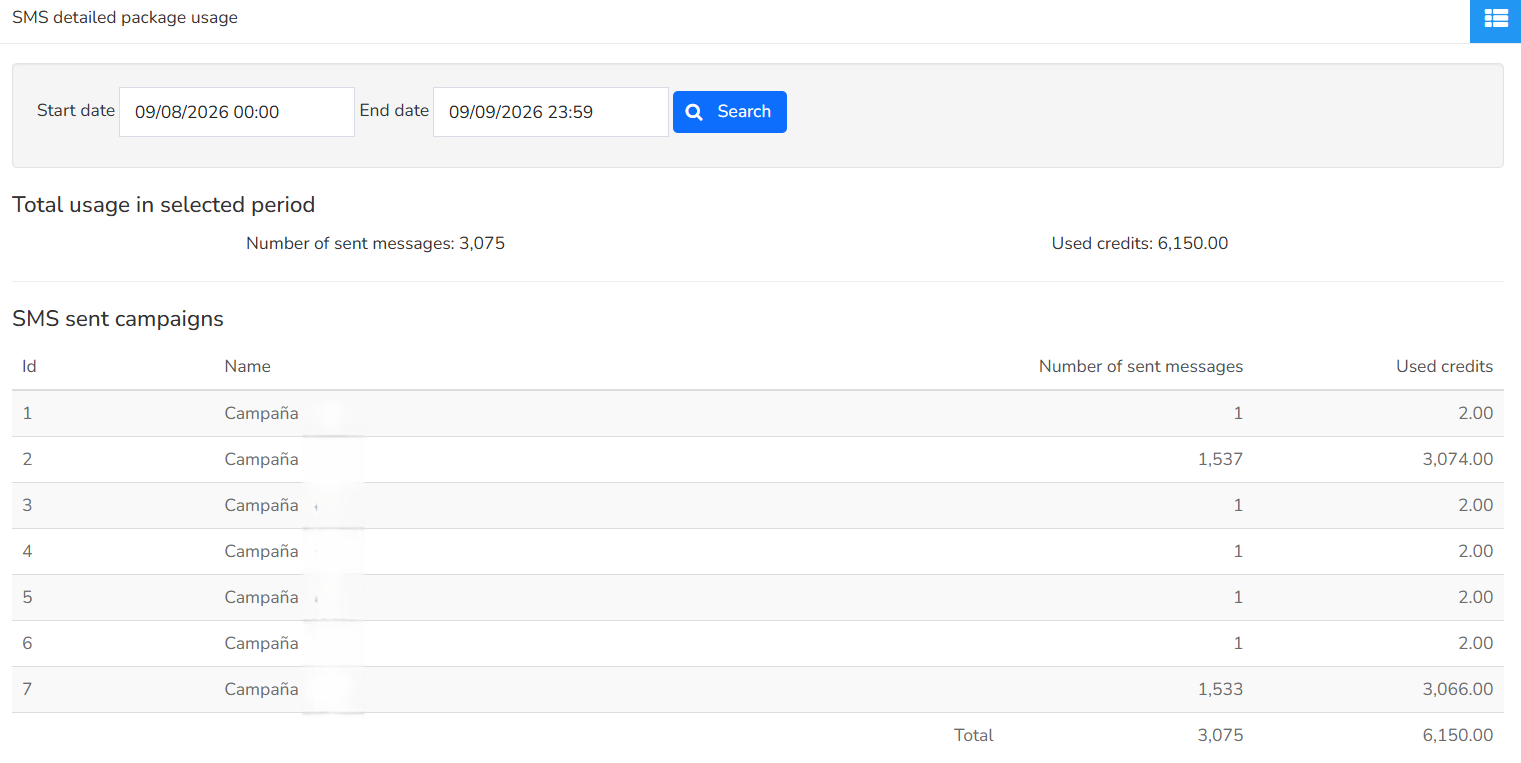
Both above and below the results area, you have the total number of messages sent and credits used.
Buy a package (Packages tab)
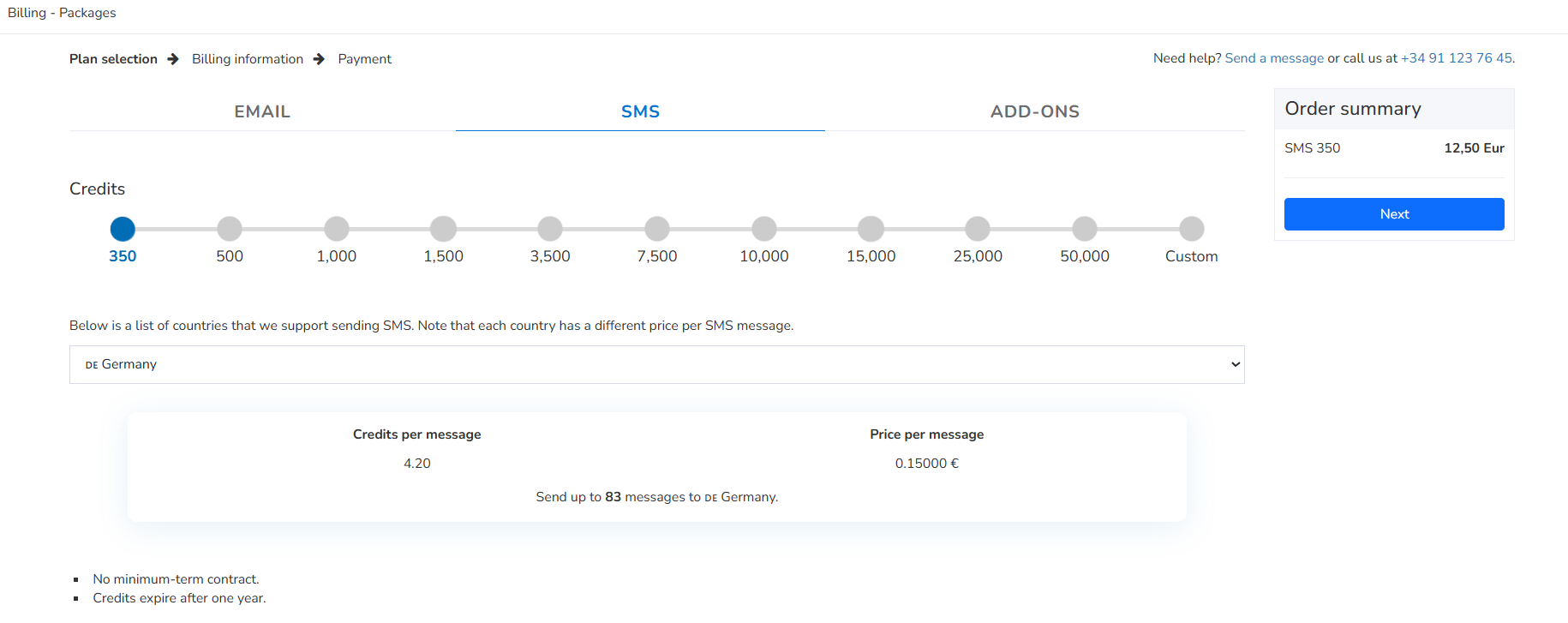
Upon reaching the Billing section, you will see options for Email, SMS, or Add-ons; select "SMS" to purchase the SMS service.
Choose the number of credits you wish to purchase and the destination country for your messages; an order summary is displayed in the top-right corner.
Click "Next" to enter your billing email address, then fill in the country and tax ID (NIF/CIF/VAT ID). Finally, complete the remaining fields: company name, contact name, phone number, mobile number, address, postal code, city, and province.
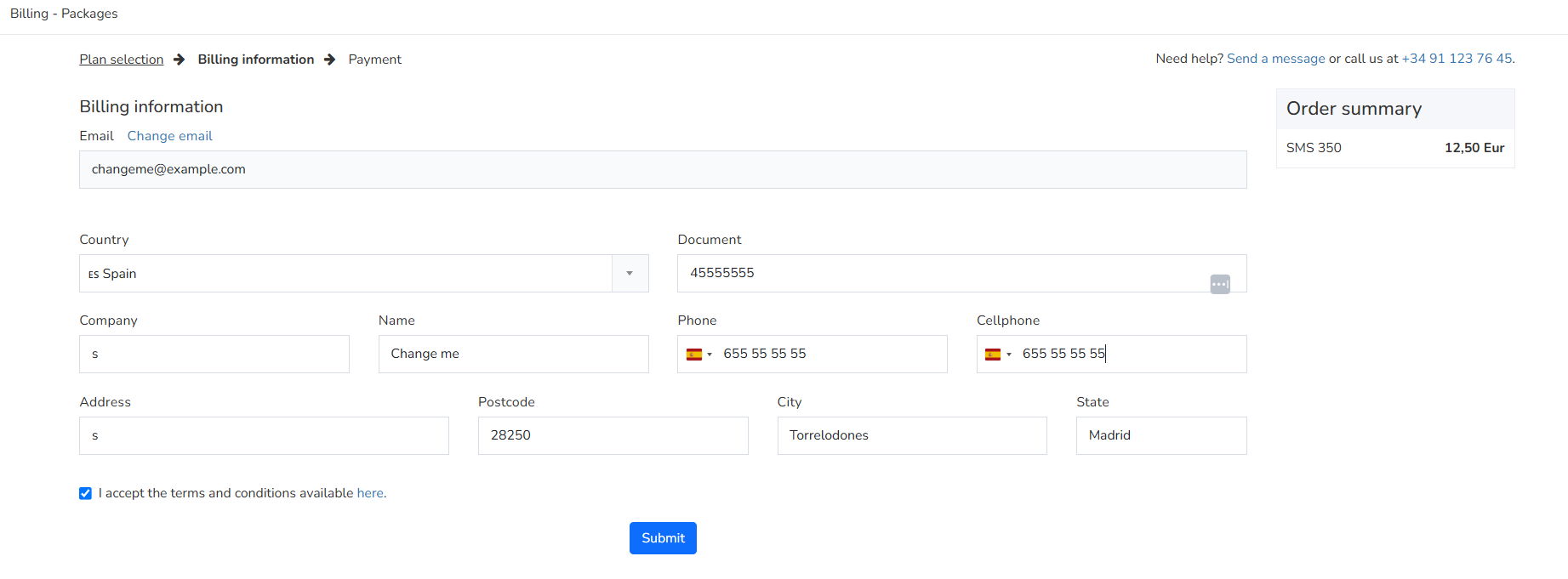
After reviewing that the billing details are correct, check the I accept the terms and conditions available here option. Then click the Submit button to complete the payment and move on to the payment method selection screen.
Payment methods

Click the PayPal button to pay via PayPal, or click the VISA/MasterCard button to pay by card.
After clicking the PayPal button, a new yellow button will appear below labeled PayPal pay now, which you can use to complete the payment that way.
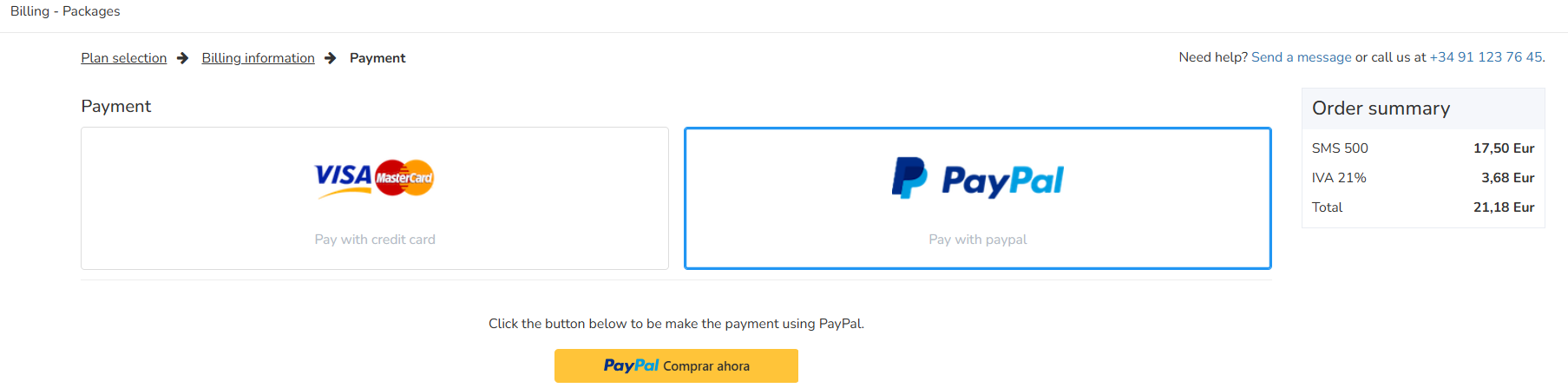
After clicking the VISA/MasterCard button, you have to click Pay.
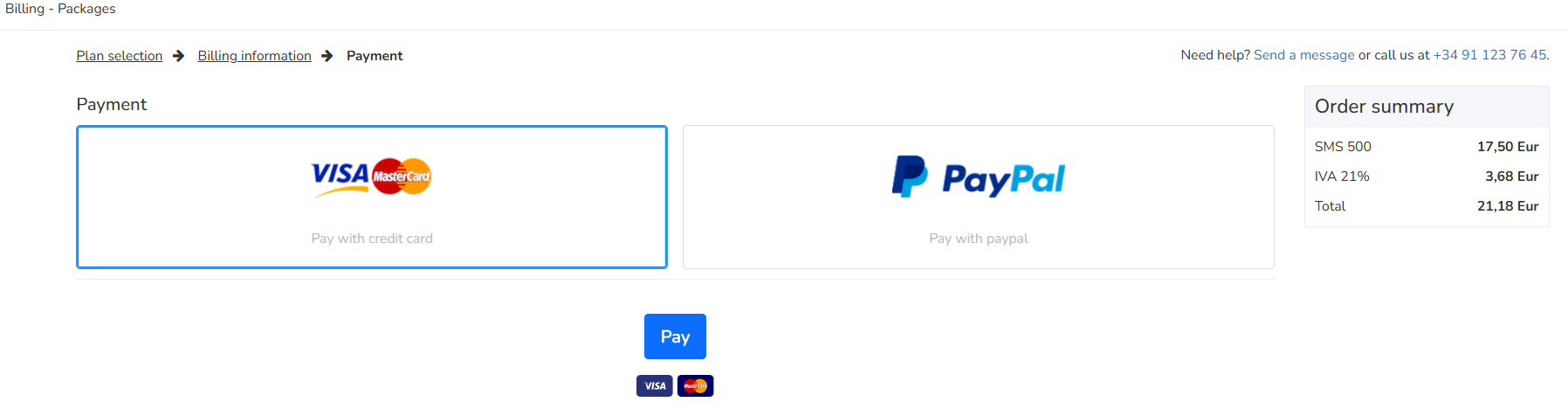
Next, the payment section will appear, displaying the transaction details and the fields where you need to enter the card number, expiration date, and CVV.

View Invoices (INVOICES tab)
To view the invoices generated from your purchases, simply click the INVOICES tab in the top right corner to access a list of them. To view the details of any invoice and download it as a PDF, just click the blue Download icon.

We hope this tutorial was useful, and if you have any further questions, please don't hesitate to contact our support team.
Was this article helpful?
That’s Great!
Thank you for your feedback
Sorry! We couldn't be helpful
Thank you for your feedback
Feedback sent
We appreciate your effort and will try to fix the article