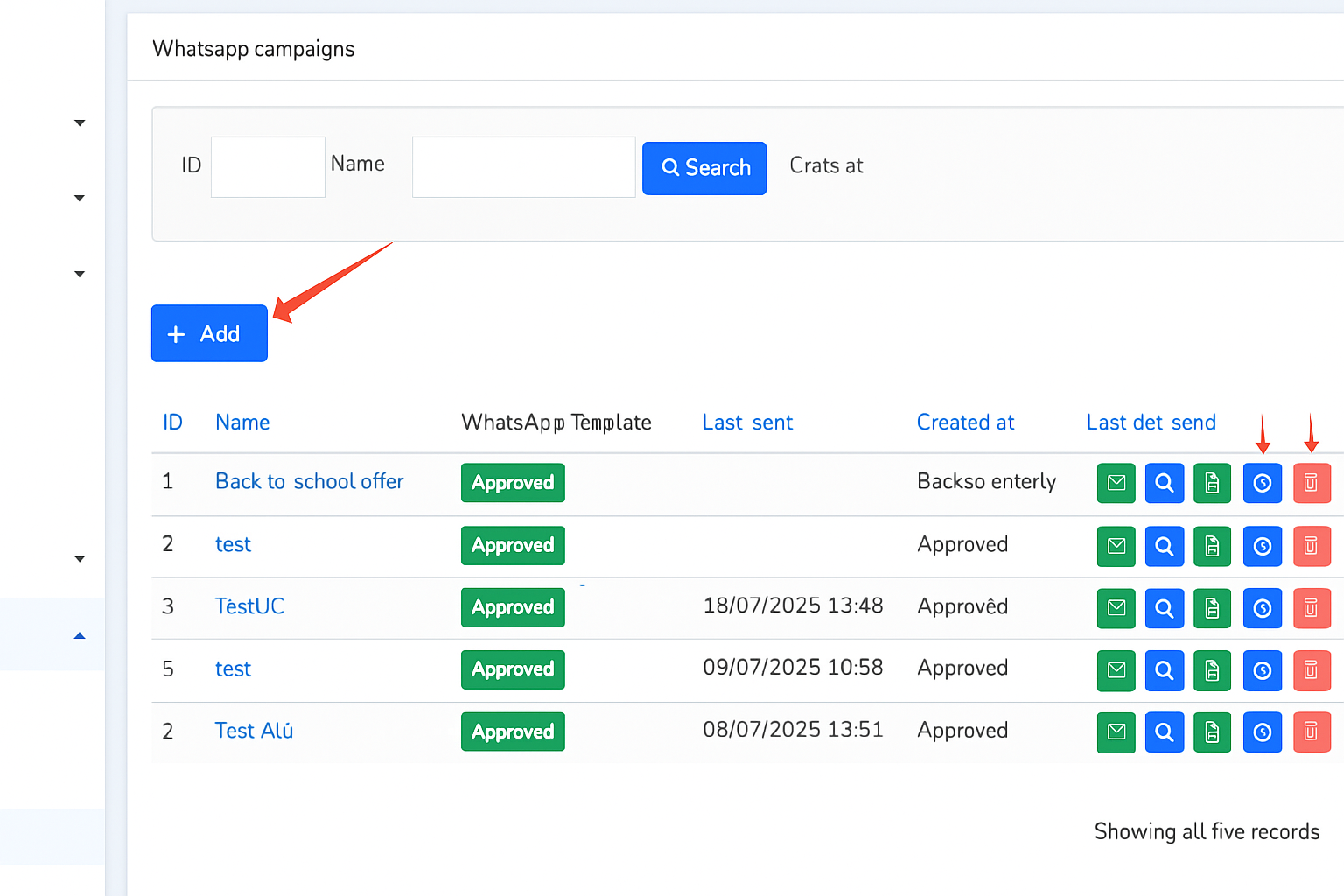
This is the place to create and manage WhatsApp campaigns. It has two main areas, the upper area or search area where you can filter between the different campaigns created and below it the results area where you can see the created campaigns and interact with the already created campaigns.
In each of the created campaigns you have four icons:
- To send the campaign (icon of a green envelope or Send).
- For a preview of the campaign (icon of a blue magnifying glass or Show).
- To edit the campaign (icon of a green notepad or Edit).
- To delete the campaign (icon of a red trash can or Delete).
To create a campaign, click the +Add button located between the two areas. This will open the New WhatsApp campaign window.
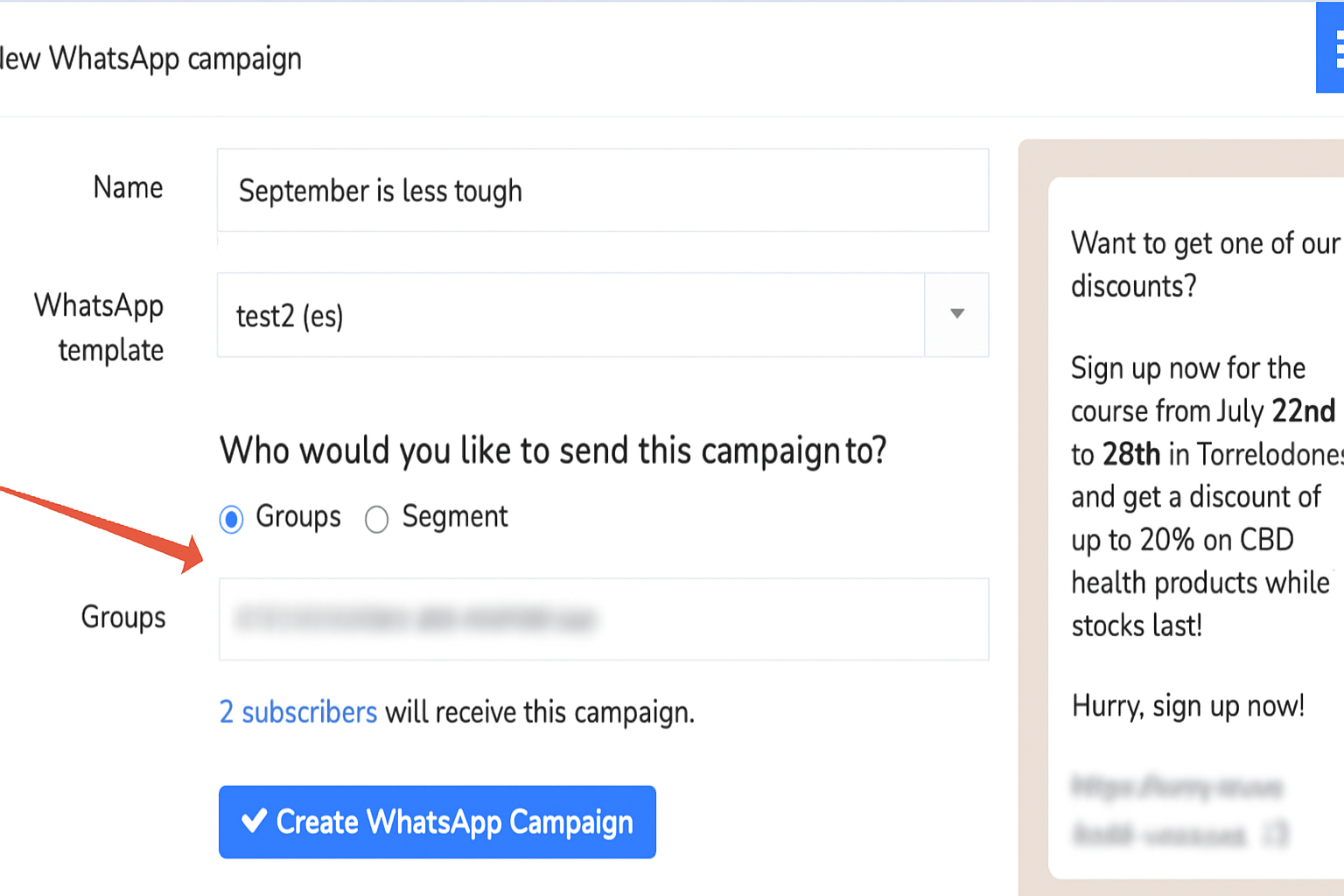
There indicate the name of the campaign in Name, as well as the template you want to use in WhatsApp Template and select if you are going to send it to a group (Groups) or to a segment (Segment) from the "Who would you like to send this campaign to?" area. After that, click on Create WhatsApp Campaign.
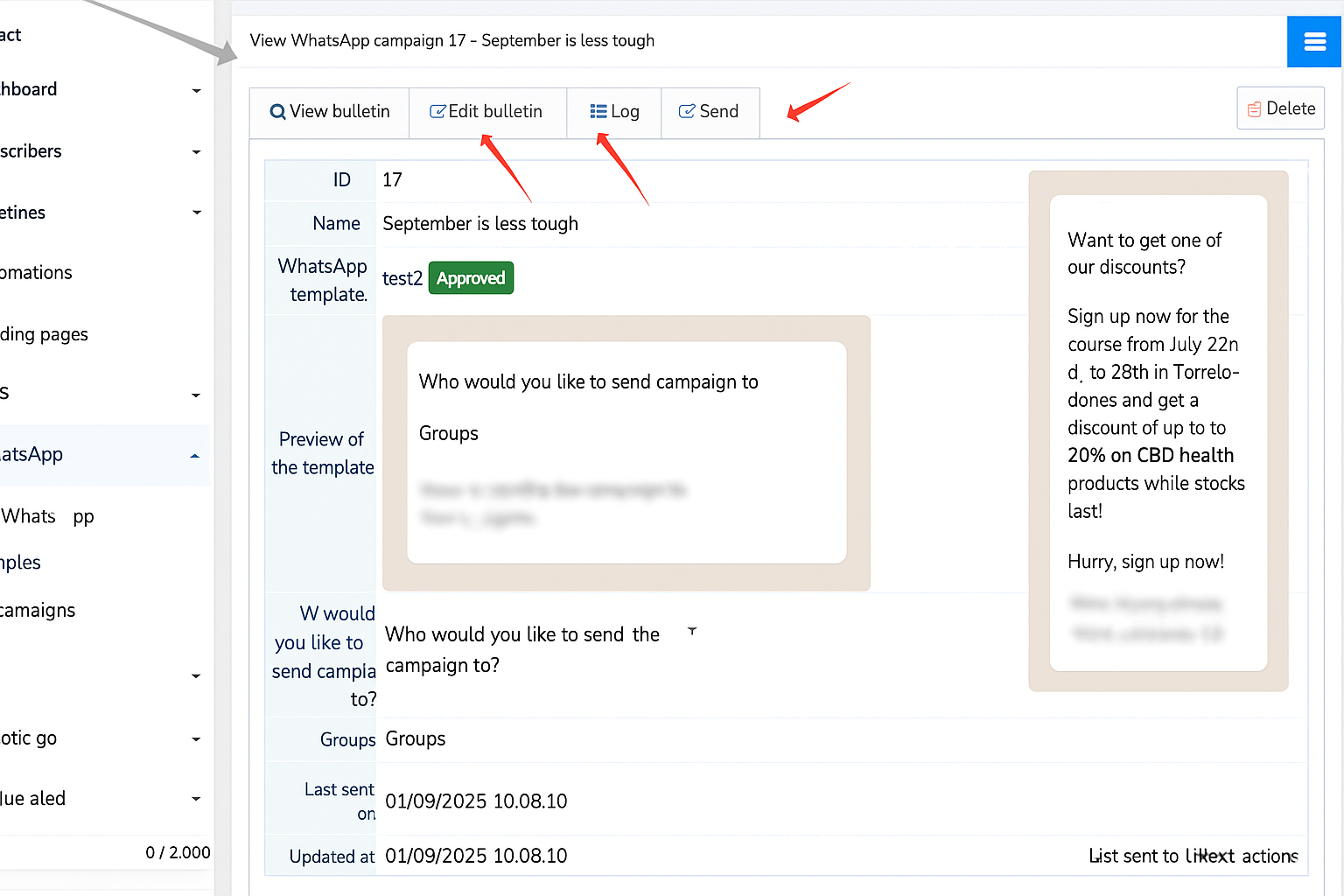
Now a new window will appear with four main tabs where you can review the information of the created campaign (Show campaign), modify the campaign (Edit campaign), see a log of the campaign (Log) or send the campaign (Send).
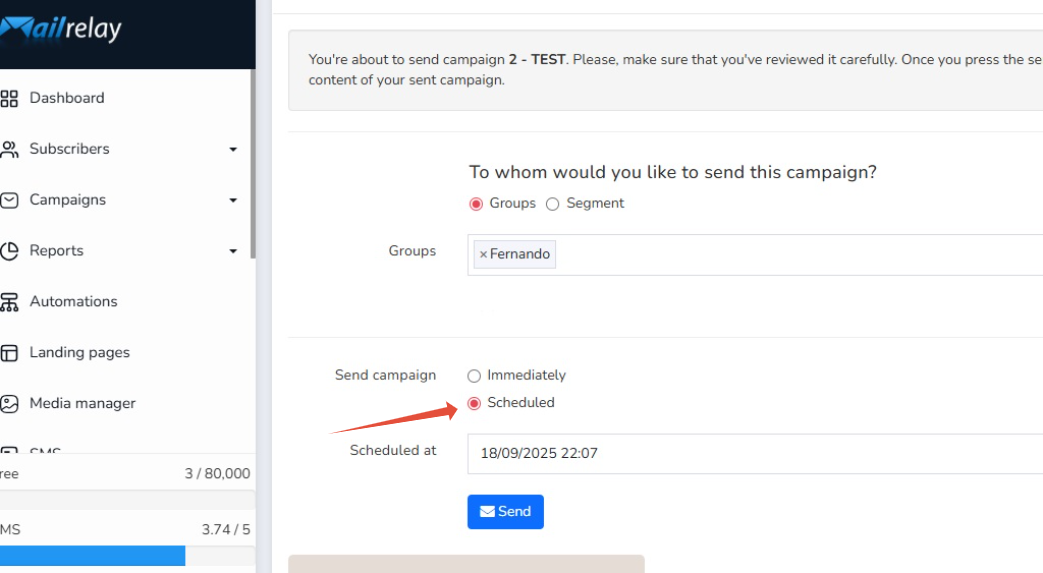
Click on the Send tab and select if you want to send the campaign right at that moment directly, by clicking on Immediately, or if you want to schedule its sending for a specific day and time, by clicking on Scheduled. When you click on Scheduled a calendar will appear where you can configure the schedule date.
In either of the two cases, you will only have to click on the blue Send button to send the campaign.
Was this article helpful?
That’s Great!
Thank you for your feedback
Sorry! We couldn't be helpful
Thank you for your feedback
Feedback sent
We appreciate your effort and will try to fix the article