WhatsApp sent messages
One of the most useful tools for managing WhatsApp communications inside your marketing platform is the WhatsApp Sent Messages report, found under WhatsApp → Sent messages in the left-hand navigation menu.
This screen gives you a real-time, searchable log of every WhatsApp message your account has sent, along with its delivery status — making it an essential tool for troubleshooting, auditing, and confirming that your messages are actually reaching your contacts.
What the report shows
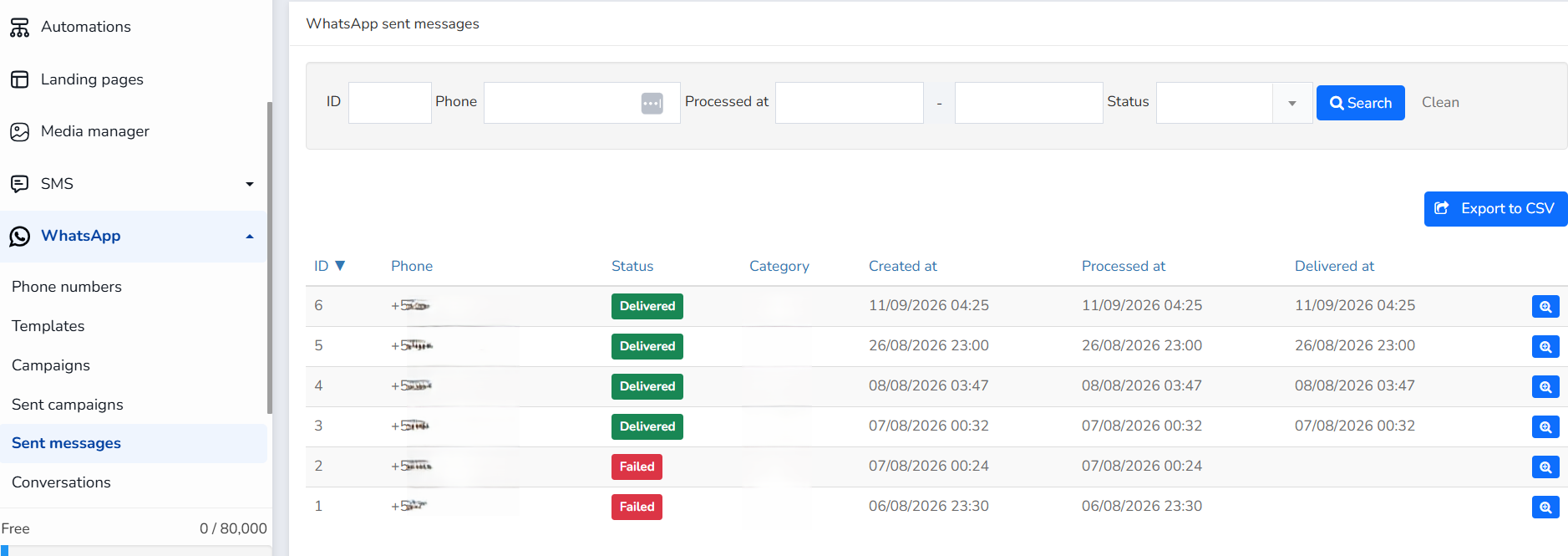
Each row in the Sent Messages table represents a single WhatsApp message and includes the following details:
- ID – A unique identifier assigned to each message, useful for referencing a specific send when contacting support or cross-checking against automation logs.
- Phone – The recipient's phone number
- Status – The current delivery state of the message, shown as a color-coded badge. In this view, messages appear as either Delivered (green) or Failed (red), giving you an instant visual read on delivery health.
- Category – The WhatsApp message category associated with the send (e.g., marketing, utility, or authentication), which affects how the message is processed by WhatsApp's Business Platform.
- Created at – The timestamp when the message was generated in the system.
- Processed at – The timestamp when the message was submitted for delivery.
- Delivered at – The timestamp when WhatsApp confirmed the message reached the recipient's device.
A magnifying-glass icon at the end of each row lets you drill into the full details of an individual message for deeper inspection. For messages with a "Failed" status, the details show the error code and text returned by Meta (for example, 131053 "Media upload error"), which indicate why the message was not delivered. Since each message may have a different error, it is advisable to check the details for several failed messages.
Filtering and searching
At the top of the page, a search panel allows you to narrow down the message log using several criteria at once:
- ID – Look up a specific message by its unique number.
- Phone – Search for all messages sent to a particular contact.
- Processed at – Filter by a date range to review activity within a specific window (e.g., a campaign send day).
- Status – Filter by delivery outcome, such as showing only failed messages to quickly identify delivery issues.
A Search button applies the selected filters, while the Clean link resets them, making it easy to move between broad overviews and targeted investigations.
Exporting your data
For reporting or record-keeping purposes, the Export to CSV button (top right) lets you download the full list of sent messages — or a filtered subset — as a spreadsheet file. This is particularly useful for sharing delivery performance with a team, archiving compliance records, or performing custom analysis outside the platform.
Why this matters
Because WhatsApp Business messaging is subject to strict delivery and compliance rules, having visibility into which messages succeeded and which failed is critical. A spike in Failed statuses can signal problems such as invalid phone numbers, template rejections, or messaging window restrictions — issues that are much easier to catch and resolve when you can filter and export delivery data directly from this report, rather than relying on assumptions about whether your messages reached their audience.
Was this article helpful?
That’s Great!
Thank you for your feedback
Sorry! We couldn't be helpful
Thank you for your feedback
Feedback sent
We appreciate your effort and will try to fix the article