WhatsApp Conversations
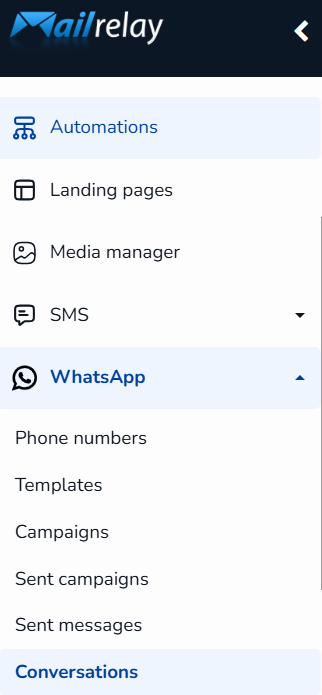
From Mailrelay, you can view your entire WhatsApp conversation history with your subscribers, without leaving the platform. To access it, open the WhatsApp menu and click on Conversations.
Step 1: The conversation list
When you enter Conversations, you will see the list of all chats on the left side, sorted by the most recent message. For each conversation, it shows the contact's name (or the name it was saved under), their phone number, a preview of the last message, and the time it was sent or received.
Click on any conversation in the list to open it and view its details in the panel on the right.
Note: the following screenshot is an illustrative mockup with fictitious data, showing an example of what the conversation list and detail view look like.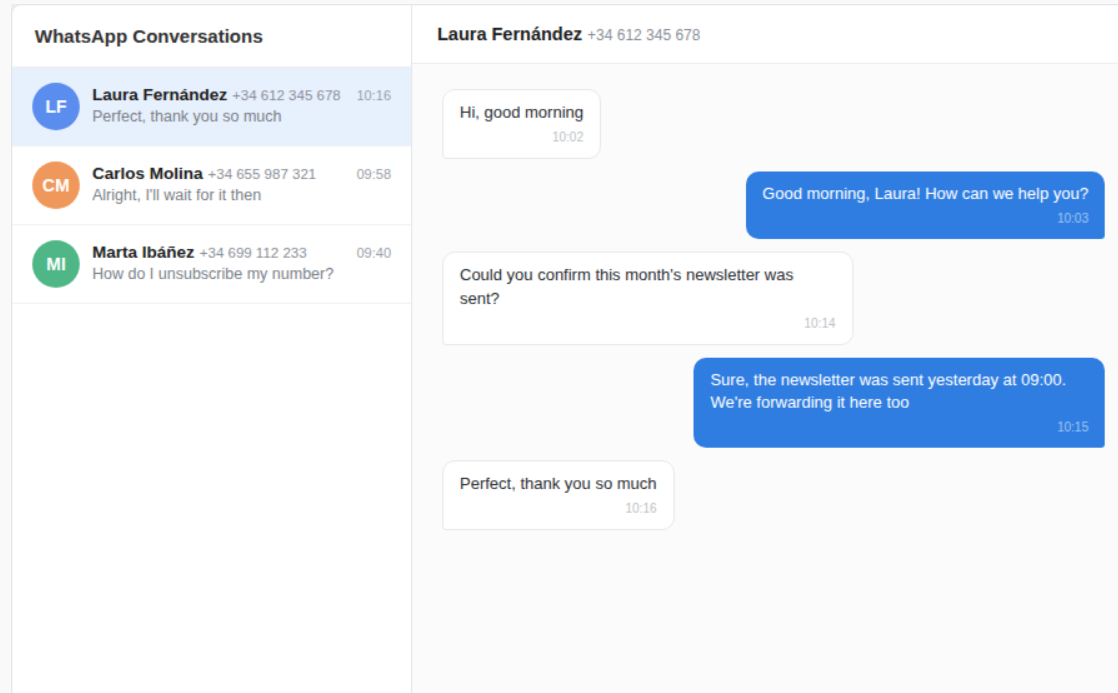
Step 2: Reviewing a conversation's details
When you open a conversation, the contact's name and number appear at the top of the right-hand panel. Below, the complete message history is shown, with the time of each message, distinguishing sent messages from received ones.
In addition to text, the history may include other types of content your subscriber has sent you, such as:
• Voice notes: which you can play directly with the built-in player.
• Videos: you can view a thumbnail within the same conversation
• Images and documents: which are displayed as a thumbnail within the conversation.
You can scroll up within the panel to load older messages from that same conversation, and use the ← arrow to maximize the conversation.
Important: remember that these conversations may contain personal data belonging to your contacts, so we recommend handling them in accordance with applicable data protection regulations (GDPR).
Was this article helpful?
That’s Great!
Thank you for your feedback
Sorry! We couldn't be helpful
Thank you for your feedback
Feedback sent
We appreciate your effort and will try to fix the article