
Check the reports of your email marketing automations: whether they are enabled, the emails sent, impressions, clicks and unsubscribes. You can also see the details of each send and the activity of each subscriber.
View the list of reports
To open the reports of your automations:
- In the menu, click Reports > Automations. You will see the automations you have created with the columns Enabled, Sent messages, Impressions, Clicks and Unsubscribes.
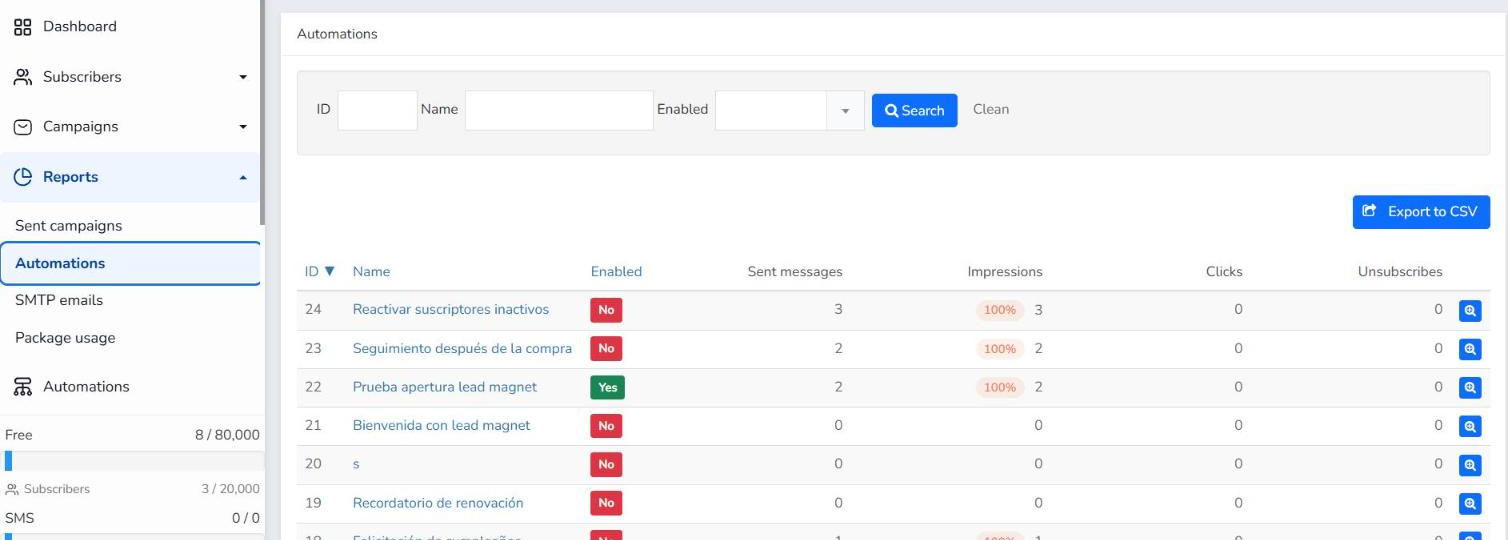
- Optional: to find an automation, filter by ID, Name or Enabled (Yes or No) and click Search.
- Click the magnifying glass (Show) of the automation to open its report.
If you don't have any yet, create an automation first.
Export the reports to CSV
To download the data of all your automations:
- In Reports > Automations, click Export to CSV.
- Optional: tick Include headers.
- In Fields, tick the data you want to export or click Select all. For example, Sent emails, Unique impressions, Unique clicks or Unsubscribes.
- Click Export to CSV.
Check the report of an automation
The report opens in Overview, which shows this data:
- Chart: the Sent emails, Impressions and Clicks per day.
- Overall stats: the messages sent, the ones opened with the open rate, clicks and unsubscribes.
- Blocks: the same data for each block of the automation, with its channel (email or SMS).
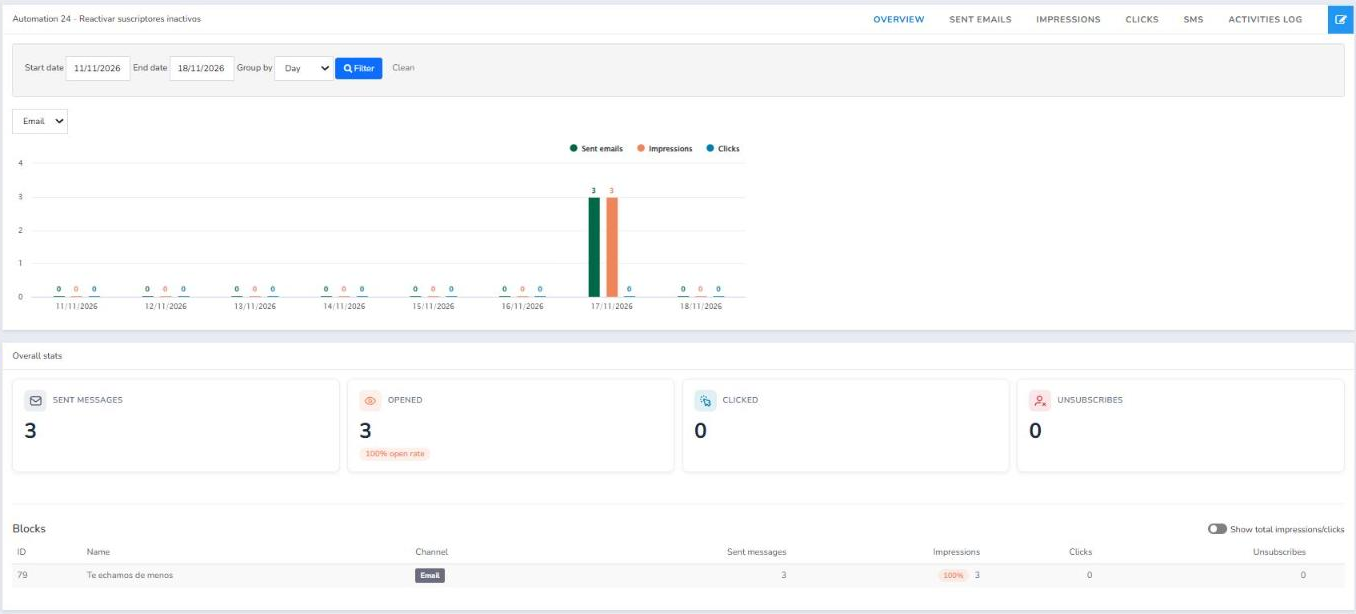
To filter by date, choose a Start date and an End date and click Filter. In Group by you can see the data by Day or by Month, and choose Email or SMS.
See the details of sends, impressions and clicks
At the top of the report you have these tabs:
- Sent emails: the status of each email, for example Delivered, Bounced or Ignored. You can filter by Email, status and automation block, and export the list with Export to CSV.
- Impressions: all the automation emails that have been viewed. Tick Unique to see the unique views of each email.
- Clicks: the clicks your subscribers have made, with the URL. Tick Unique to see each email only once, even if they clicked more than once.
- SMS: the SMS sent by SMS automations, with their status.
- Activities log: the subscriber's email, when each activity was created and when it was completed. Tick Show only pending activities to see the ones that have not finished yet.
If a subscriber has been stopped because two or more automations were triggering each other, they will appear as "Stopped: Automation loop". The "?" icon explains the reason and how to resolve it. In a CSV export, this reason appears in the "Reason for stopping" column.
Frequently asked questions
These are the most common questions about automation reports.
Can I see the report of a disabled automation?
Yes. The list includes all the automations you have created, also those with Enabled set to No, with the data of the sends they already made.
Are reports available on the free account?
Yes. You can create automations and check their reports with the free account. It is the same account you use to send your email marketing campaigns and your newsletter.