User settings
On this screen you'll find the account settings section of your Mailrelay account.
You can access it either through Settings >> User settings or in the upper right corner where the name is displayed >> User Settings.
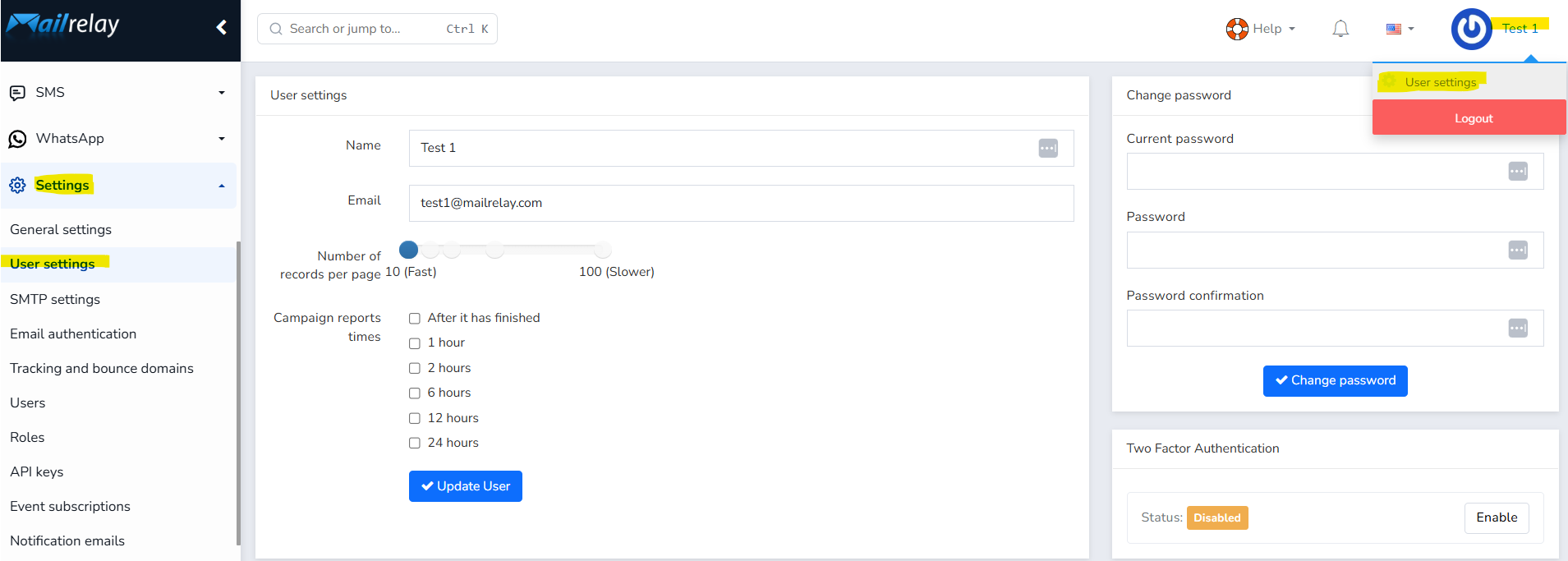
User settings (Left panel)
- Name: Field for the user's name.
- Email: Email address associated with the account.
- Number of records per page: A slider that controls how many items are shown in lists (subscribers, sent newsletter reports, etc.) per page. It ranges from 10 (faster loading) to 100 (slower loading, but you can see more data at once).
- Report sending frequency:Checkboxes to choose how often you want to receive automatic email reports about your campaigns:
- After the sending has been completed
- Every 1, 2, 6, 12, or 24 hours (you can select several options)
- Update User button: Saves the changes made in this section.
Change password (right panel, top)
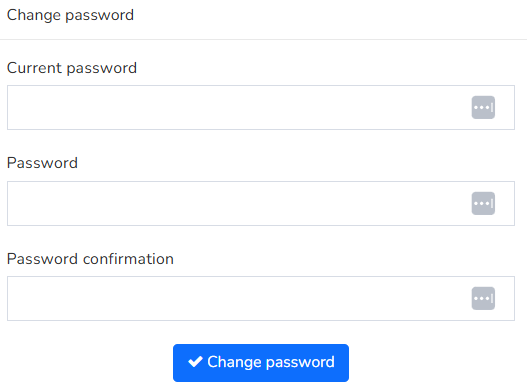
- Current password: Enter your current account access password.
- Password: The new password you want to set.
- Confirm password: Repeat it to avoid typing errors.
- Change password button: Applies the change.
Two-factor authentication (right panel, bottom)
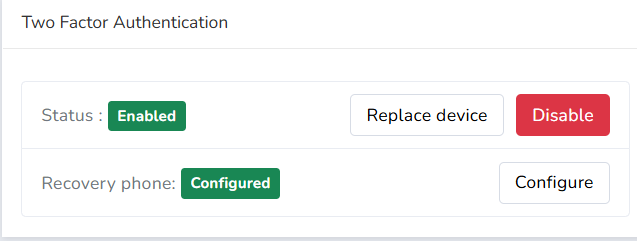
Shows the current Status:
- Status: Shows whether it's Enabled (meaning you have 2FA enabled).
- Option to replace device: In case you've changed phones or want to connect it again.
- Disable: Option to remove 2FA so you're no longer asked for a 2FA code every time you access your Mailrelay account.
- Recovery mobile phone: If it shows configured, it means you've set it up (IMPORTANT: ALWAYS ADD A RECOVERY MOBILE PHONE FOR YOUR ACCOUNT).
- Configure: Used to set up this recovery mobile phone option.
If you don't have 2FA set up, it will look like this:
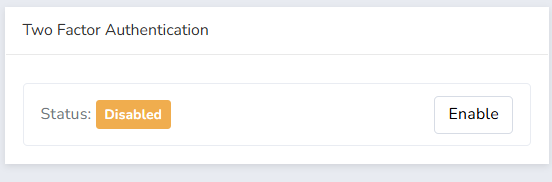
- Under Status it shows the current status: in this case it indicates Disabled.
- Enable button: Activates two-step verification (2FA), adding an extra layer of security to login (usually with an app like Google Authenticator). You have more information on how to enable 2FA.
Was this article helpful?
That’s Great!
Thank you for your feedback
Sorry! We couldn't be helpful
Thank you for your feedback
Feedback sent
We appreciate your effort and will try to fix the article