
How to install a signup form on a website
The same signup form may be displayed as an embedded form or a pop-up.
With a signup form on your website you can attract new subscribers for your newsletter and your email marketing campaigns. In Mailrelay you create the form once and then install it on your website by copying and pasting a code, without needing to program. Signup forms are also available with the free account.
In this article, we explain where to find the code, how to install it as an embedded form or as a pop-up, how to share the form with its own URL and what happens when someone subscribes.
TABLE OF CONTENTS
- Where to find the form code
- Using it as an embedded form
- Using it as a popup form
- Sharing the form with its URL
- What happens when someone subscribes
- How to protect the form from spam
- Related articles
Where to find the form code
Forms are managed in Subscribers >> Signup forms. If you do not have one yet, you need to create it first (see the article Creating signup forms).
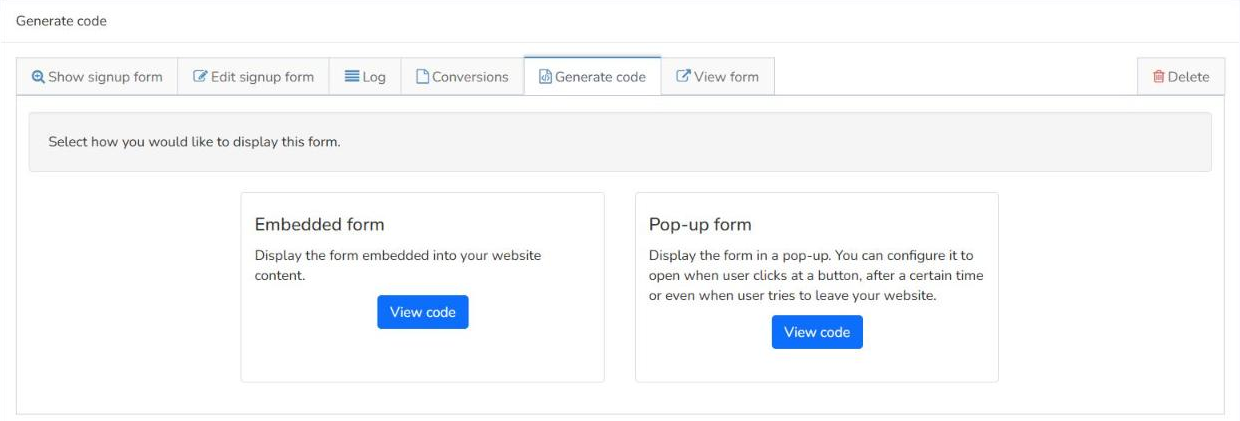
When you click on the name of a form in the list, you will see its details and, at the top, the options Show signup form, Edit signup form, Log, Conversions, Generate code, View form and Delete. When you click on Generate code you can choose how to display the form:
- Embedded form: displays the form embedded in your website content.
- Pop-up form: displays the form in a pop-up window, which can open when the user clicks a button, after a certain time or when the user tries to leave your website.
Using it as an embedded form
- Navigate to the Signup forms page.
- Select one of the signup forms from the list.
- Click on Generate code.
- Click on View code in the Embedded form section.
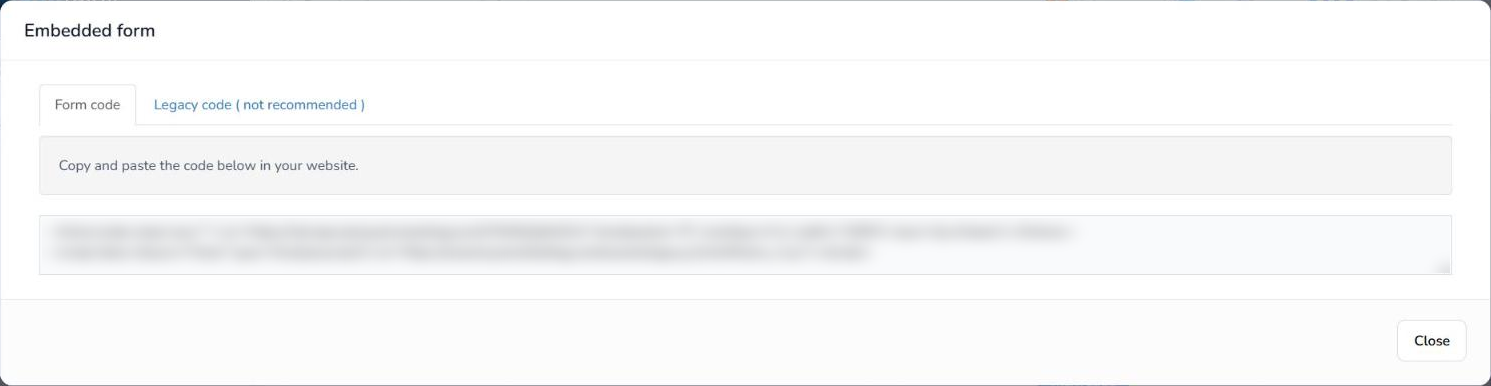
- Copy and paste the generated code on your website.
The embedded form code consists of an iframe and a script. Paste it into your website HTML, in the place on the page where you want the form to appear.
Using it as a popup form
- Navigate to the Signup forms page.
- Select one of the signup forms from the list.
- Click on Generate code.
- Click on View code in the Pop-up form section.
- Select when the popup form will be displayed: When user clicks a button:The pop-up will be displayed only if the user clicks the button.
- After a specific amount of time: after loading the page, the system will wait before displaying the form.
- When user tries to leave the page: The system will display the pop-up after the user moves the mouse out of the browser window.
- Copy and paste the generated code on your website.
The option When the user tries to leave the page may not work on all browsers and/or mobile devices.
In the pop-up code window, the Open pop up field has three options, and different settings appear depending on the one you choose:
- When user clicks at a button: you can change the Button label (by default, "Subscribe"). The code includes the button that opens the form.
- After an specific amount of time: in Open form after, enter how many seconds the pop-up should wait after the page loads.
- When user tries to leave the page: it has no additional settings.
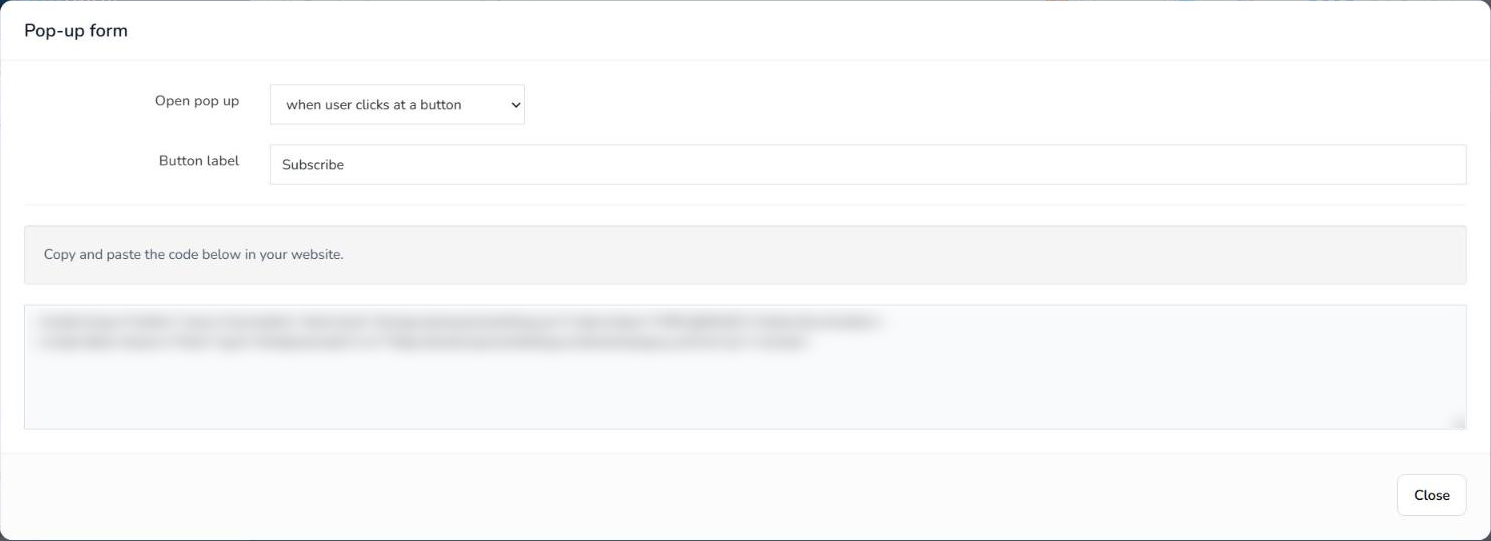
The code updates when you change the option, so copy the code after choosing how you want the pop-up to open.
Sharing the form with its URL
Besides installing it on your website, each form has its own URL, which appears in the Signup forms list. When you open it, a page with only the form is displayed, so you can share that link wherever you want, for example on your social networks. With the View form button you can check how it looks.
What happens when someone subscribes
- The subscriber receives the subscription confirmation email to confirm their signup (double opt-in). This email can be found in Settings >> Notification emails.
- The subscriber is added to the groups you have chosen in the form.
- You can send them an automatic welcome email with an automation that starts when a subscriber signs up using a signup form.
- In the form's Conversions tab you will see each signup with its date, the subscriber's email (with a link to their profile), the city, the state, the country, the browser and the operating system. If the subscriber has been deleted afterwards, "Removed" appears instead of the email. You can filter the signups by date or by subscriber and download them with Export to CSV.
This way you can measure which forms bring you the most subscribers and improve your email marketing strategy.
How to protect the form from spam
When editing the form, in Edit signup form, you will find two options to prevent fake signups:
- Captcha (spam prevention): we recommend enabling it.
- Enable honeypot field: we recommend enabling it.
Related articles
- Creating signup forms: how to create and design your form before installing it.
- How to create and use groups: how to organize the subscribers who sign up.
- Automations: how to send an automatic welcome email to new subscribers.
- Notification emails: which emails Mailrelay sends automatically, such as the subscription confirmation email.